Using an LLM to Automate the Process of Archiving New macOS App Icons

Whenever a new version of macOS drops, I find myself archiving the new app icons for my macOS icon gallery.
In the past, the work to do this was a bit tedious.
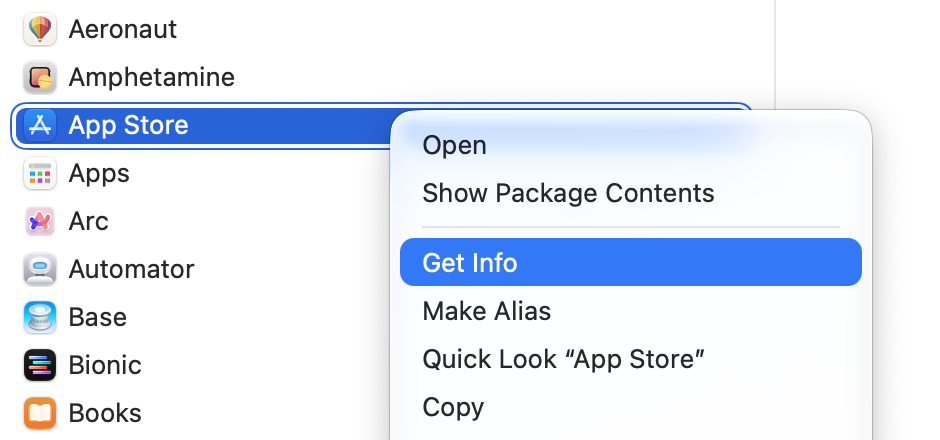
First, I’d find the app in the “Applications” folder (or elsewhere on the Mac), right click and choose “Get Info”:
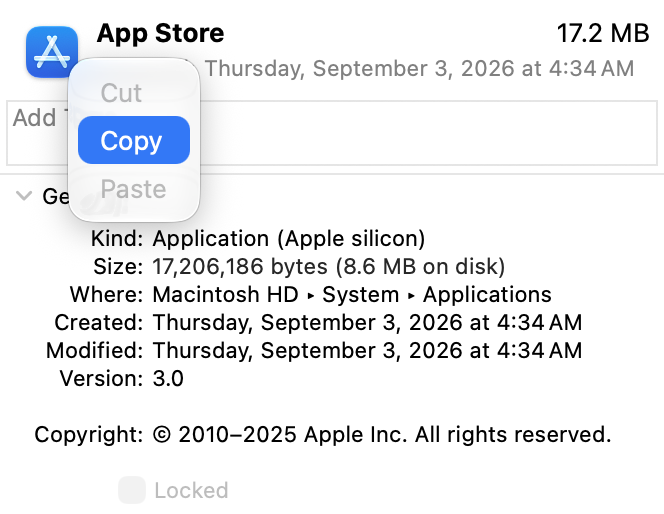
Right-click the app icon in the Get Info pane and choose “Copy”:
Open the Preview app and go “File -> New from Clipboard”:
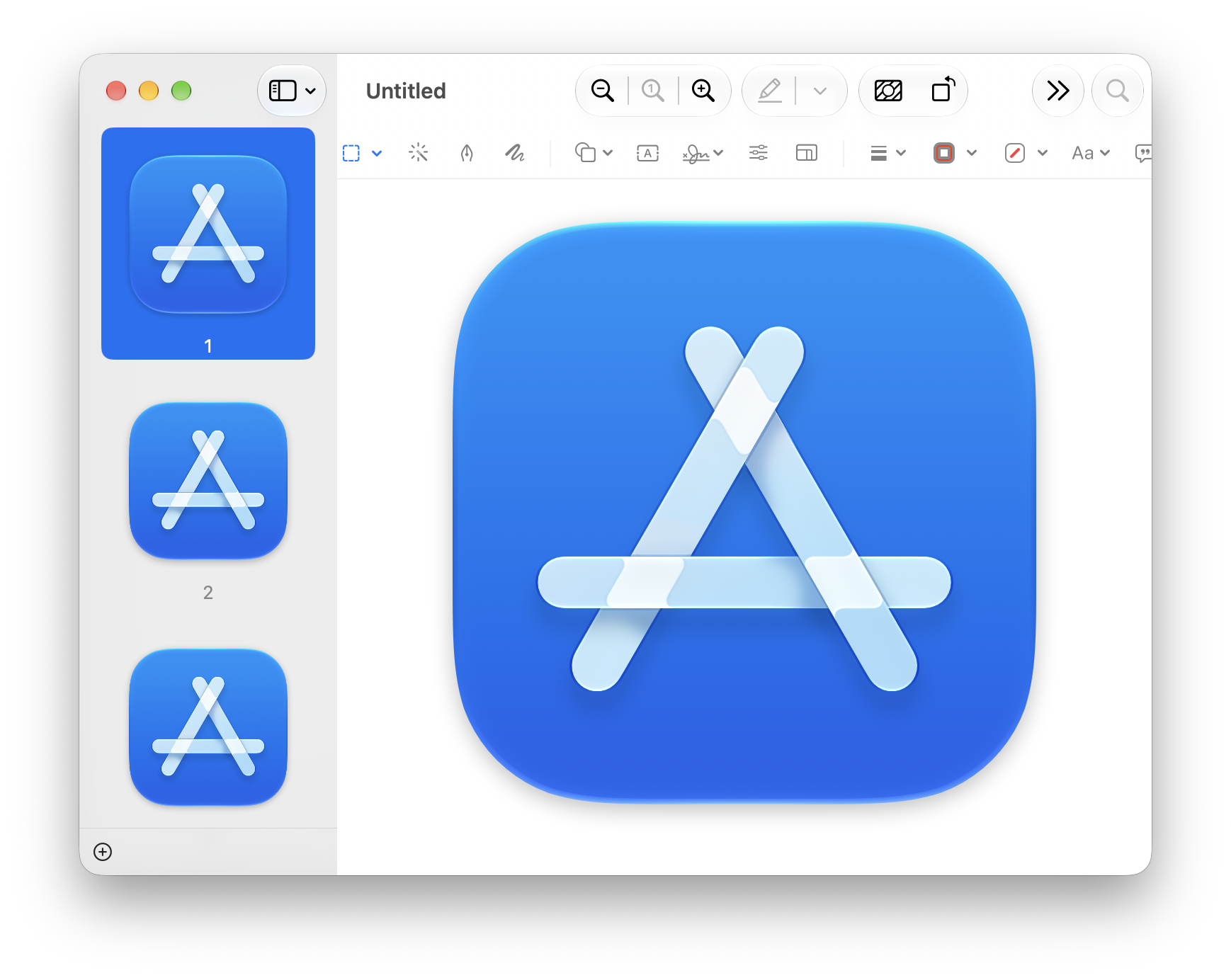
This gets me the app icon file with a variety of sizes (the 1024-pixel version is the one I want). From here, I go “File -> Export…”, choose “PNG”, and name the file as the app name, lowercased, hyphenated — e.g. “app-store.png” (I do this for automation purposes not relevant here).
Doing that for every Apple-supplied app in the OS can get tiring. It’s often upwards of 75+ icons.
“This seems like the perfect task for an LLM,” I thought. So I hastily wrote a prompt to see if it could do it.
And it did — sort of, after a little coaching.
On the first try it found an app’s .icns file, grabbed the 256×256 version, upscaled it to 1024×1024, and saved it.
So I scolded it, “No, no. NEVER upscale an image. Always find the biggest one. I can get the 1024 version myself from the ‘Get info’ pane, so surely you can find that size somewhere.”
It came back dutifully, having found the right image, and said it would never upscale again.
Satisfied it could do what I wanted, I worked on creating a list of all the apps whose artwork I wanted to archive. Then I gave that list to the LLM and said, “Do your thing.”
And it worked! It was kind of wonderful. Saved me a ton of time.
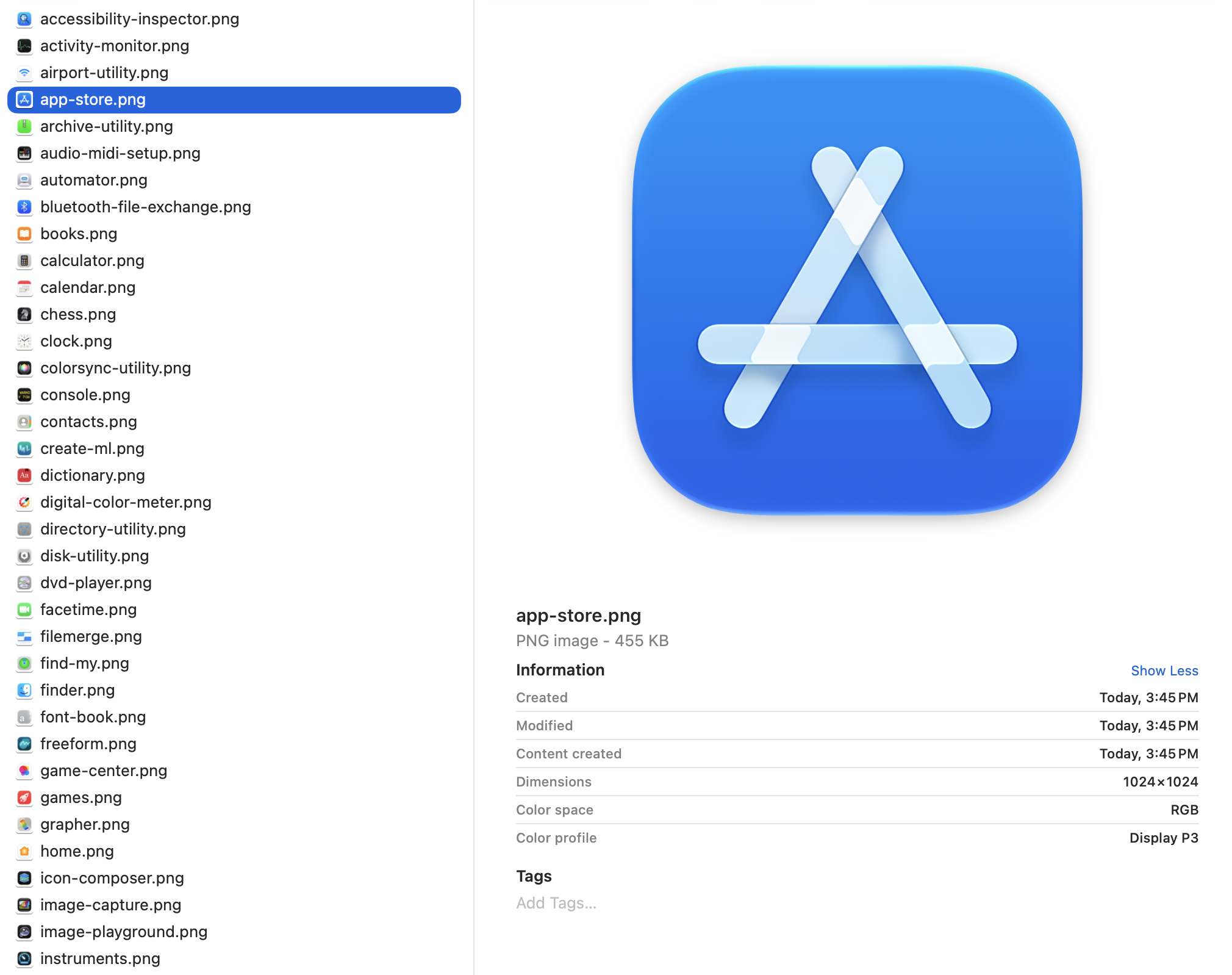
76 app icons found, extracted, and saved in much less time than it would’ve taken me to do this “by hand”.

 点赞
点赞 收藏
收藏 点踩
点踩 分享
分享