Lock screen TerminalWidgets

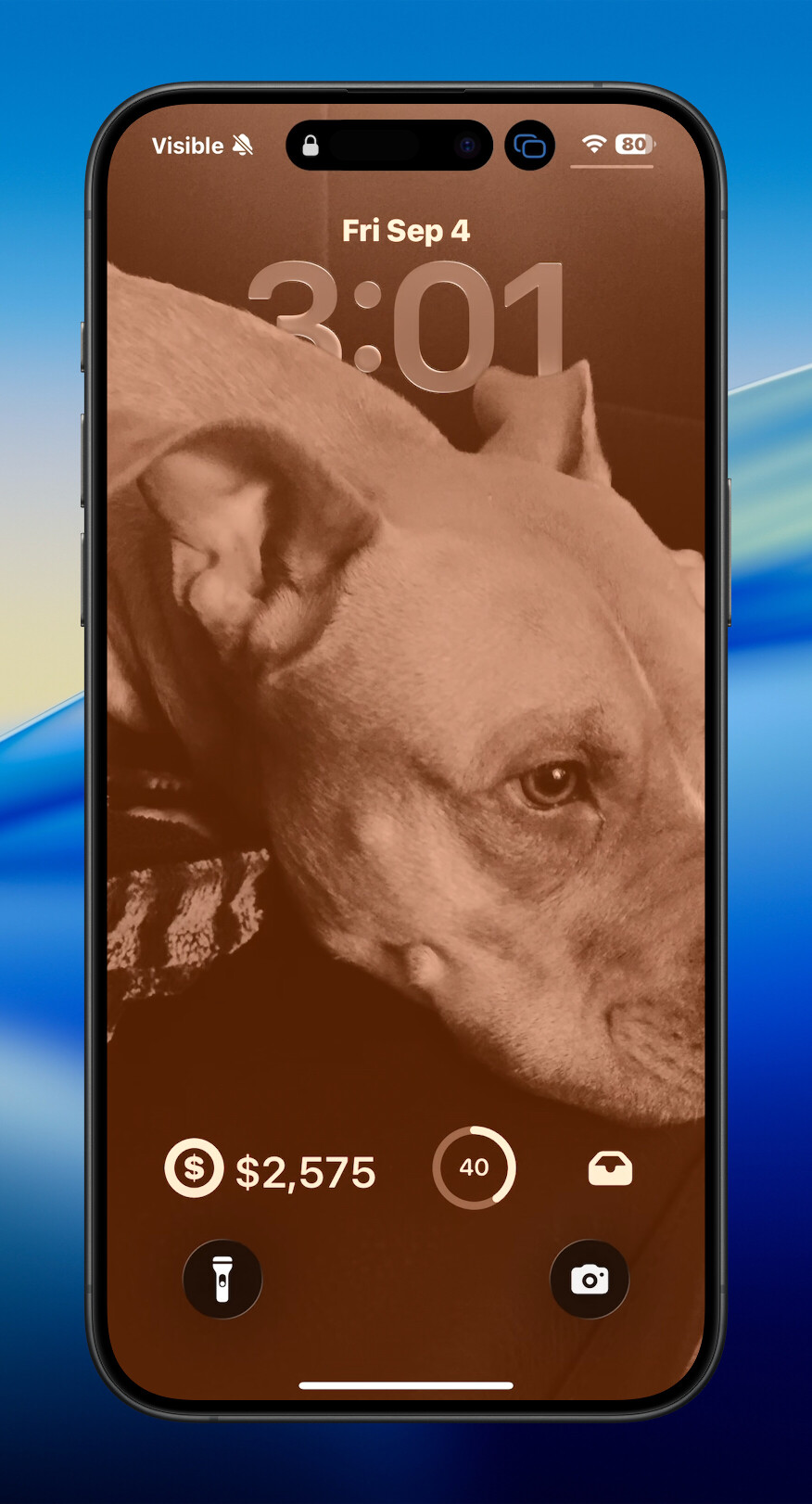
You can put Terminal Widget on the iPhone Lock Screen now. Same targets, same sync, same CLI — just a tighter layout accessible without unlocking your phone.
Two sizes
iOS gives you rectangular and circular accessories on the lock screen. Both use the usual widget target picker, so anything you already push to widget1 (or wherever) can show up above the clock.
The rectangular slot is text-first. The circular one is progress-or-icon. Neither tries to be a tiny Home Screen widget — Apple’s accessory chrome doesn’t leave room for that.

Rectangular: glanceable status
Priority is simple:
- Text (optional SF Symbol), with a thin progress bar underneath if
%is set - Progress bar + percent if there’s no text
- A small image thumbnail
- A mini chart (sparkline / graph / etc.)
- Empty fallback: terminal icon + target name
Titles, captions, tables, buttons, ANSI colors, and fancy backgrounds stay on the Home Screen. Lock Screen always strips ANSI so vibrant/accented modes don’t turn into mush.
Short status lines work especially well with --fit-text:
terminal-widget --target widget1 \
--icon "dollarsign.ring.dashed" \
--text "1243" \
--fit-textCircular: ring or symbol
If you’ve set progress, you get a ring with the integer percent in the middle. No progress? It shows your SF Symbol. Nothing else? First letter of the target name (or T).
terminal-widget --target widget2 \
--text "Build" \
--progress 40 \
--progress-format circle \
--captionOr keep it icon-only for a tray / inbox / “something needs attention” glyph:
terminal-widget --target widget3 --icon "tray.fill"Same pipeline
There’s no separate Lock Screen widget kind and no extra sync path. Mac → iCloud → iPhone still feeds the App Group; the Lock Screen just picks a different render branch when WidgetKit asks for an accessory family.
Tap behavior is the same as Home Screen when the payload has an action. Don’t park secrets on a lock-screen target — it’s meant to be glanceable by anyone who can see your phone.
Try it
Customize Lock Screen → add a widget → TerminalWidget → pick rectangular or circular → choose a target. Point that target at whatever you already automate, and you’re done.
Like or share this post Twitter.
BrettTerpstra.com is supported by readers like you. Click here if you'd like to help out.
Find Brett on Mastodon, Bluesky, GitHub, and everywhere else.