What’s New in PhpStorm 2026.3


PhpStorm 2026.3, the third major update of the year, is here! This release includes a new workspace for agentic development and multi-agent setups, support for PHP 8.6, improvements to remote development and WSL scenarios, and PHP code insight enhancements.
JetBrains Air – one place to run your agents and verify their work
PhpStorm 2026.3 ships with Air, a new layer for agentic development in JetBrains IDEs. Work with the coding agents and subscriptions you already have, and manage multi-agent setups inside PhpStorm.
The IDE’s code intelligence helps agents make fewer wrong turns and gives you the tools to review every change before it ships. Open agent sessions, project files, and diffs in the editor tabs side by side – no switching between the editor and agent workspace views.
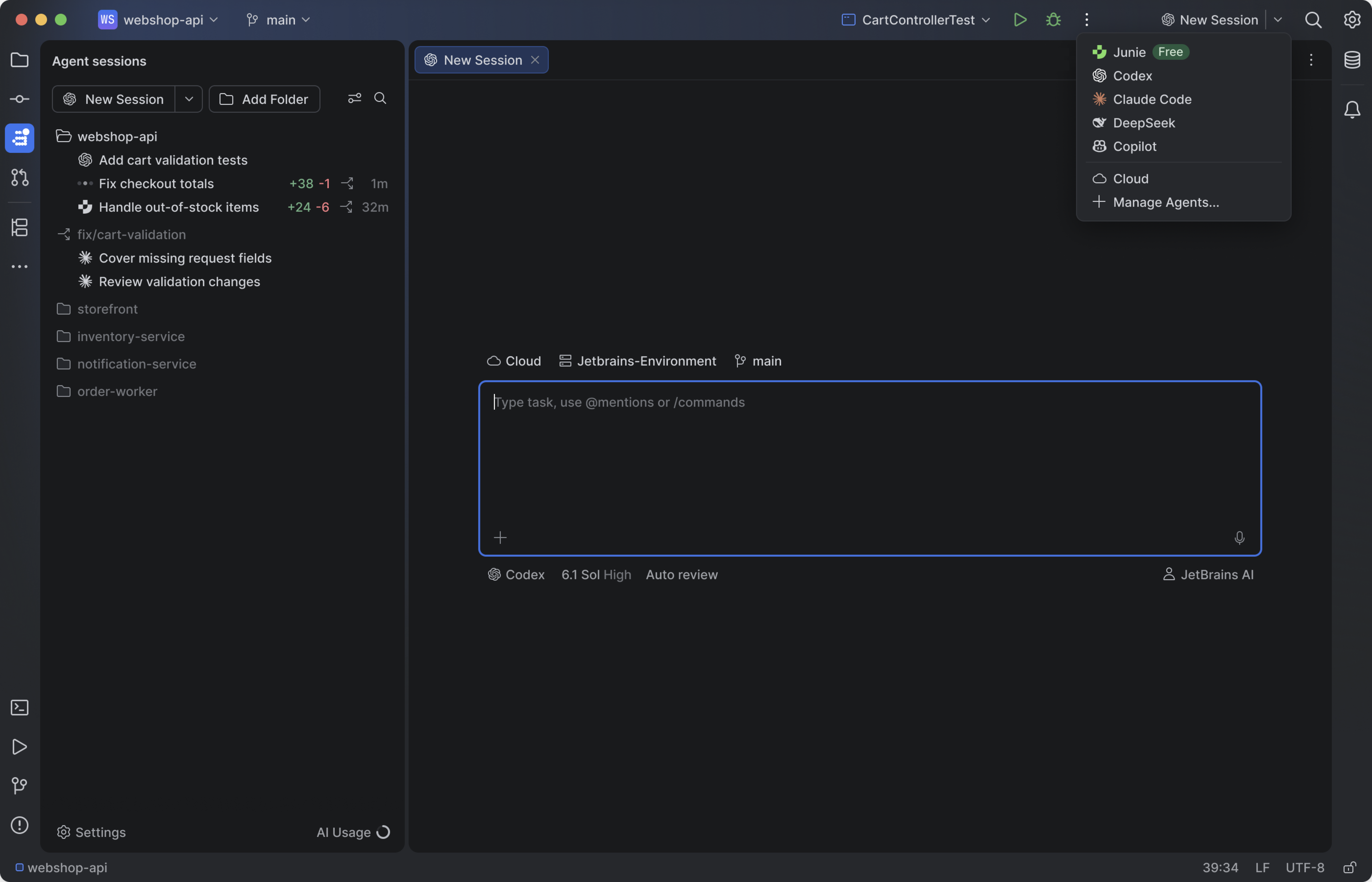
Your agents, your models, your subscriptions – with Junie Lite for free
Air in PhpStorm works with Claude Agent, Codex, Gemini, GitHub Copilot, Junie, OpenCode, and other ACP-compatible agents. It detects the agents already installed on your machine, so you can connect them with a single click and add more from the agent registry.
Your existing setup carries over, too: provider subscriptions, API keys, and even a custom base URL all work, with no JetBrains AI subscription required. Run Claude Agent on your Claude subscription in the terminal or in a full-screen IDE tab, use other agent subscriptions in the chat or terminal, and switch between subscriptions at any moment, even mid-session.
Air in PhpStorm includes free AI with the Junie Lite configuration, so you can use an agent without a subscription. You only need a JetBrains Account.
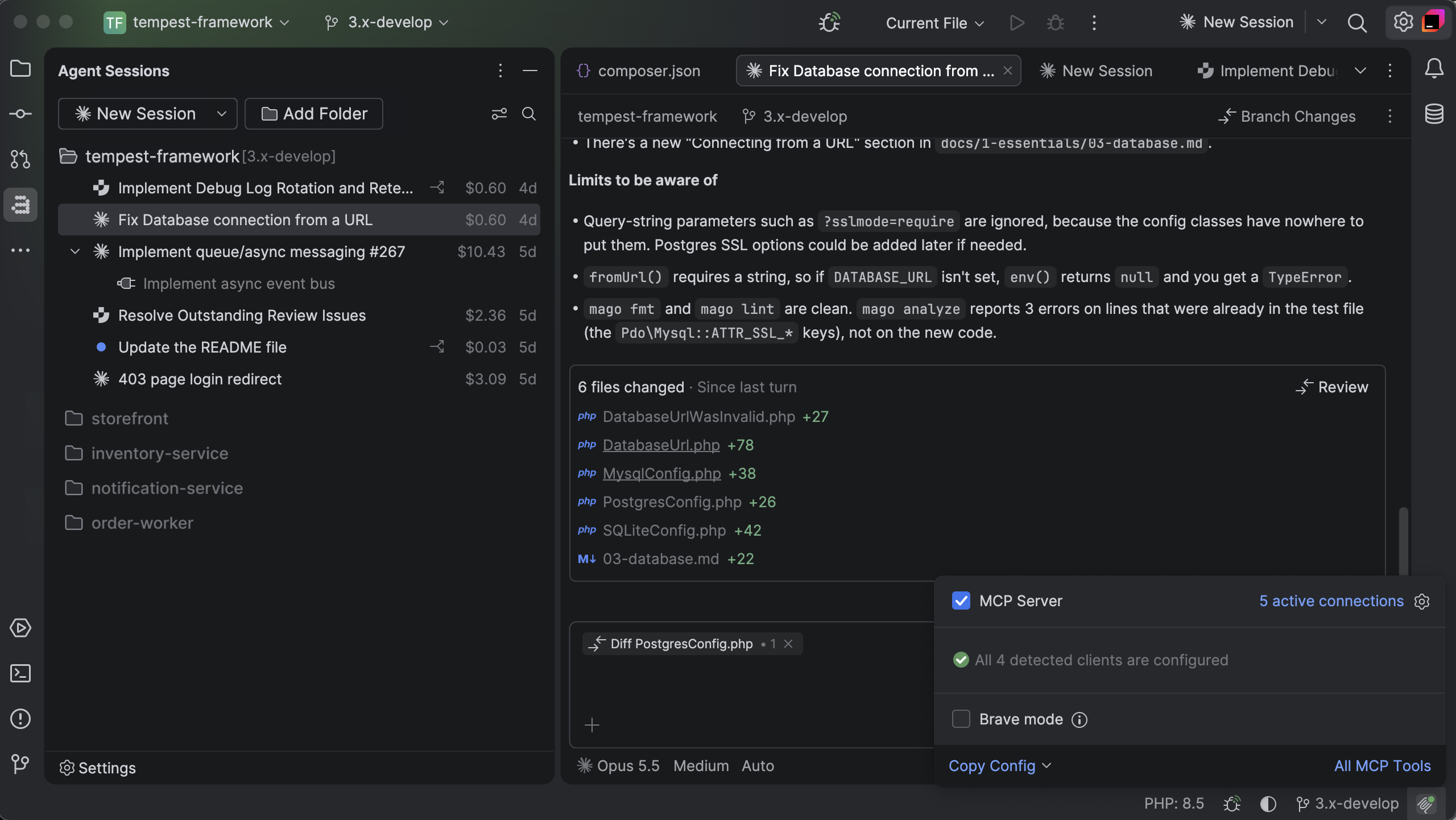
A central workspace to review changes and guide the agent
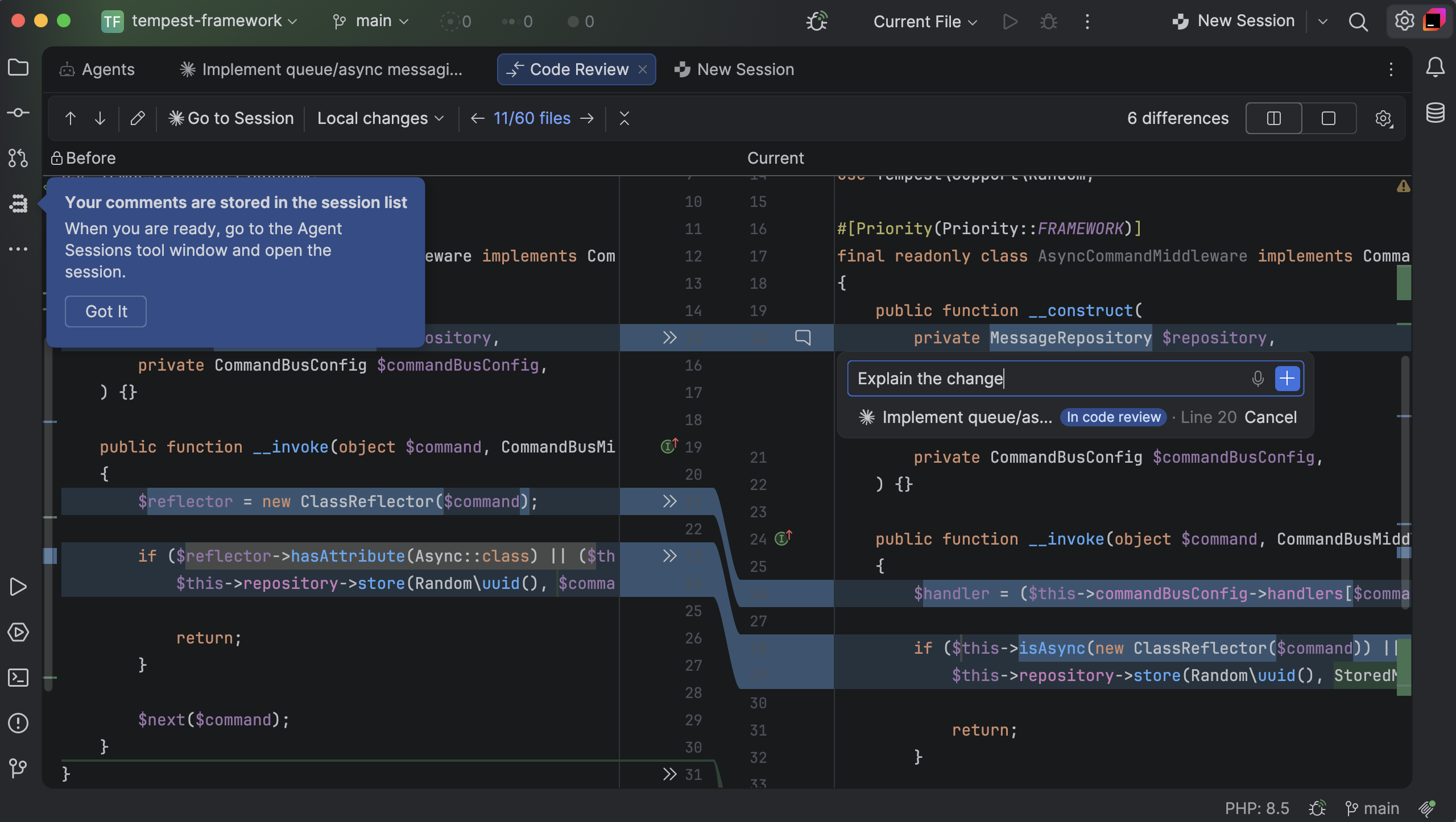
Review an agent’s changes with the surrounding code and your project tools in view, and send feedback straight back to the agent. Anchor a note to a specific line in the diff, or comment directly from the code, so the agent gets concrete context about the change you want. Work in the chat or the terminal, whichever suits you.
PHP and Laravel
PHP 8.6 support
PhpStorm 2026.3 adds support for PHP 8.6, which will be released later this November. You can configure the IDE to check your code against PHP 8.6 in the settings (by going to PHP | PHP language level) or through the php requirement in composer.json. This lets you:
- Migrate existing codebases to PHP 8.6.
The new Deprecated since PHP 8.6 inspection reports constructors and destructors that return a value or useyield. The Remove return value quick-fix removes the returned value and keeps early exits. Calls to the deprecatedmb_ereg*functions are reported too.
- Deliver quality PHP 8.6 code from day one.
PhpStorm adds code completion and type inference for PHP’s new functions, classes, and APIs and reports deprecated patterns and potential runtime errors before you or your agents run it.
- Keep supporting older PHP versions.
If your project targets PHP 8.5 or earlier, PhpStorm reports 8.6-only syntax and calls to new functions such asclamp().For a readonly property with a default value, it offers the Initialize property in constructor quick-fix.
These checks work the same way whether you wrote the code or an agent did. With PhpStorm’s MCP server enabled, agents can run the inspections and apply the quick-fixes themselves.
The php-runtime-tools skill that comes bundled with PhpStorm 2026.3 gives your agent the project’s PHP interpreter, so it doesn’t fall back to the system php and run with the wrong version or missing extensions. Type inference improvements
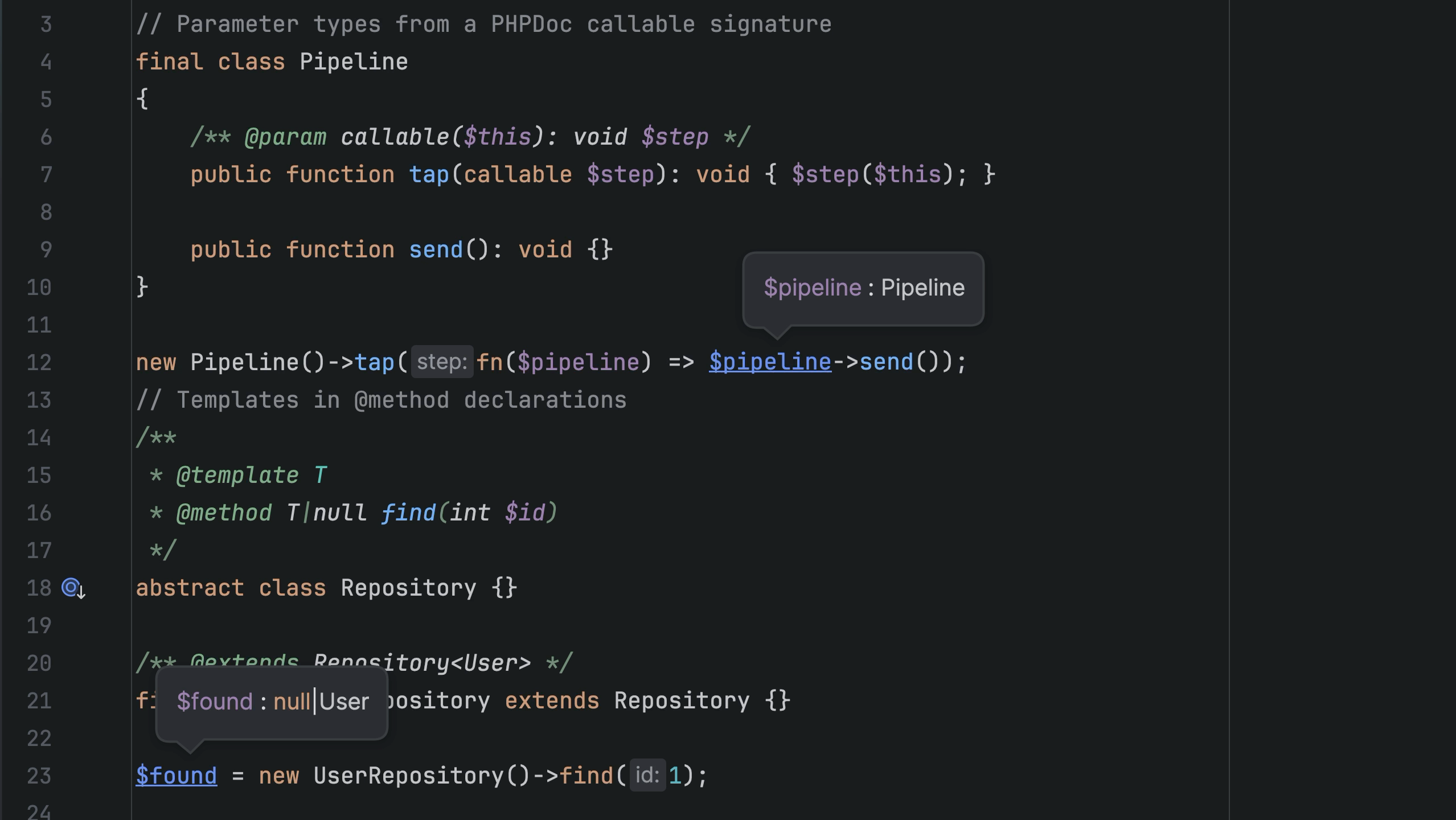
PhpStorm 2026.3 further improves type inference in code that uses generics templates, callables, and array shapes. The enhancements and bug fixes include support for the @param-closure-this tag and parameter types from PHPDoc callable signatures, templates in @method declarations, return types for generic factories that take a class-string argument, and arrays built with the spread operator.
Laravel support enhancements
Laravel support adds new inspections that work in the editor and via PhpStorm’s MCP server, so your agents can check their own changes too. These inspections include Unknown config keys, Laravel routes for missing resource route methods, and Unknown Livewire component method. The inspections catch config keys and methods that don’t exist – errors that look correct in a diff and only show up at runtime.
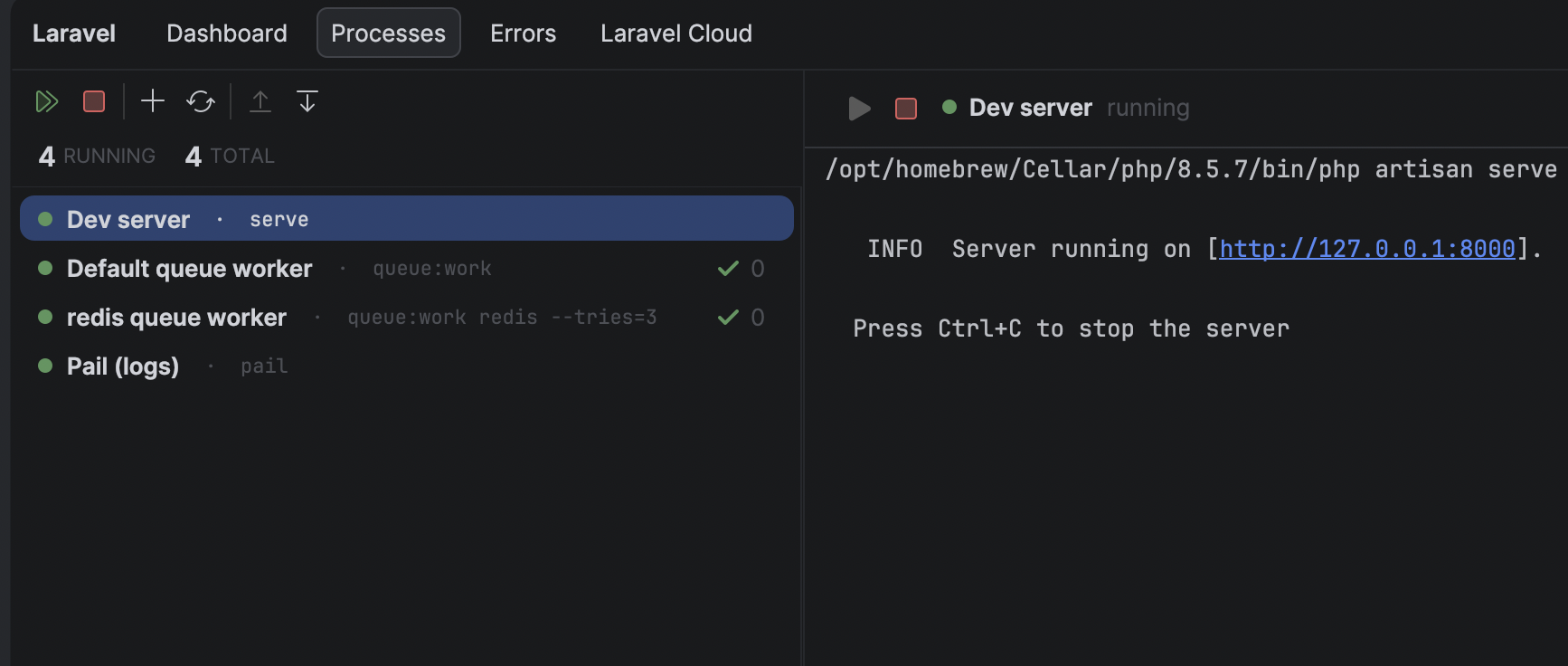
The Laravel tool window also adds a Processes tab for managing long-running processes like the dev server, queue workers, and npm dev commands. You can list, start, stop, restart, or view output from them all in one place instead of switching between terminal tabs.
Version control
Git worktrees for parallel work and easy code reviews
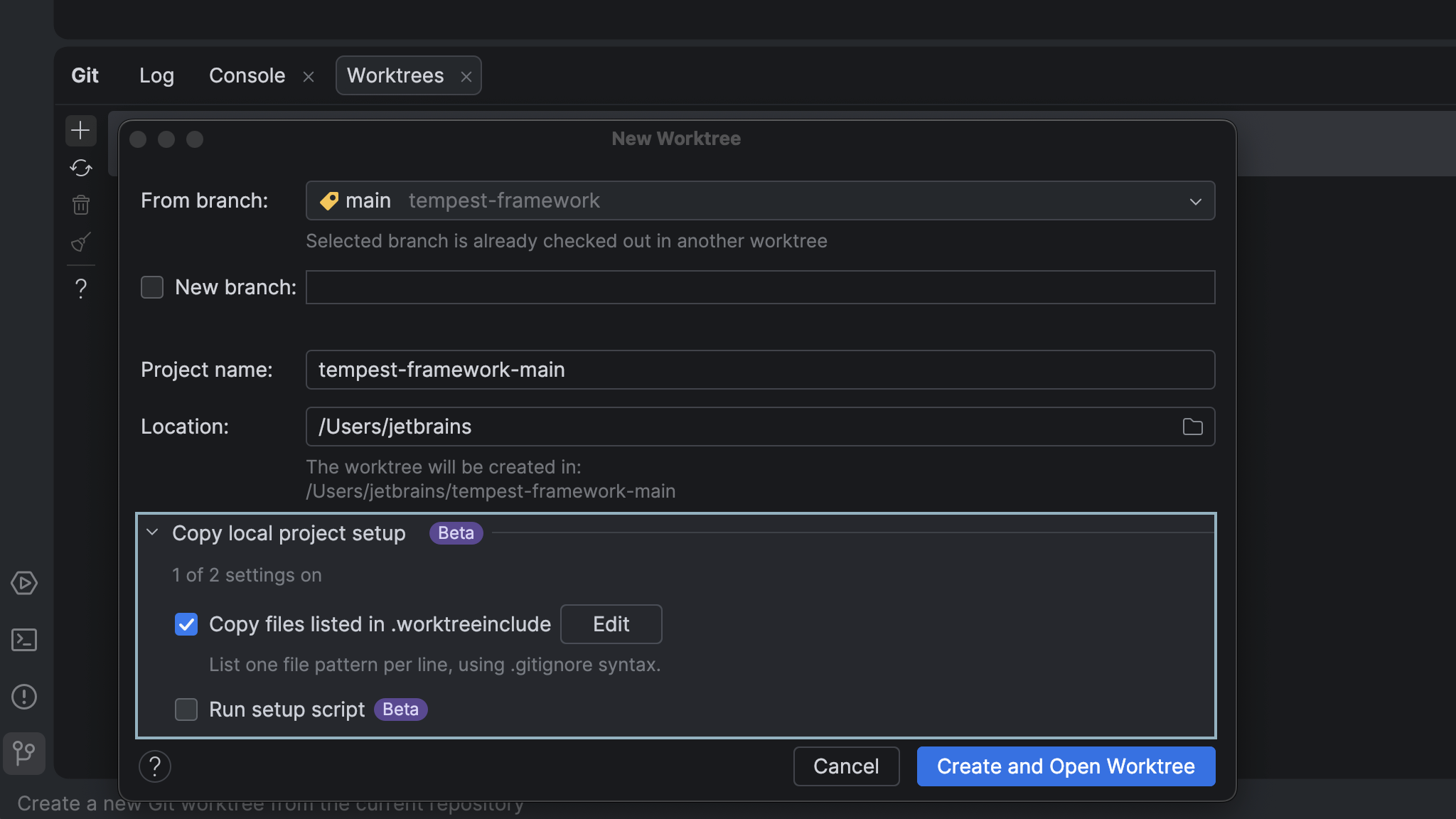
PhpStorm can now copy your local project configuration into new Git worktrees, including run configurations and other settings stored in .idea. You no longer need to commit those settings to Git or recreate them for each worktree.
You can also list local and ignored files in .worktreeinclude for the IDE to copy, and configure a custom script to run when a worktree is created, for example, to install dependencies.
GitHub and GitLab changes in a separate worktree
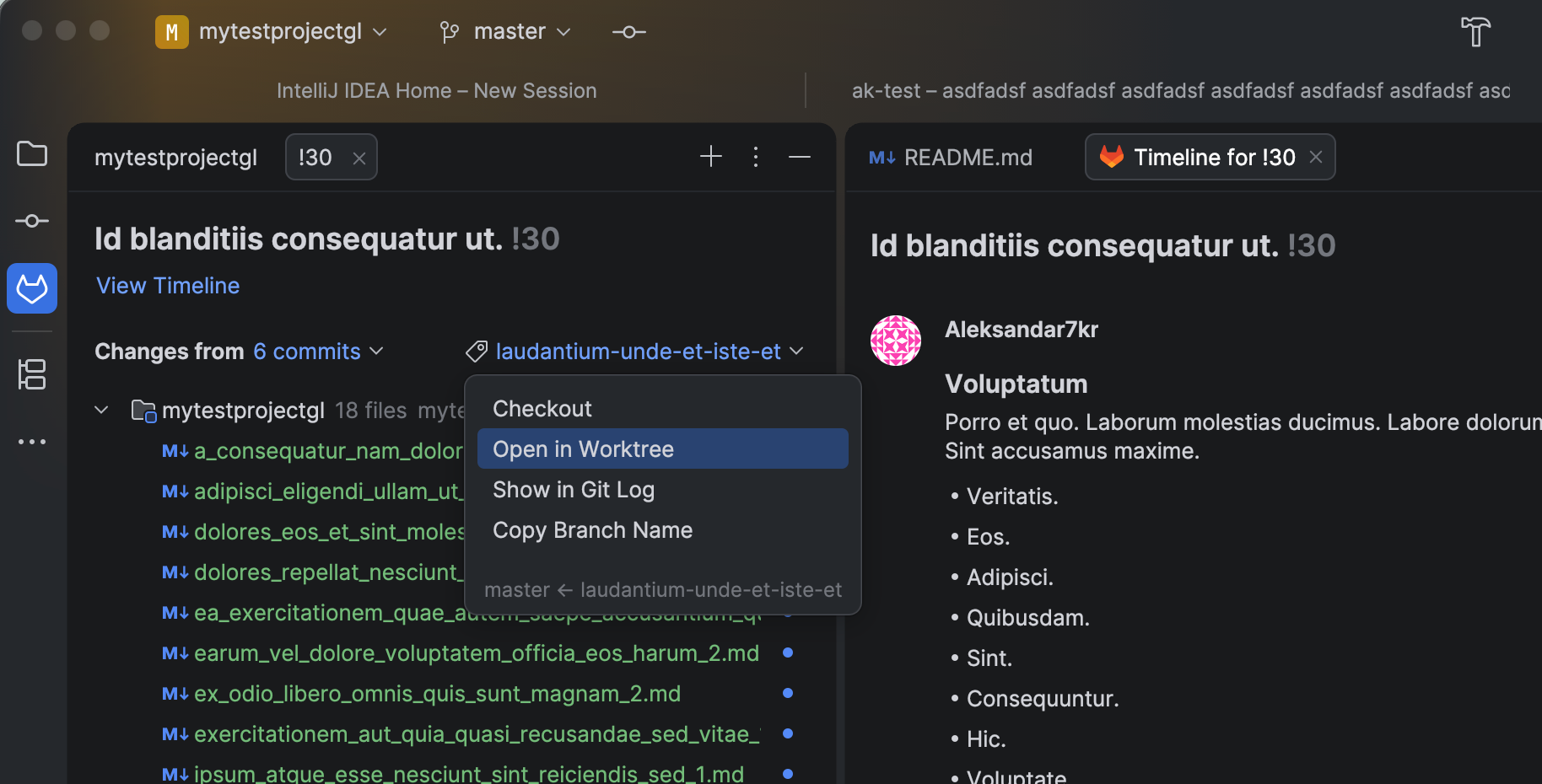
Open a GitHub pull request or GitLab merge request in a separate Git worktree to review changes with full IDE support. Your current branch and uncommitted changes stay intact, so you can review code without stashing your work or switching branches.
GitLab connections with OAuth
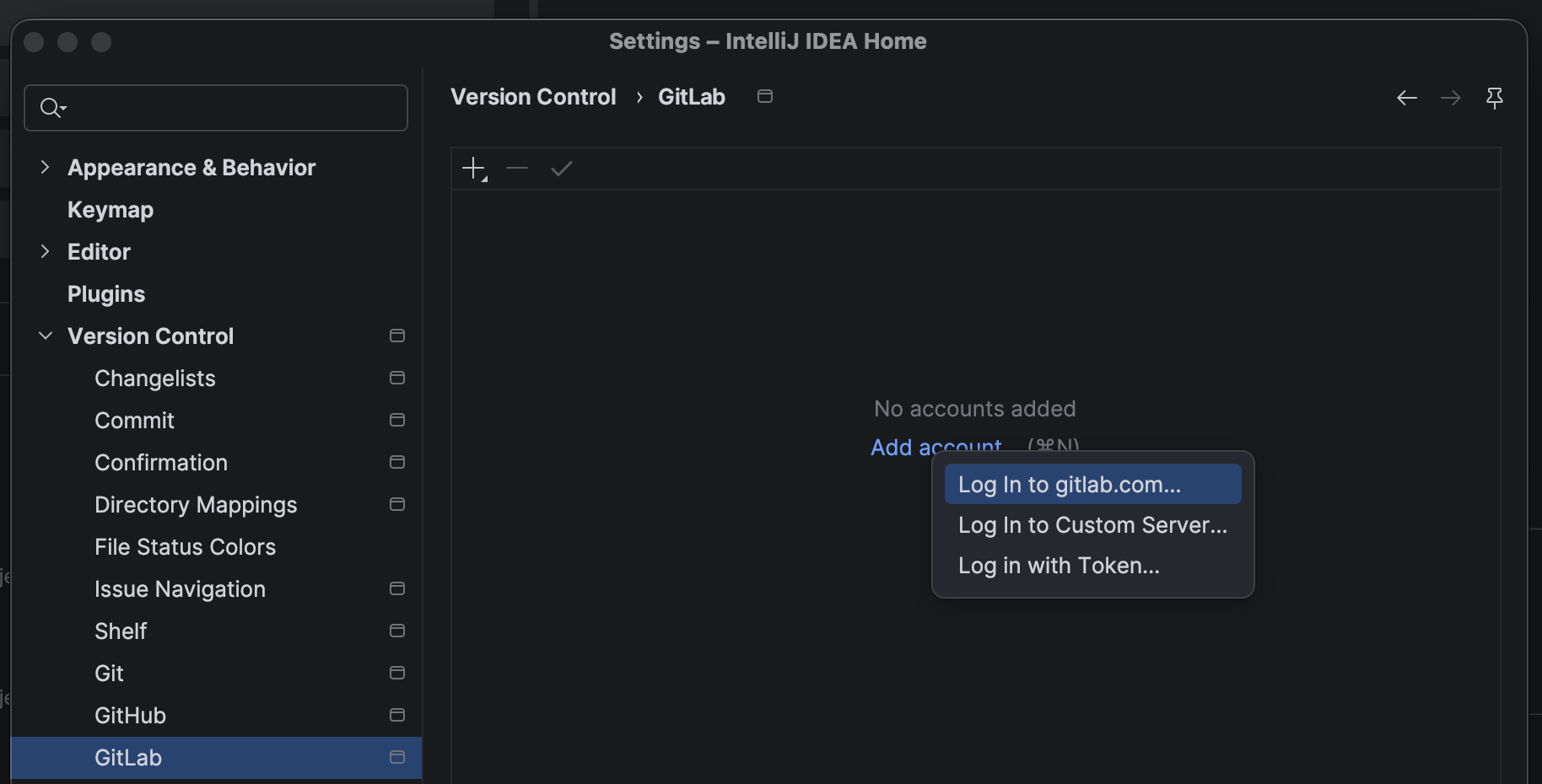
Connect your GitLab account to your JetBrains IDE by signing in through your browser, without creating and pasting a personal access token. OAuth authentication works with GitLab.com and custom GitLab instances, and you can use the connected account for merge requests and Git operations over HTTPS.
UX/UI
Quick tasks and edits without opening a project
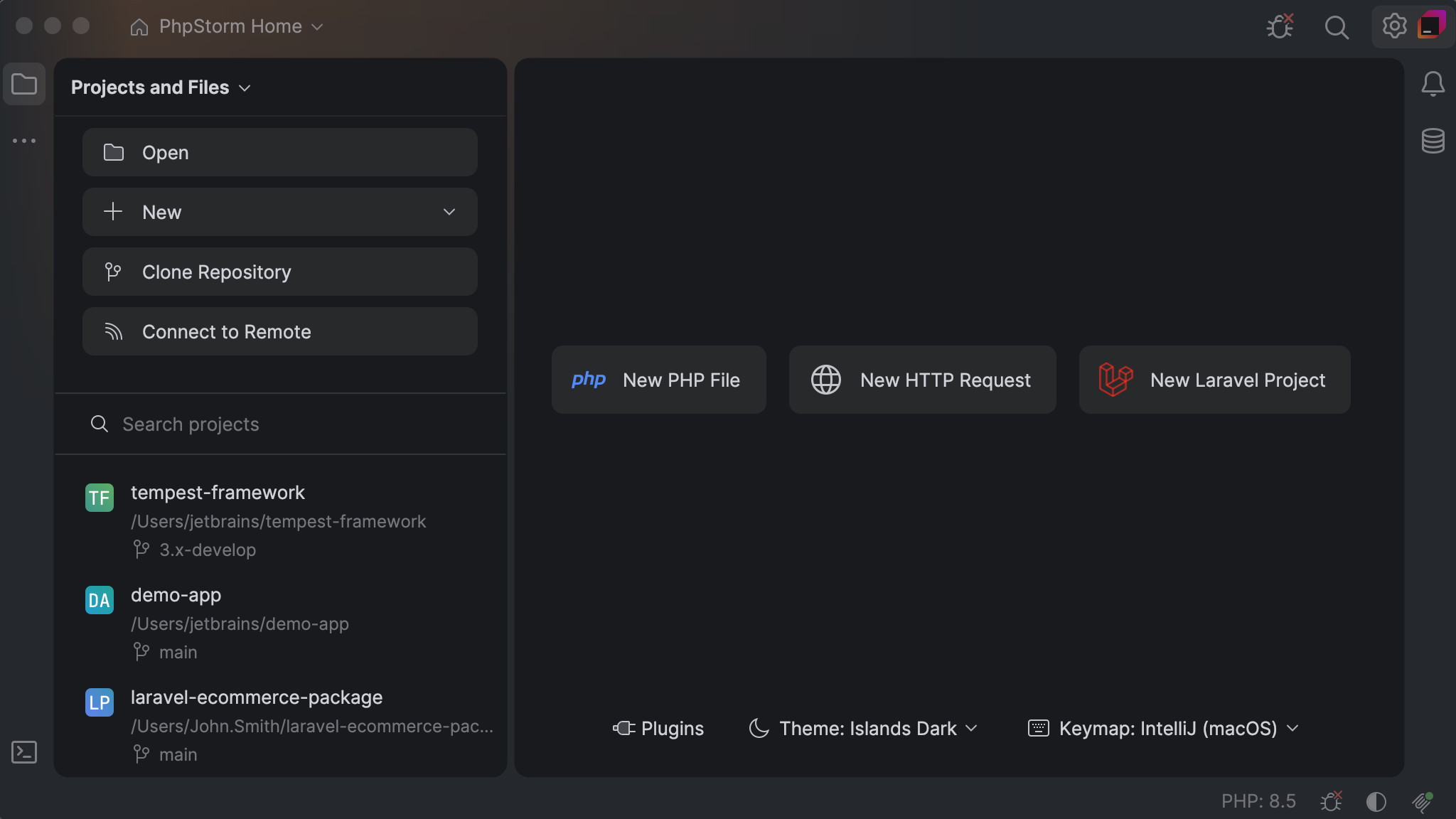
Not every task needs an open project. The new Home window replaces the Welcome screen, so you can get to work the moment PhpStorm opens. Edit a file, run a terminal command, use database tools, or perform Git actions – all without waiting for a full project to load.
Create a standalone file and start typing immediately, choosing its name and location when you save. When you need the full power of the IDE, your recent projects, along with actions to open or create a project, are on the left.
Sound cues for IDE events and editor line marks
We’re continuing our work on making PhpStorm accessible to every developer. This release introduces sound cues, built-in responses to requests that give you information without requiring that you have the context in view.
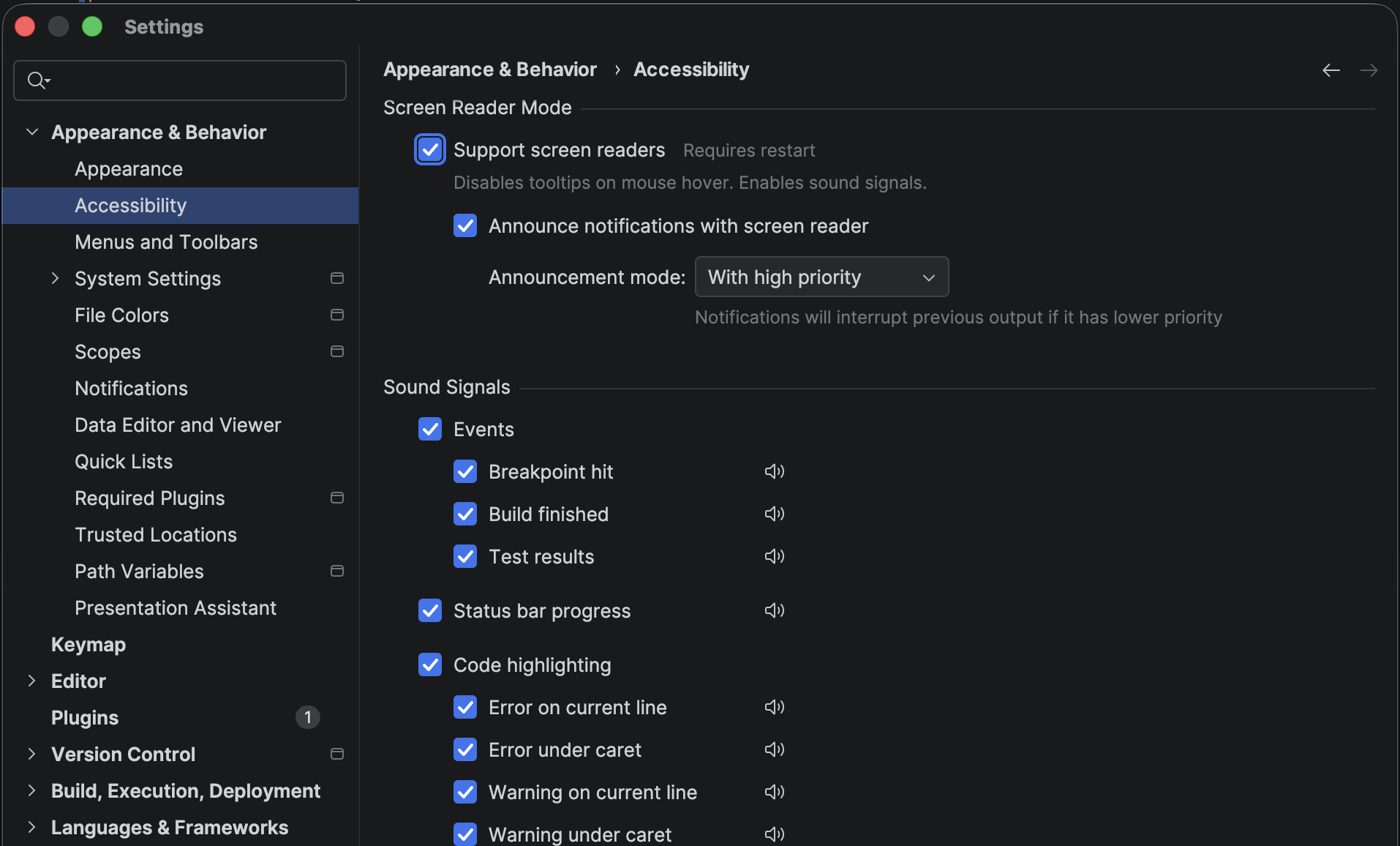
Screen reader users now get audio cues for editor line marks: errors and warnings, lines added, changed, and removed under version control, and code folding. You can also hear when things finish. With screen reader support enabled, line-mark cues and sounds for the most important events (builds, tests, breakpoint hits) are enabled by default. Agents in Air come with sound cues of their own, and they’re enabled by default for everyone, whether or not you enable screen reader support.
You can explore and preview the sounds on the new Accessibility settings page, and use the Play sound checkbox on the Notification settings page to enable cues for a specific notification group. Learn more from this blog post.
Terminal
A more reliable terminal for your command-line tools
PhpStorm’s terminal now runs on libghostty, the terminal emulation library that powers Ghostty itself. This improves support for keyboard shortcuts, emoji, and styling in terminal applications, including AI coding agents such as Claude Code, Codex, and Junie.
You get the compatibility of a modern standalone terminal, along with IDE features such as file links and command blocks, keeping your terminal workflow close to your code. Ghostty’s support for evolving terminal standards also helps the IDE keep pace with the CLI tools you use. Learn more from this blog post.
Terminal tabs in the editor
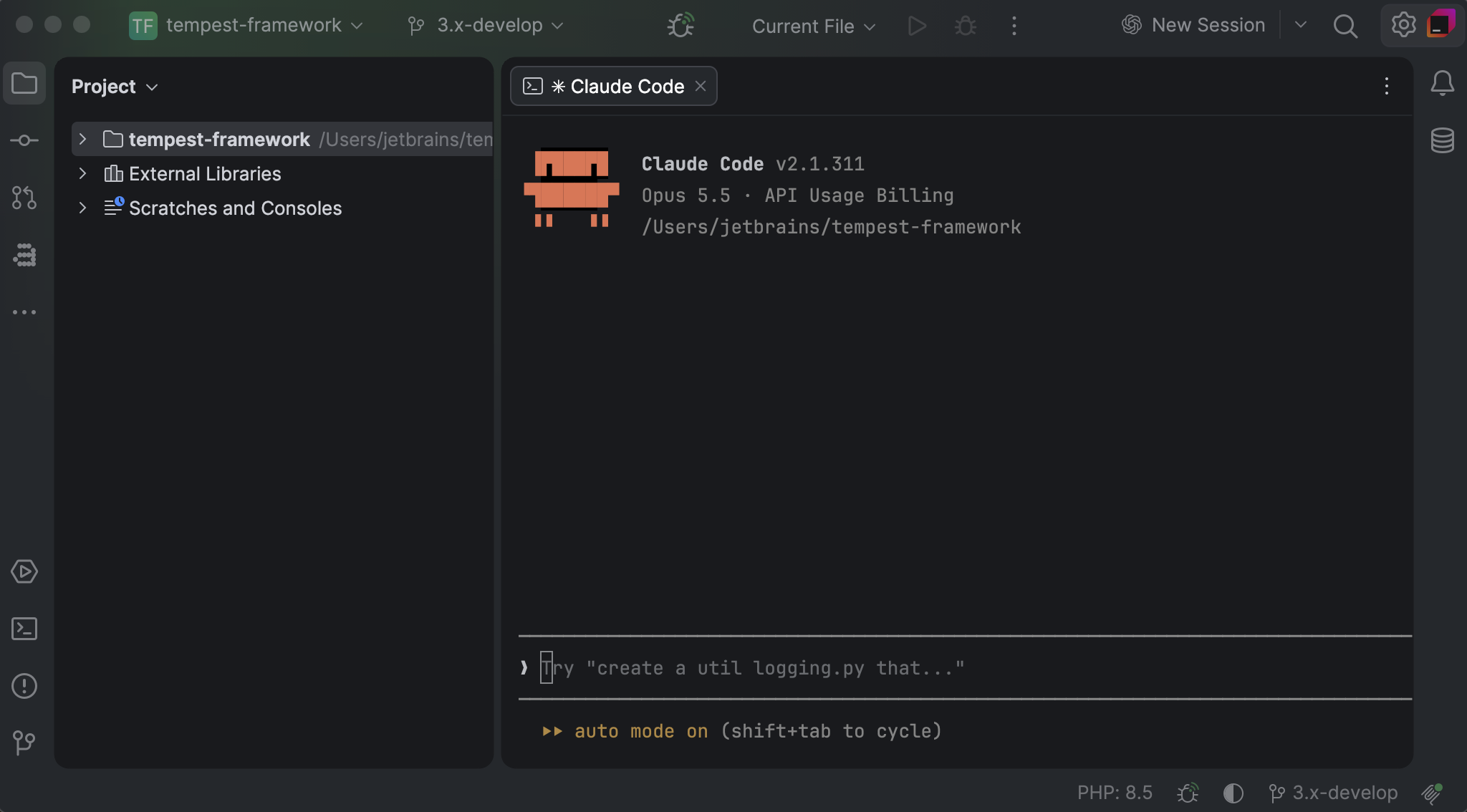
Give build logs, long command output, and terminal-based agents such as Claude Code more room alongside your code. In PhpStorm 2026.3, you can simply drag a terminal tab into the editor area, choose Open as Editor Tab from its context menu, or use the dedicated shortcut Alt+Shift+Enter, even while a session is running.
Split terminal tabs beside source files, switch between them with the switcher, and name them yourself or let them take the name of the process you start. You can drag a tab back to the Terminal tool window or invoke Return to Tool Window from the tab context menu when you want to change the layout.
If a session is running, the IDE will warn you when you try to close its tab or restart the IDE, helping prevent unintentional session termination and potential data loss.
Performance
Freeze fixes in everyday PHP workflows
PhpStorm 2026.3 fixes a significant number of user-reported UI freezes in Composer projects, deployment connections, Twig debugging, and the IDE’s type inference by moving blocking operations off the UI thread. Now the editor keeps responding while operations like file I/O or network calls run in the background.
Automatic error and freeze reporting
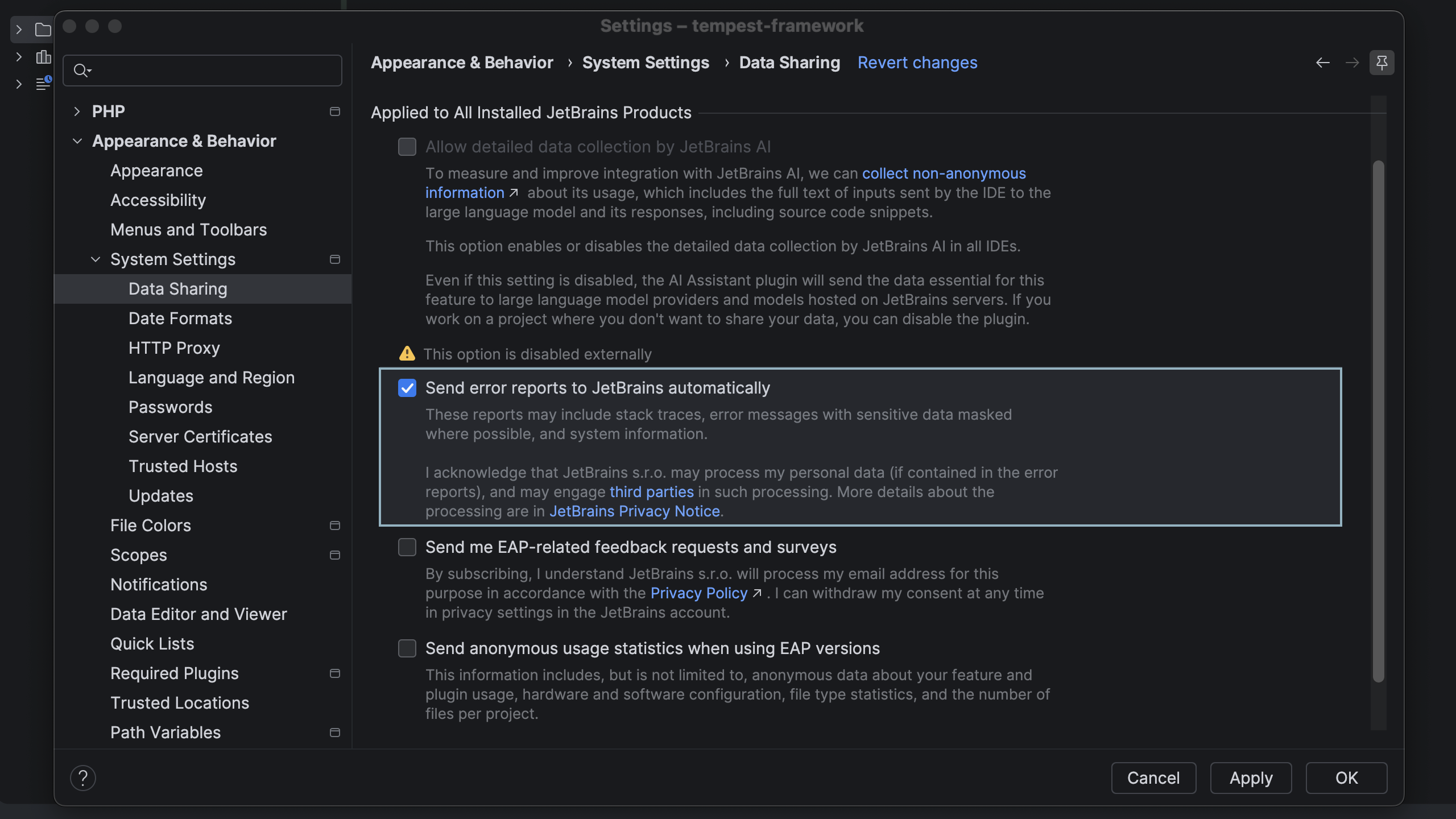
In version 2026.3, PhpStorm automatically sends error and UI freeze reports to JetBrains, helping us identify the problems that interrupt your work and prioritize fixes based on their impact.
Reports contain only technical data. Personal details such as file paths, URLs, and usernames are removed from report messages before they leave your machine. You can turn automatic reporting off in Settings | Appearance & Behavior | System Settings | Data Sharing.
Details in the FAQ.
WSL
Project setup in WSL
PhpStorm 2026.3 further improves how you work with PHP projects in WSL, including:
- PHP interpreter setup: The IDE now detects all PHP binaries installed in your WSL distribution, setting the WSL connection, the distribution, and the binary path for each automatically.
- Xdebug configuration: PhpStorm 2026.3 forwards the debugger connection into the WSL distribution, so you can debug a PHP script or tests with a WSL interpreter without extra network setup.
- Browsing files in the quality tool, test framework, and Composer settings: The file chooser now opens files in the WSL distribution directly. PhpStorm inserts the Linux path of the file that you select.
Remote development
Remote development directly from the IDE
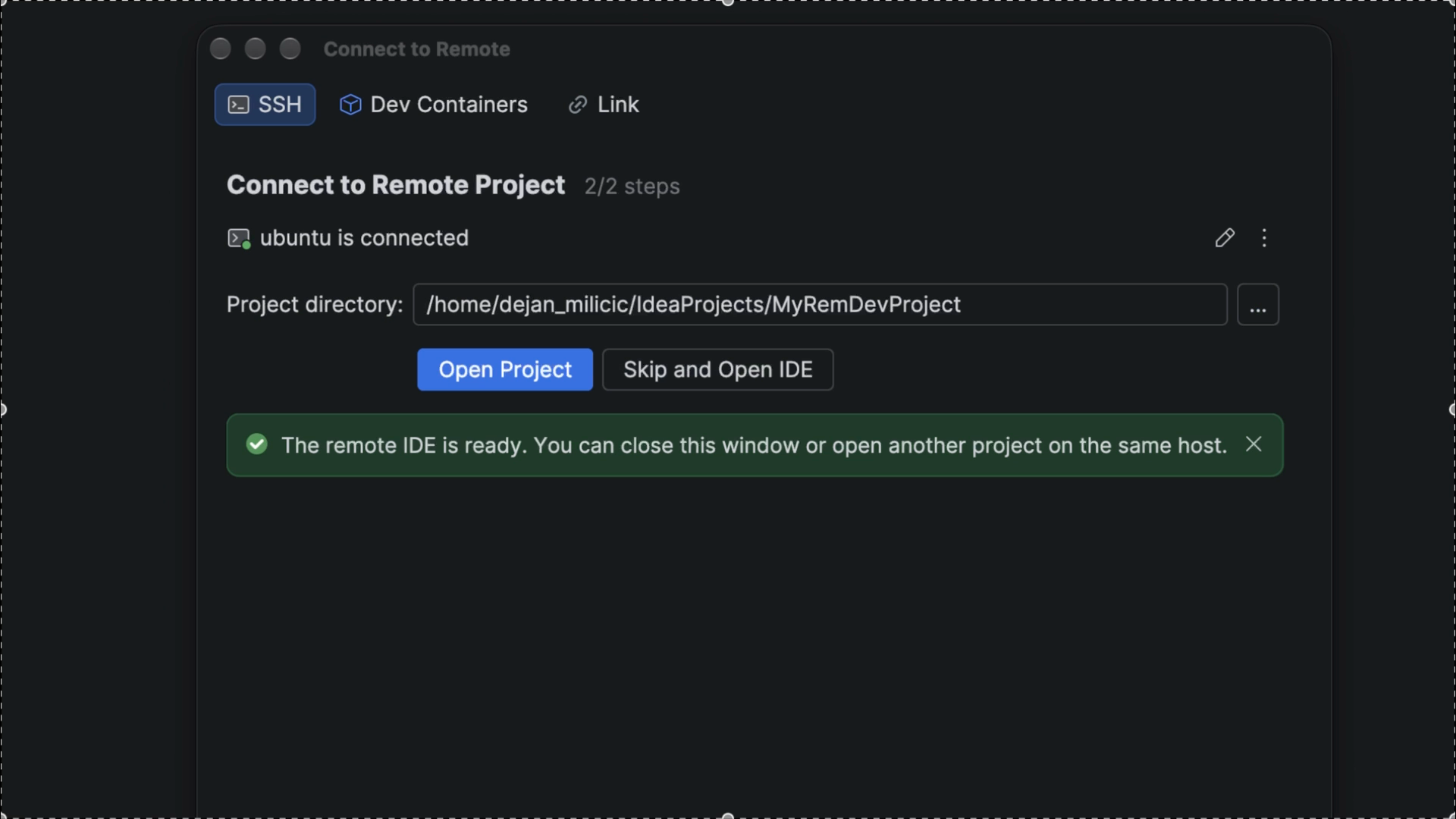
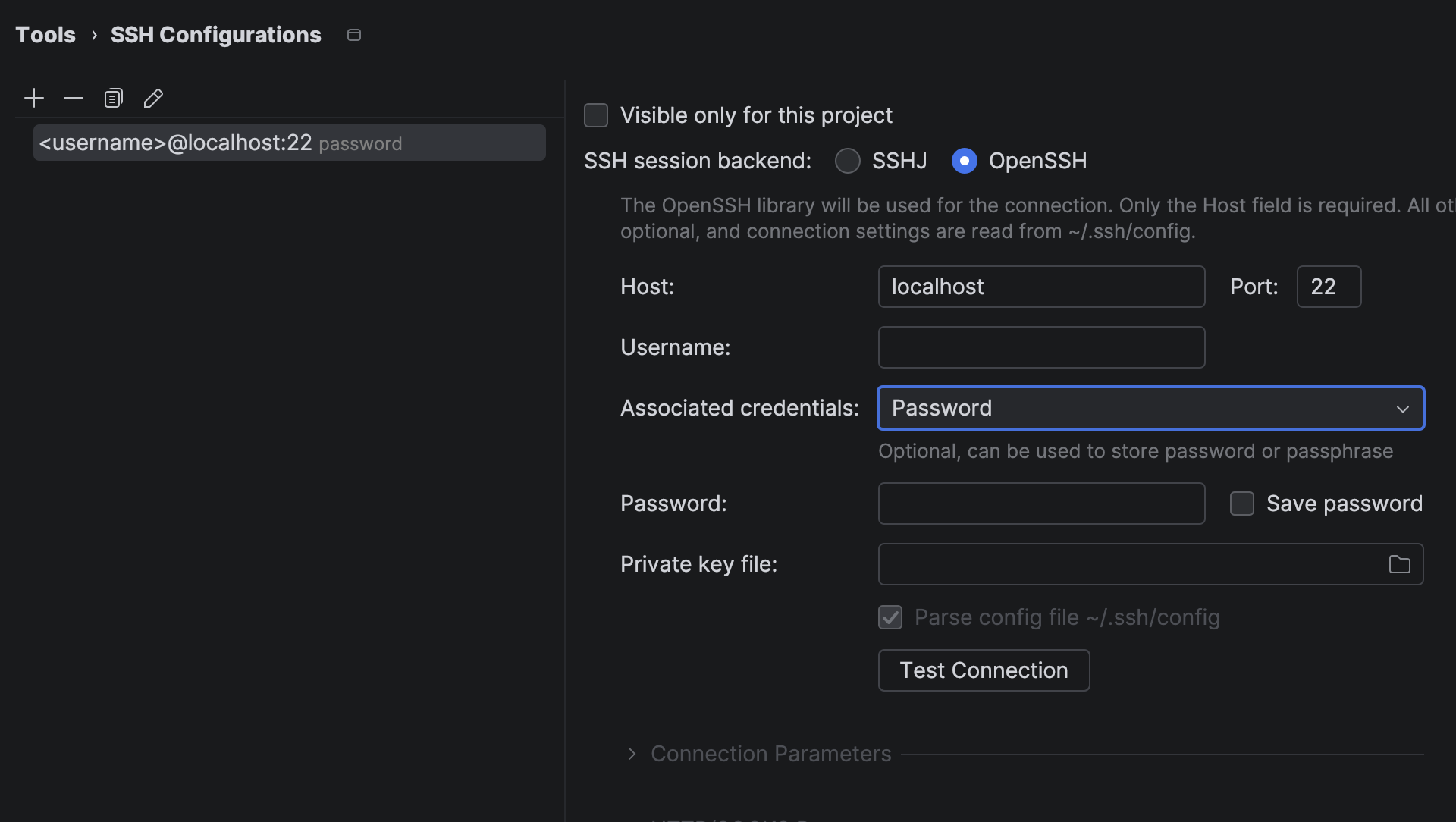
You can now work on projects hosted on a remote machine directly from PhpStorm. An integrated SSH connection flow lets you connect to a host, start a development session, and reconnect to existing sessions, keeping remote work part of your everyday coding workflow.
With connection and session management built into the IDE, your team will have fewer applications to configure, maintain, and keep secure.
Light mode for remote development
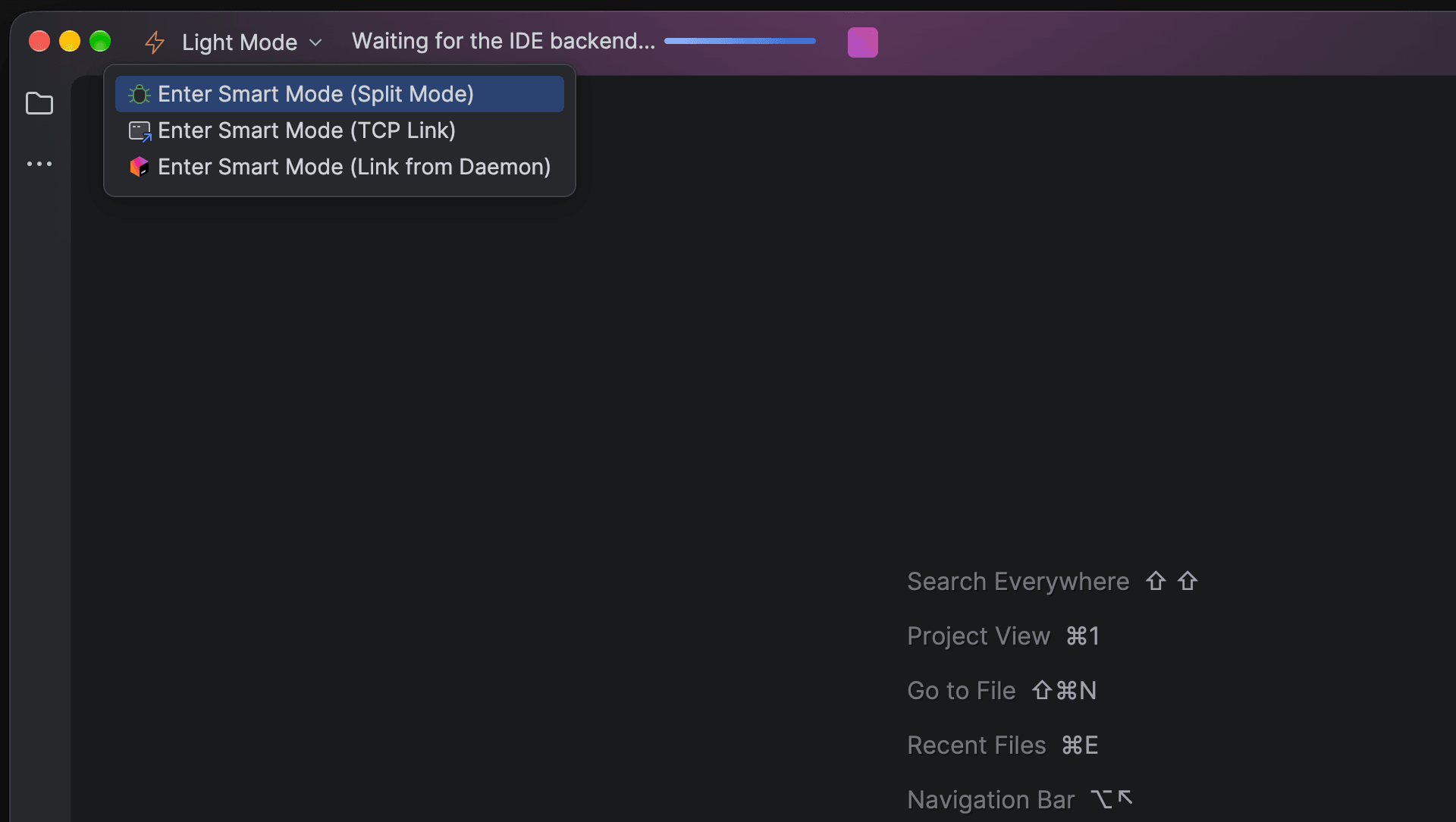
You can now start working on a remote project while the remote IDE is still downloading, installing, and launching. Light mode opens the project early and gives you immediate access to editing, the terminal, and file search, with no additional downloads. Once the remote IDE is ready, your session transitions to full mode automatically, preserving your work and state.
Native OpenSSH support
JetBrains IDEs now use OpenSSH for SSH connections, improving compatibility with the authentication methods and tools your team already uses.
Expanded support includes certificate-based authentication, hardware security tokens such as YubiKey, kerberos-sspi, X11 forwarding, and ProxyJump, along with a broader range of SSH agents and wrappers.
Databases
Database-specific features in JetBrains Air
You can now work with your databases directly in chats with AI agents. Run SQL from the chat, view CSV data in the data editor, and reference database objects with completion and Quick Definition support. SQL snippets use your IDE’s syntax highlighting and formatting settings, so queries in the chat read the same way they do in the editor.
Cross-database queries
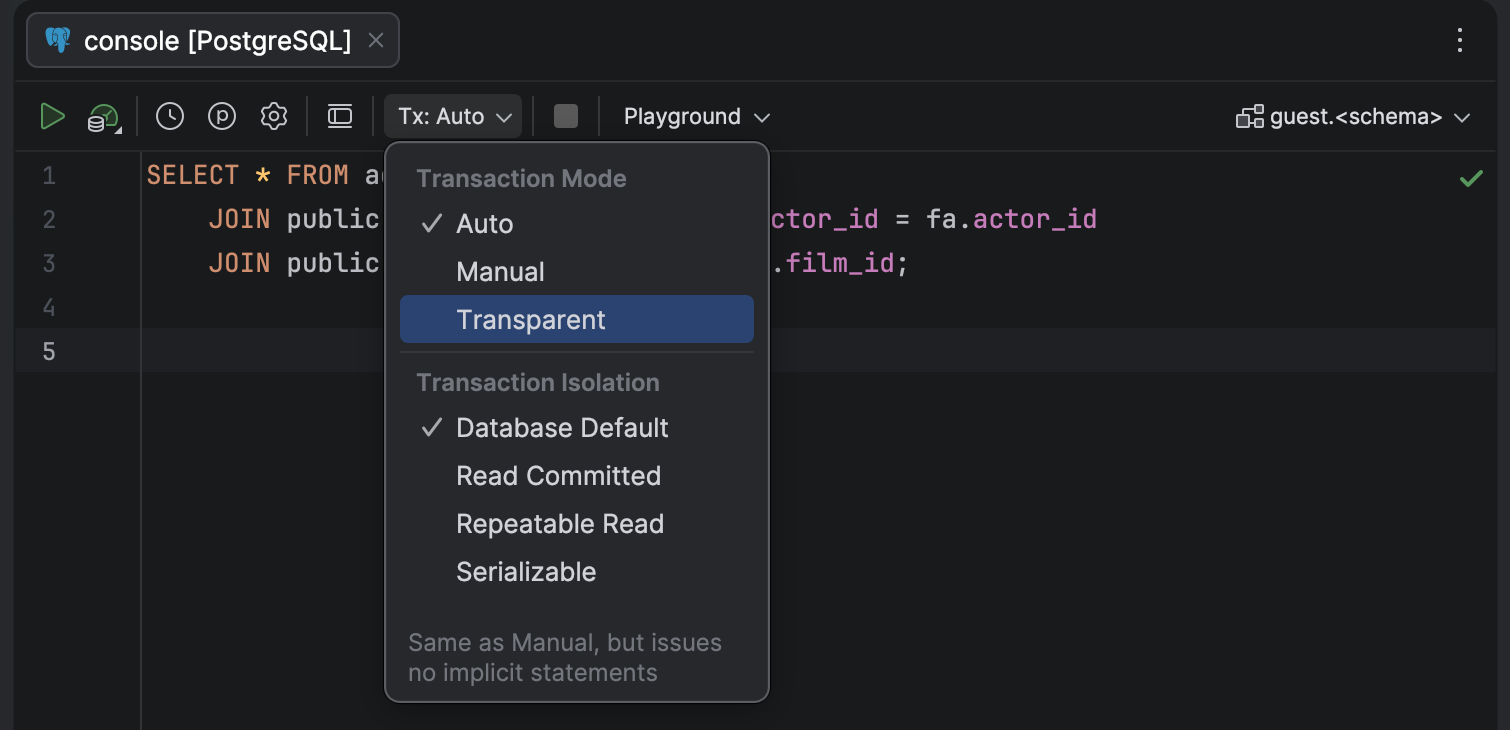
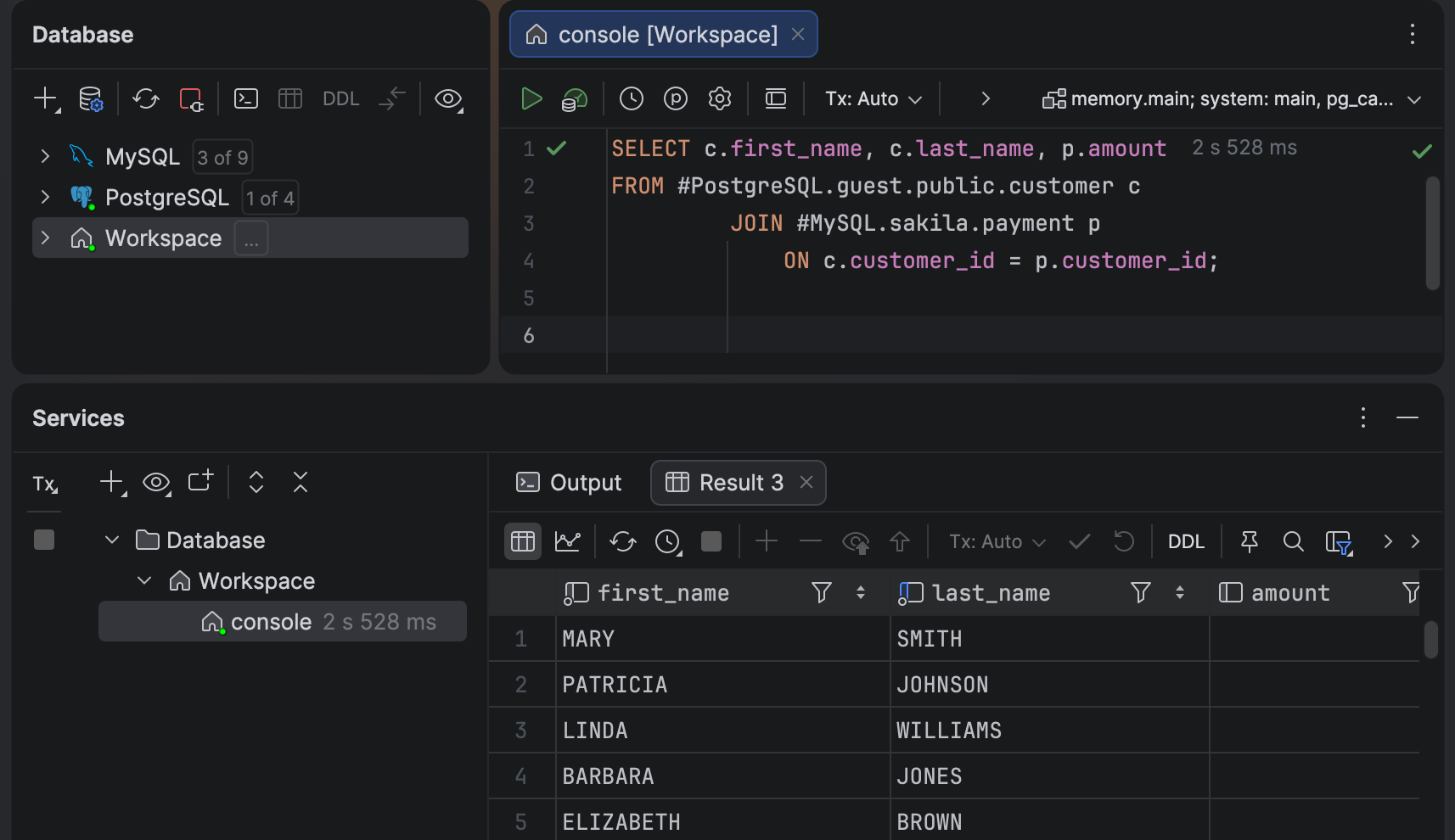
When related data lives in different databases, comparing or joining it previously required copying data from one system to another first. That step is no longer needed. You can now query across data sources, even when they use different DBMSs, and view the results directly.
This is possible thanks to the new Workspace data source, based on DuckDB. It runs in memory by default, so it doesn’t require a database file. Each project can have one Workspace data source. To add it, click Add on the Database Explorer toolbar and select Workspace Data Source. Its default query console opens automatically, and you can create more as needed. In the console, you can reference tables from other data sources using a dedicated syntax.
Extend your IDE
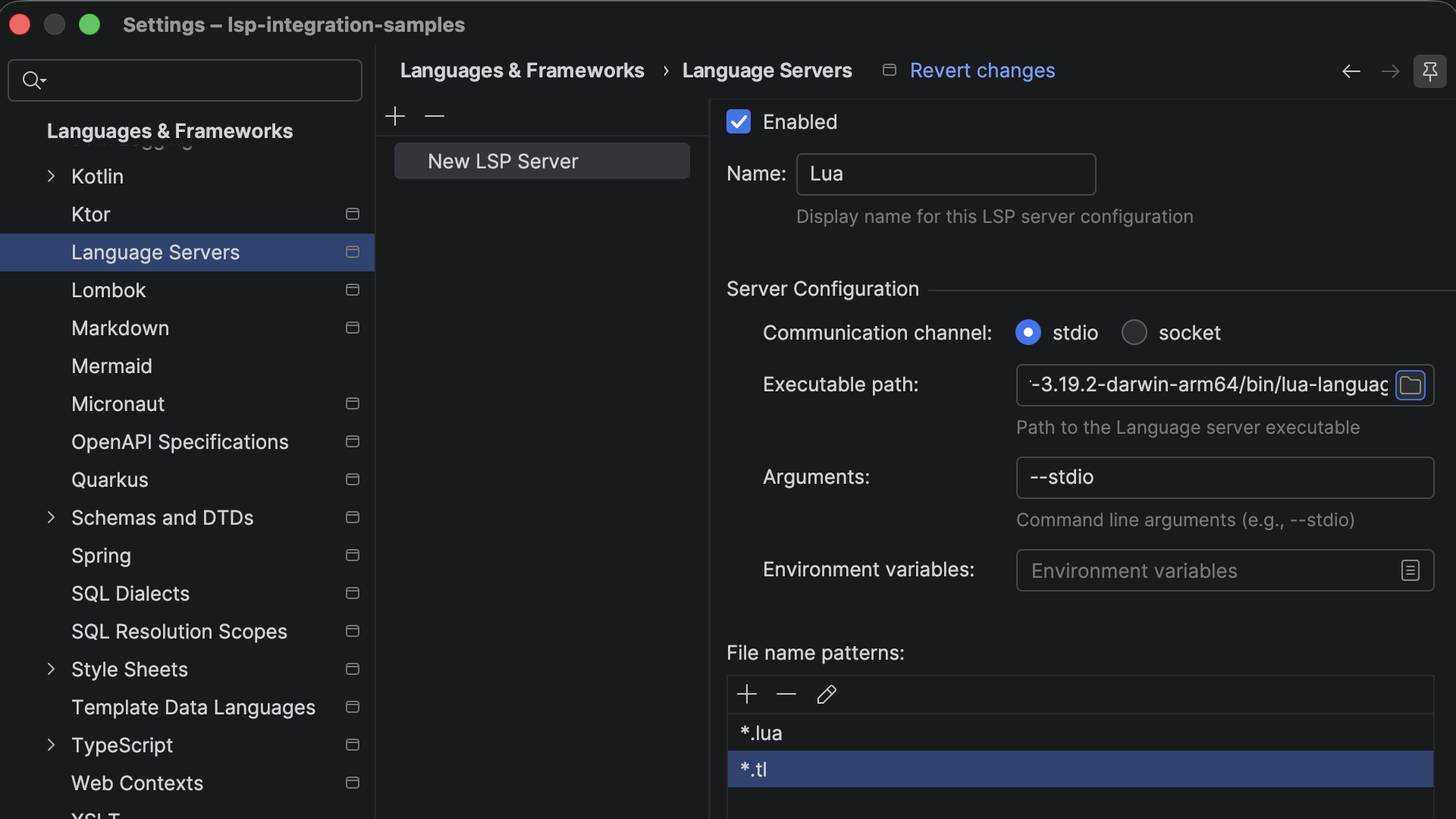
Ability to connect any language server from the IDE settings
Missing language support in your JetBrains IDE no longer has to be a blocker. LSP Connection Manager is a new plugin that lets you configure and use any Language Server Protocol server straight from the IDE settings. If a technology doesn’t have a dedicated plugin yet but has an existing LSP server, you can point the IDE at its binary and enable it for your project in a few clicks, with no custom plugin development required.
Open Settings | Languages & Frameworks | Language Servers, point the IDE to the server executable, and choose the file types it should handle. You can configure multiple servers and manage their file mappings from the same page.