
DataGrip 2026.3: Agentic Development With JetBrains Air, Cross-Database Queries, DuckDB Support, and Major UX Improvements


DataGrip 2026.3, the third major update of the year, is here! Let’s take a look at what’s inside.
AI
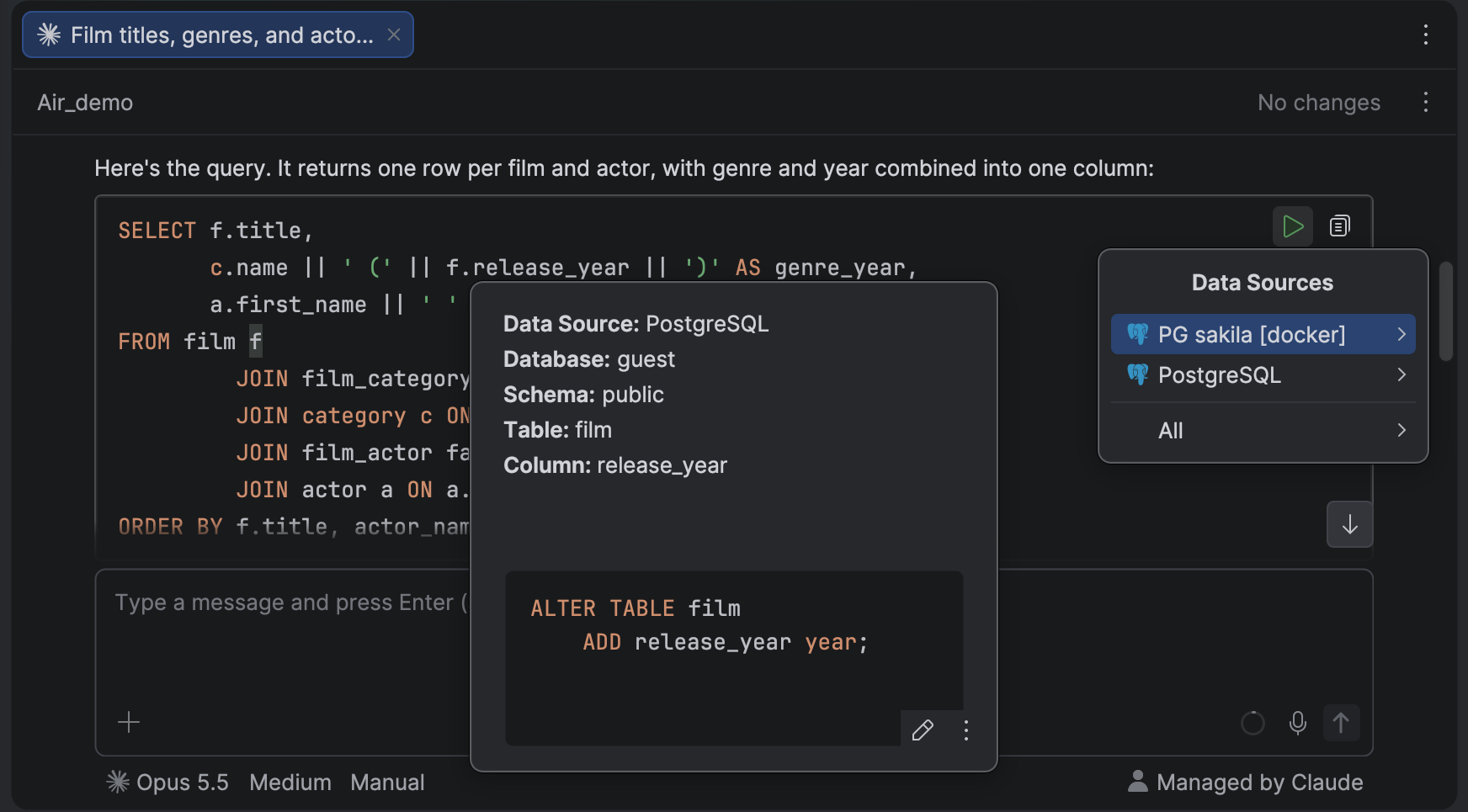
JetBrains Air is now available by default in DataGrip. You can run SQL, explore data, and reference database objects directly in chats with AI agents. SQL snippets use your IDE’s syntax highlighting and formatting settings. You can run them against a selected data source using the Run Query button right in the chat. After execution, you can navigate to object definitions and preview them in the Quick Definition popup. You can view CSV format data in the chat’s data editor with sorting and search options. To reference database objects in your prompts, use @dbObject notation with completion to help you find the object you need. Object references in the chat also support Quick Definition.
UI and UX improvements
First, we’ve moved query results from Services to a new Database Output tool window. It opens automatically at the bottom of the IDE when you run a query, a run configuration, or an SQL file. By default, its contents follow the active editor tab. The header combines the client selector with the Output, Query Plan, and Result tabs. The session client tree is now in a dropdown on the right side of the toolbar, while session management remains in the Services tool window.
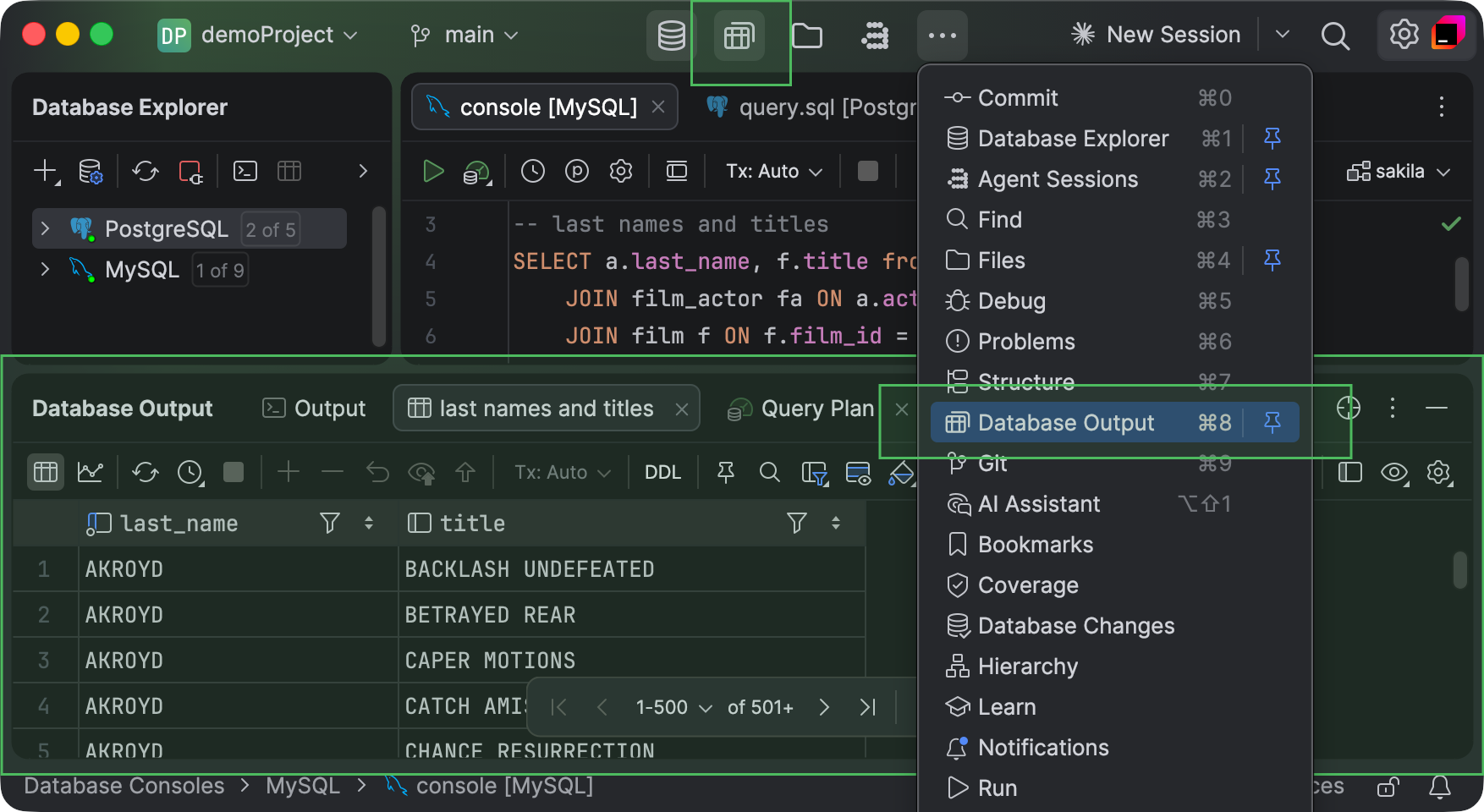
Second, we’ve updated the tool window bar in the window header and the default tool window shortcuts. The bar now shows icons for Database Explorer, Database Output, Files, and Agent Sessions by default. For the default tool window shortcuts, Agent Sessions now uses Cmd+2 (macOS) / Alt+2 (Windows/Linux), previously assigned to Files. Files now uses Cmd+4 (macOS) / Alt+4 (Windows/Linux), previously assigned to Run. Run no longer has a default shortcut.
Connectivity
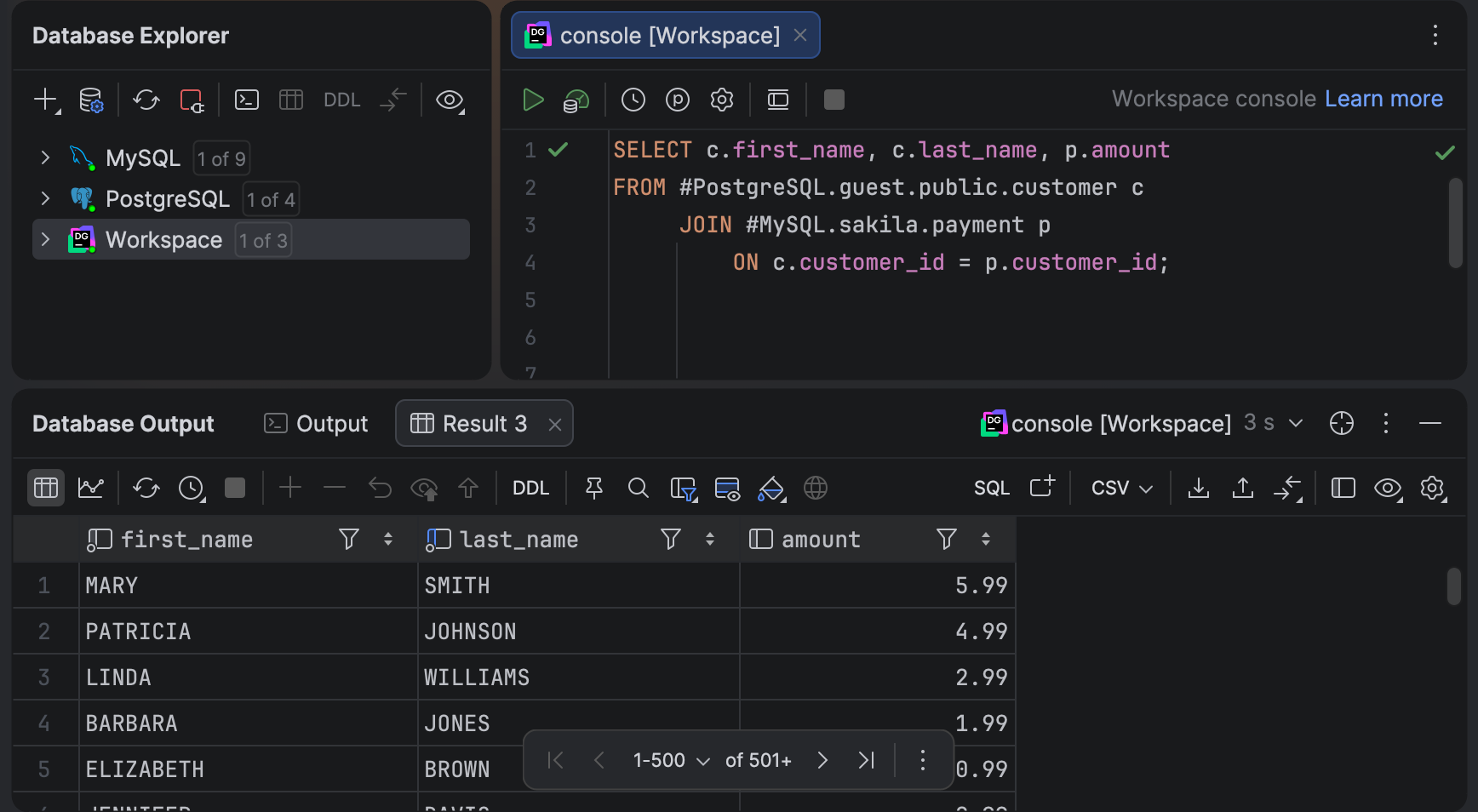
You can now query data across different data sources, even when they use different DBMSs, and view the results directly without copying the data beforehand. To make this possible, we’ve introduced a new Workspace data source, based on DuckDB. In its query consoles, you can use a special syntax to reference and join tables from other data sources, filter them, and also run queries against those data sources.
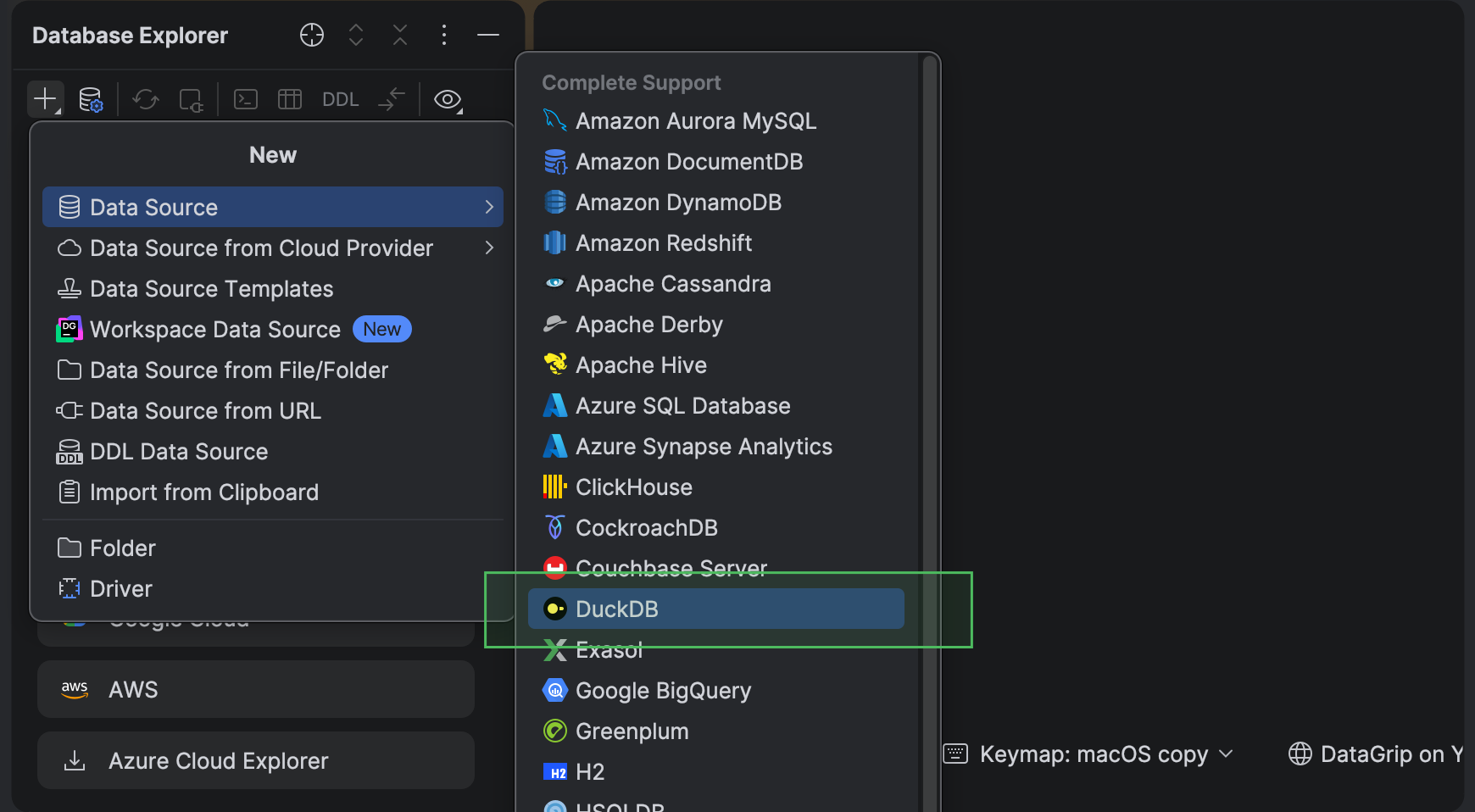
DuckDB now gets full support, including a dedicated SQL dialect, DuckDB-specific syntax and functions, code completion, and database object introspection. Three connection types are available: default, In-memory, and URL only. The default option connects to a DuckDB database file at the specified path. In-memory creates a database in memory, while URL only uses the JDBC URL you provide as is.
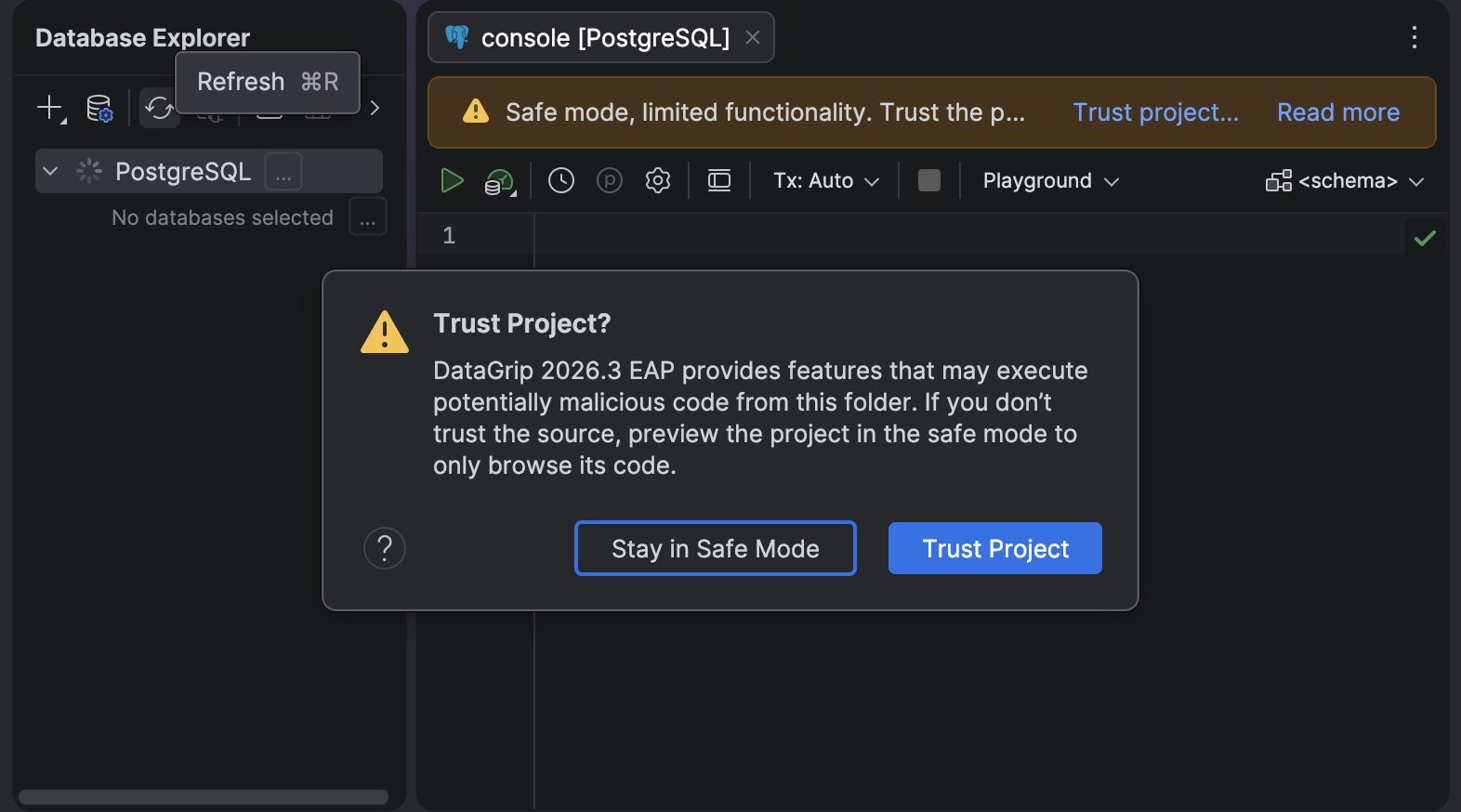
The way DataGrip handles untrusted projects has also been updated. Connecting to a database can execute potentially malicious code, for example, when the connection URL, startup scripts, or driver files have been tampered with. That’s why DataGrip now asks you to trust an untrusted project before connecting to a database. You can also stay in safe mode, where database connections are disabled.
Working with data
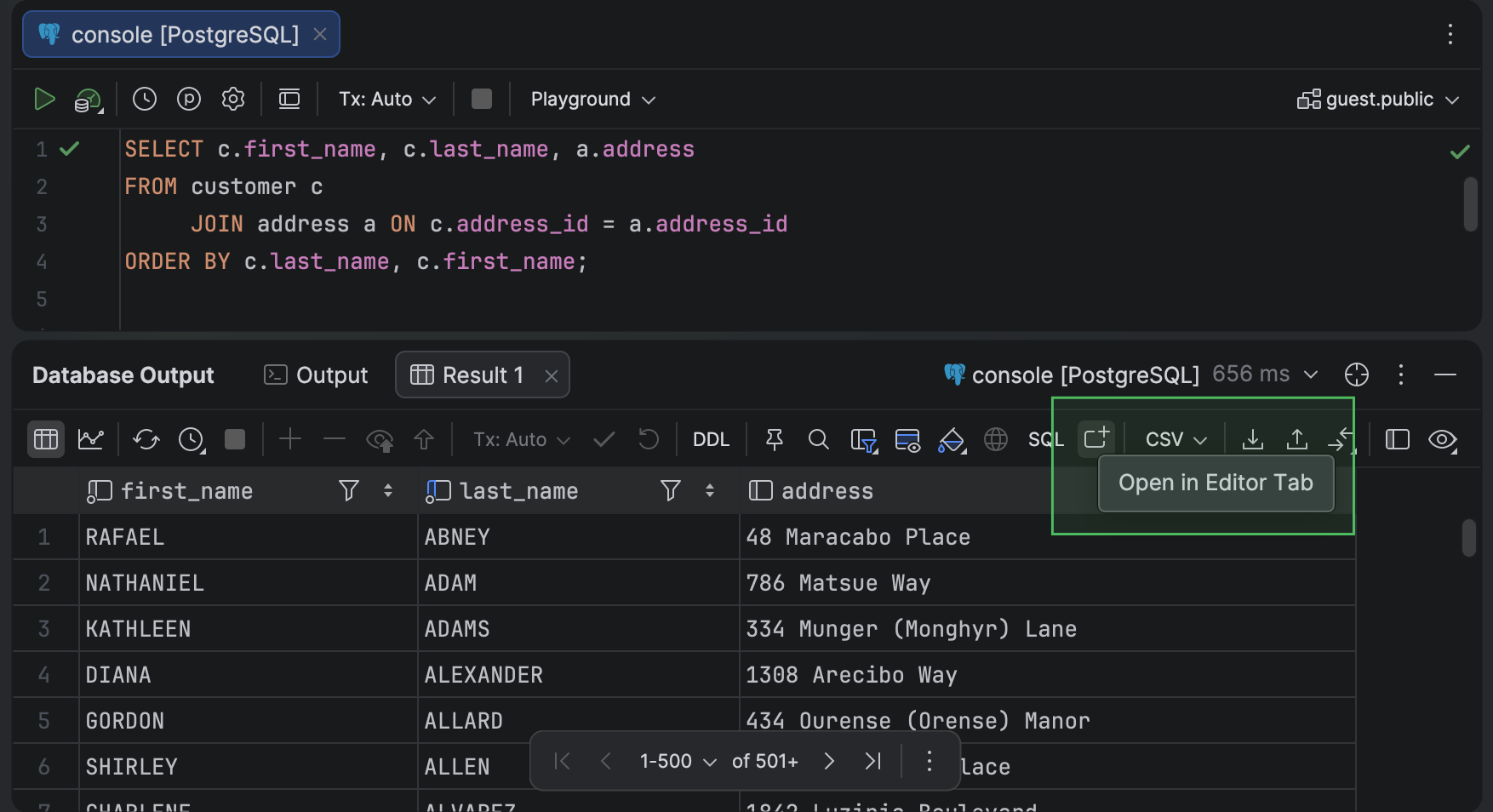
Let’s take a look at what’s new in the data editor. We’ve added two buttons to the query results toolbar: Open in Editor Tab and SQL. Open in Editor Tab opens a result set in a separate tab in the main editor area. The action is available for results in the Database Output tool window and for in-editor results.
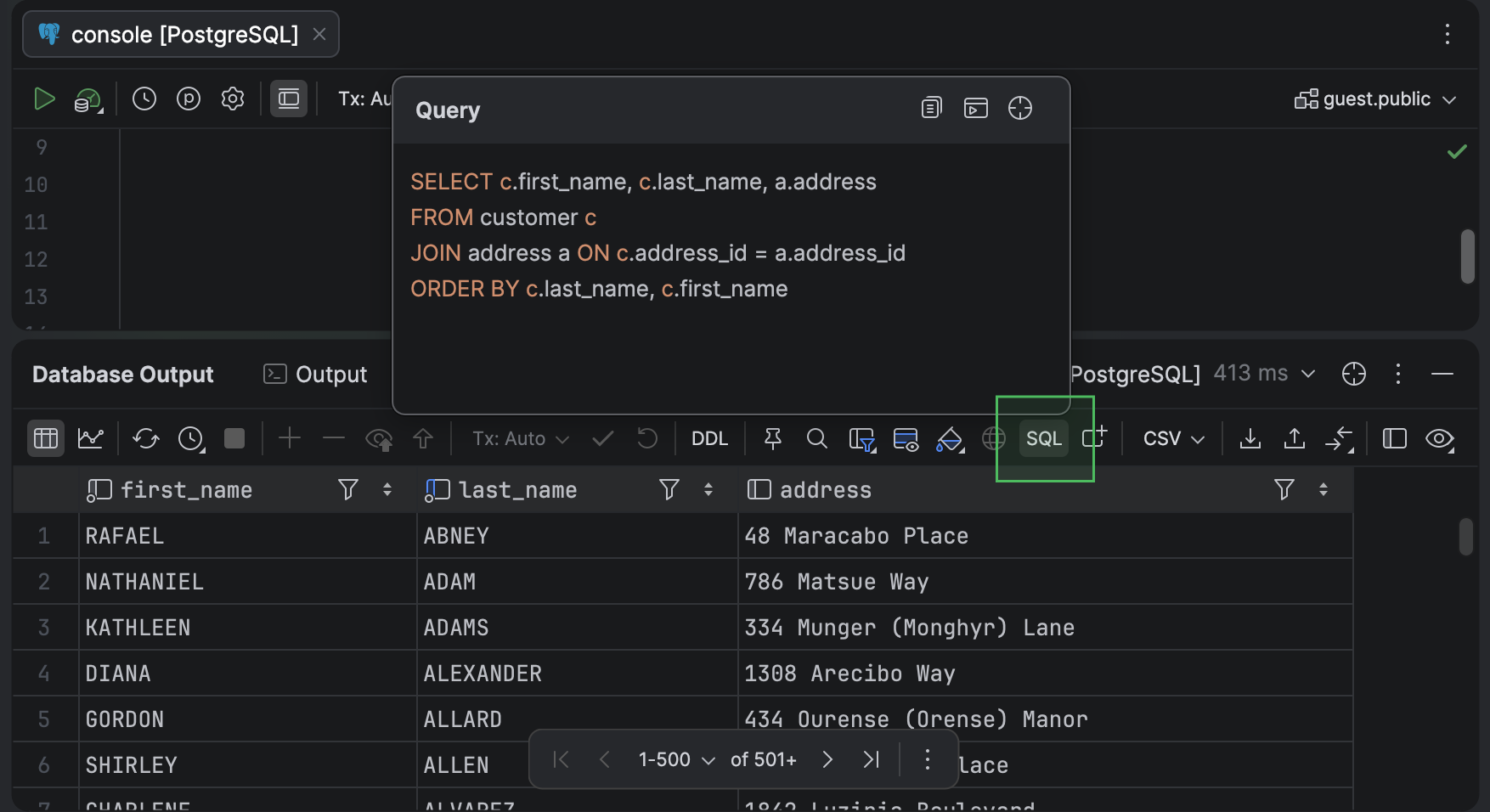
SQL opens a popup with the result set’s original query. From there, you can run the query again, copy it to the clipboard, or navigate to it in the editor.
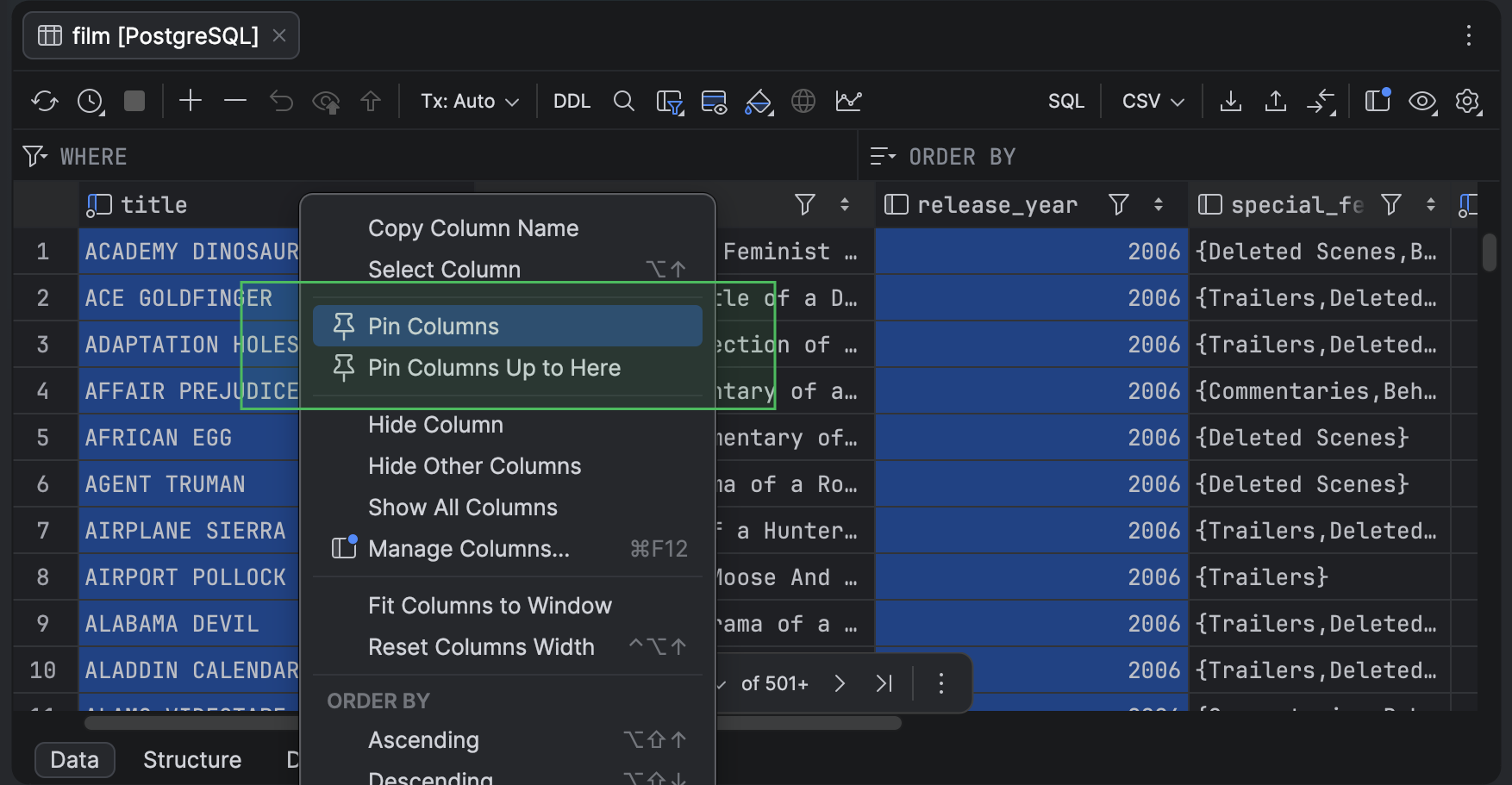
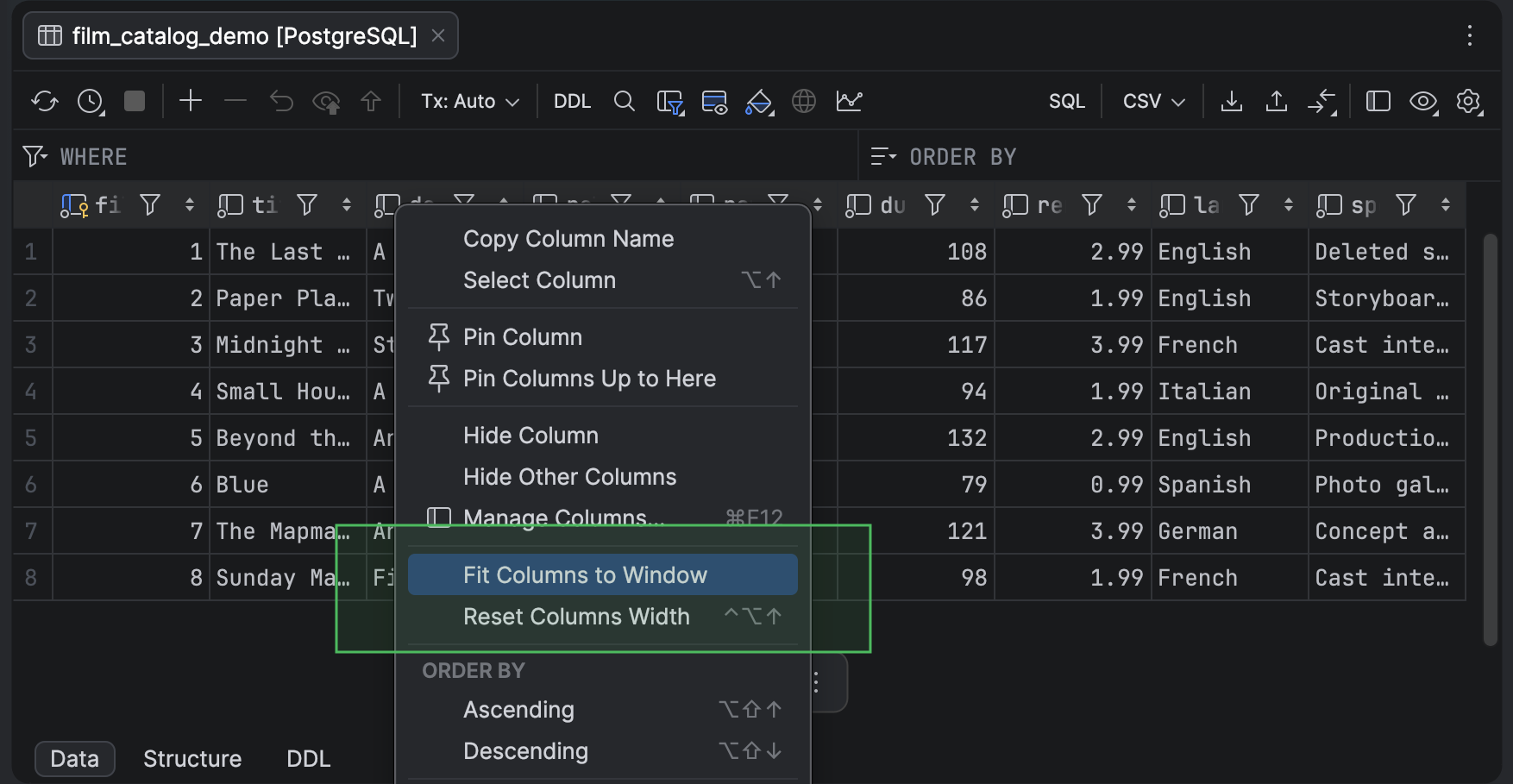
Column management also gets a few enhancements. You can now pin columns to the left side of the data editor to keep them visible as you scroll horizontally. You can pin a single column, several selected columns, or all columns up to a selected one.
You can now automatically resize columns to fit the available width of the data editor. This makes it easier to view tables with many columns without adjusting each column individually.
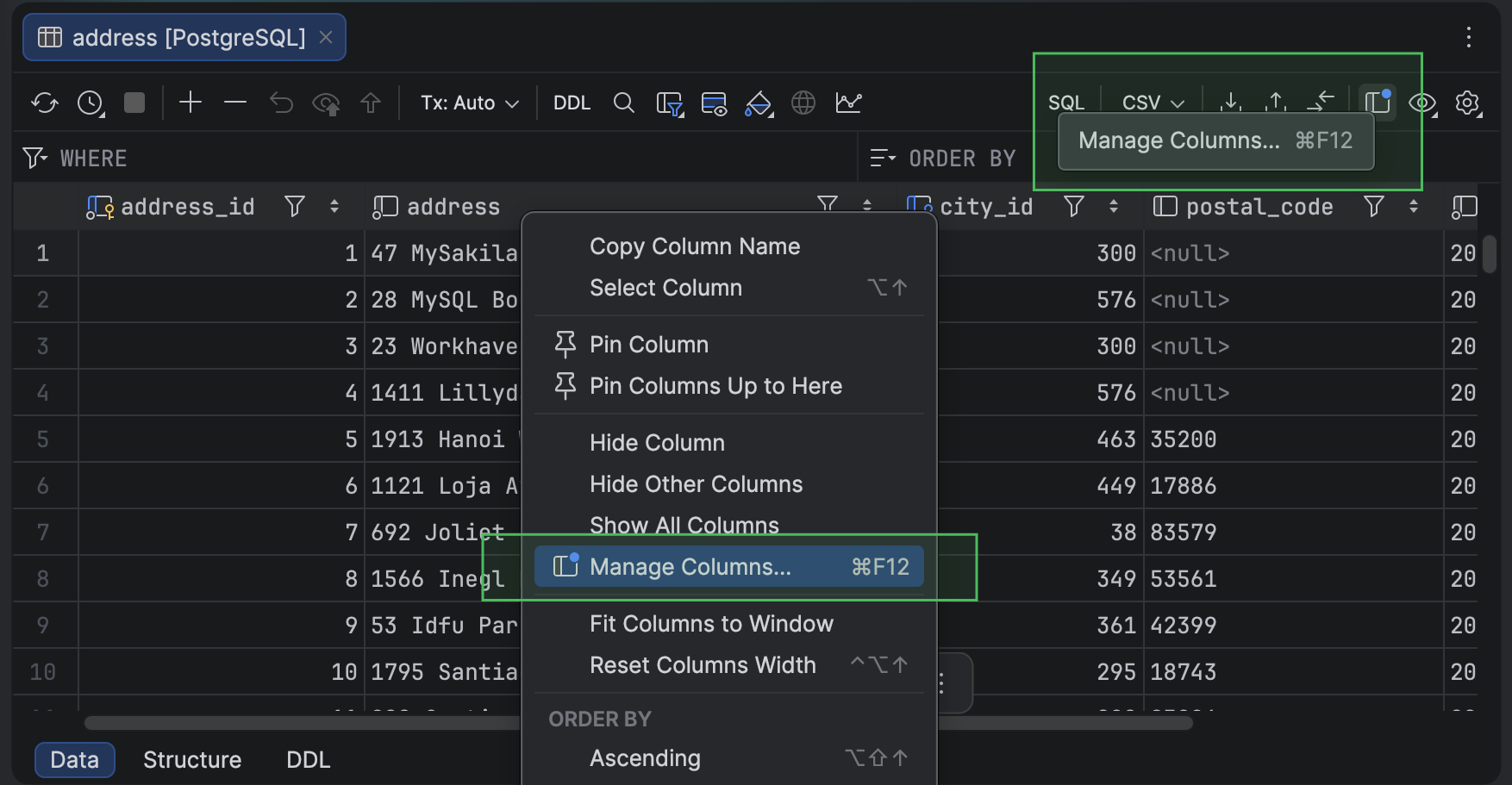
We’ve replaced the Show Column List popup with the new Manage Columns popup. It lets you find columns, select which ones to display, pin or unpin them, and adjust their order in one place. You can also navigate to a column in the grid. Changes to column order and pinning are immediately reflected in the grid. To open the popup, click Manage Columns on the data editor toolbar or press Cmd+F12 (macOS) / Ctrl+F12 (Windows/Linux). Alternatively, right-click a column header and select Manage Columns. An indicator on the toolbar icon shows when some columns are hidden.
Query consoles
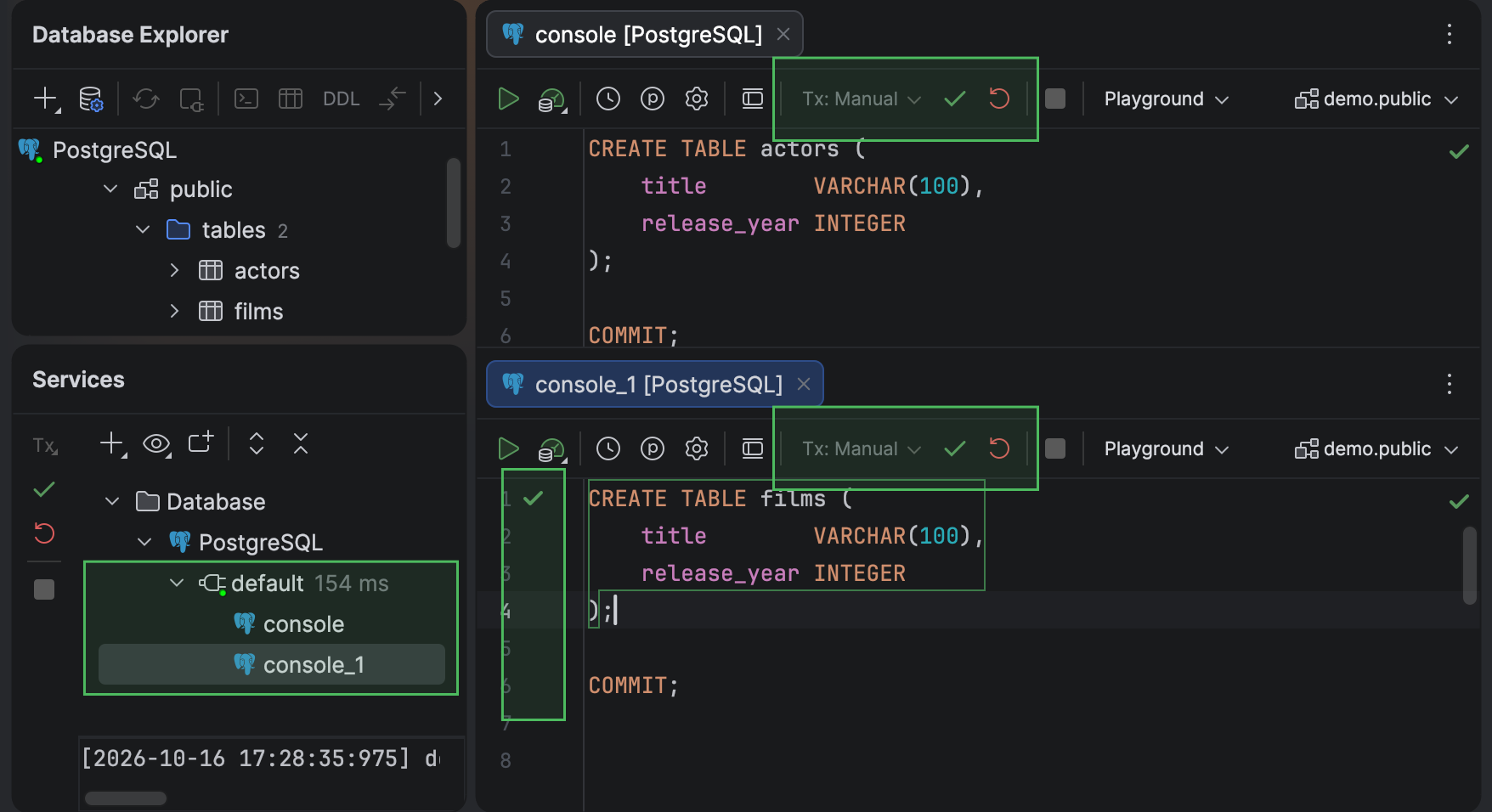
We’ve improved transaction control in query consoles. In Manual mode, running COMMIT or ROLLBACK now disables the Commit and Rollback toolbar buttons in PostgreSQL, Greenplum, MySQL, MariaDB, and Oracle. Consoles that share a session also display the same transaction state. We’ve fixed PostgreSQL transaction and savepoint issues and disabled automatic savepoints by default for databases outside the PostgreSQL family.
Database support
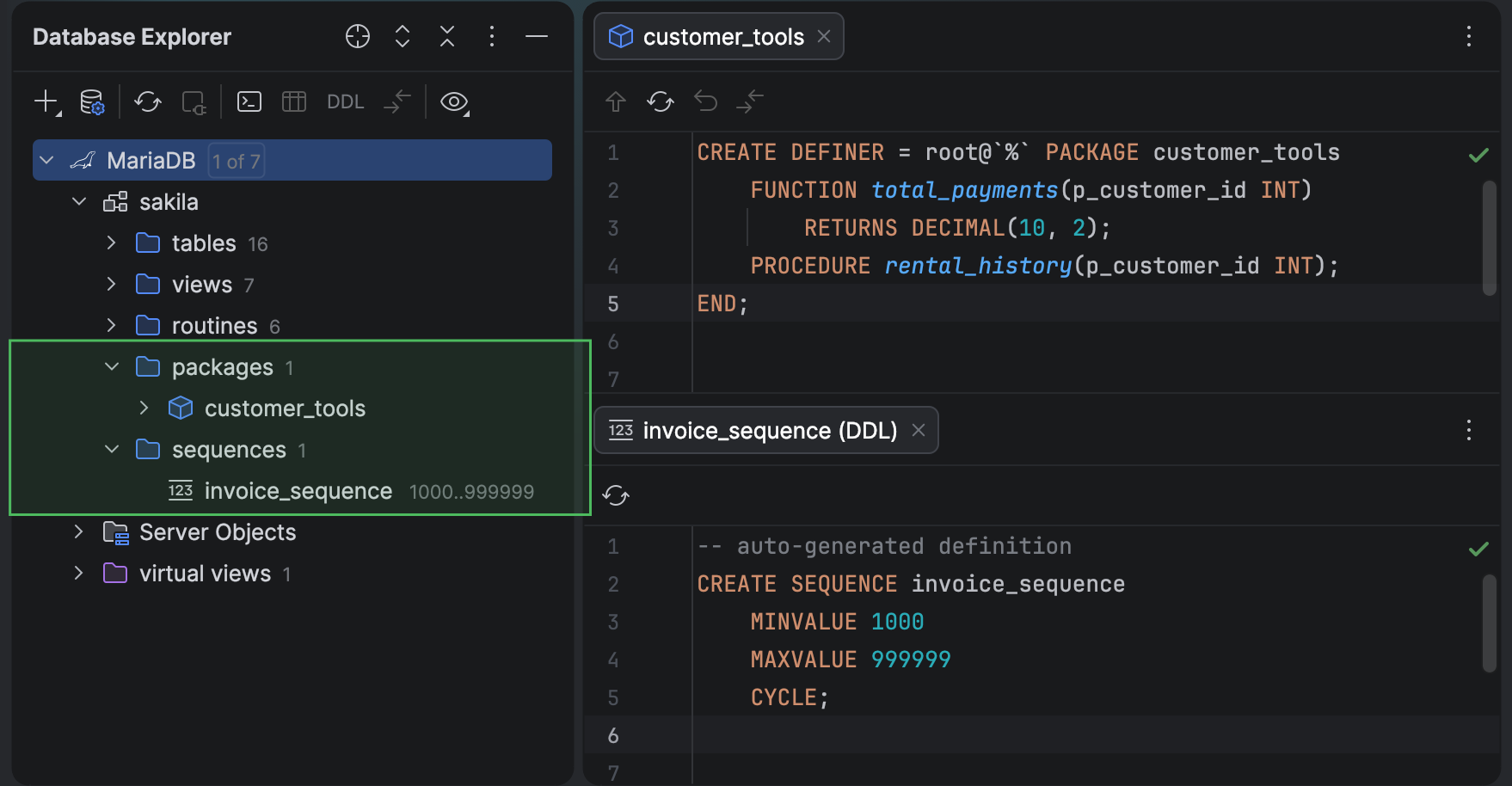
We’ve added support for MariaDB sequences and initial support for packages. DataGrip displays them in dedicated sequences and packages groups under the schema node in Database Explorer. DataGrip now introspects packages and their bodies and loads their source code. You can generate their DDL, drop them, and refresh individual packages. We’ve also improved support for package syntax in the code editor.
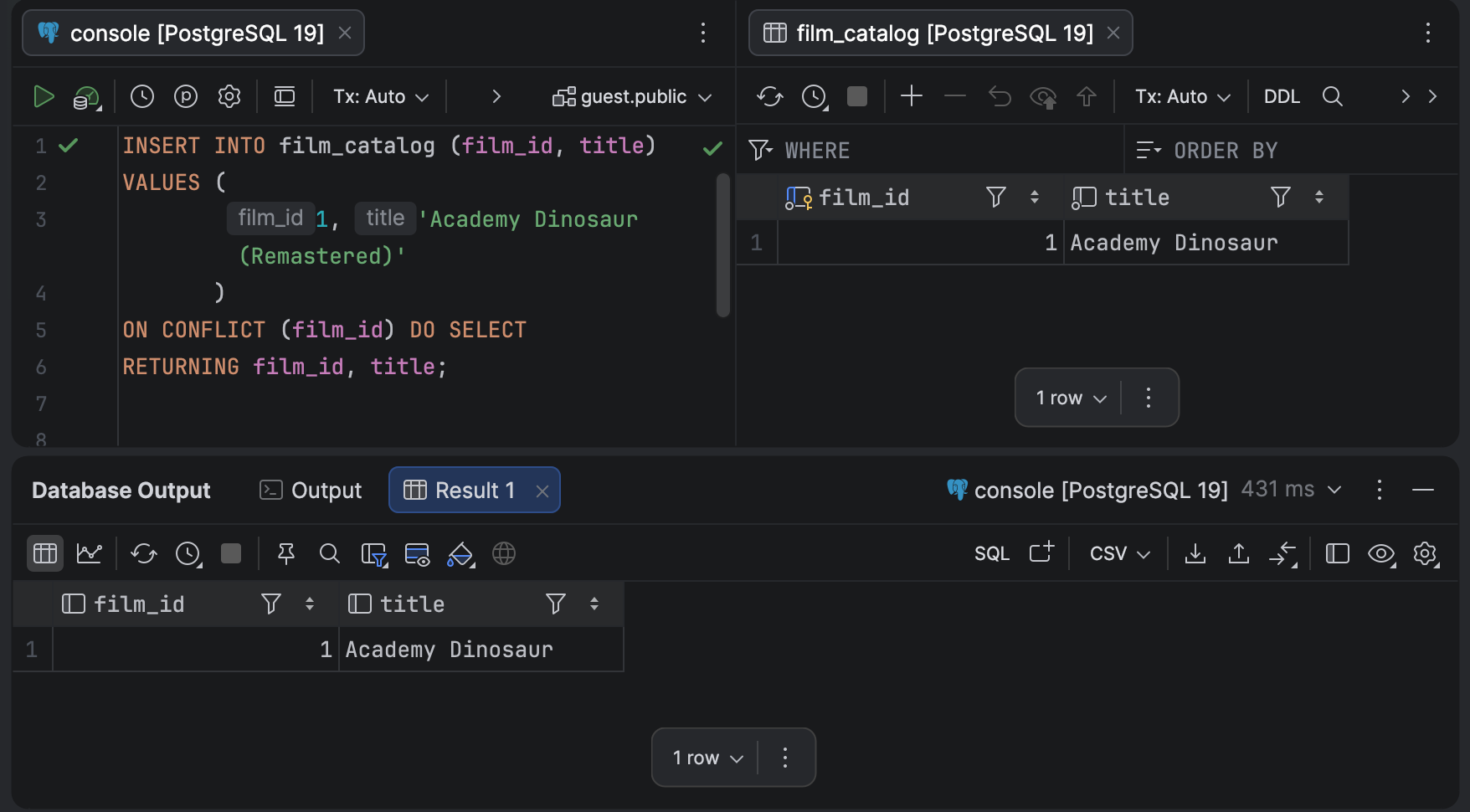
DataGrip now supports PostgreSQL 19. DataGrip now recognizes INSERT ... ON CONFLICT DO SELECT ... RETURNING, WAIT FOR LSN, and the EXCEPT clause in CREATE PUBLICATION statements. We’ve updated the minicatalogs to include new PostgreSQL 19 functions, too.
If you’re interested in upgrading to DataGrip 2026.3, or if you have any questions or suggestions, here are a few links you might find useful:
- Download DataGrip 2026.3.
- Visit our What’s New page for the full list of improvements.
- Contact us on X.
- Report any bugs to our issue tracker
The DataGrip team