
Hear What Your IDE Is Doing: New Sound Cues in JetBrains IDEs


You can use the audio player below to listen to this blog post.
With JetBrains IDEs 2026.3, we’re adding a new way to stay connected to your work: sound cues.
A short sound can tell you if a build has finished successfully or failed, a breakpoint has been hit, or there’s something at the caret that needs your attention. These cues are designed to make everyday development easier to follow, whether you are concentrating on another task, working across several projects, or using a screen reader.
Sound is on by default for screen reader users, and opt-in otherwise. In both cases, the sound cues are configurable – you can choose the cues that help you and leave the rest off.
What you can hear
The new Sound Signals settings let your IDE provide audio feedback for all important events.
For long-running work, you can hear when a build, test, or other task finishes, with different cues for success, warnings, and errors. The IDE also plays a sound when a breakpoint is hit and while a background task is running, so you know where the progress is at without having to repeatedly check a status area.
Sound cues also cover editor line marks. When screen reader support is enabled, the IDE plays distinct cues as the caret reaches a line with:
- An error
- A warning
- A breakpoint
- A version-control change
- Folded code
These editor marks are usually communicated visually. The new cues provide an additional way to notice them while moving through code.
You can also enable sound for individual notification groups. For example, if a particular tool or workflow sends notifications you care about, you can choose to have the IDE play a sound for it.
Sounds for Air
JetBrains IDEs 2026.3 also ship with Air. Agent work can have the same rhythm as a long build: you set it in motion, then turn to another task or window while it works.
Air has four sound cues: one when the agent completes its work, one when it stops with an error, one when it needs your input, and one for starting and stopping dictation. The sounds for AI operations are distinct enough from general IDE sound cues for you to easily tell them apart.
Air sounds can be configured separately in the dedicated settings section Settings | Tools | Air.
Choose the setup that works for you
IDE sound cues live on a new settings page built for accessibility. Settings | Appearance & Behavior | Accessibility now brings together Support screen readers, Zoom, contrast scrollbars, colors for red-green vision deficiency, the option to announce notifications with a screen reader, and sound cues, all in one place.
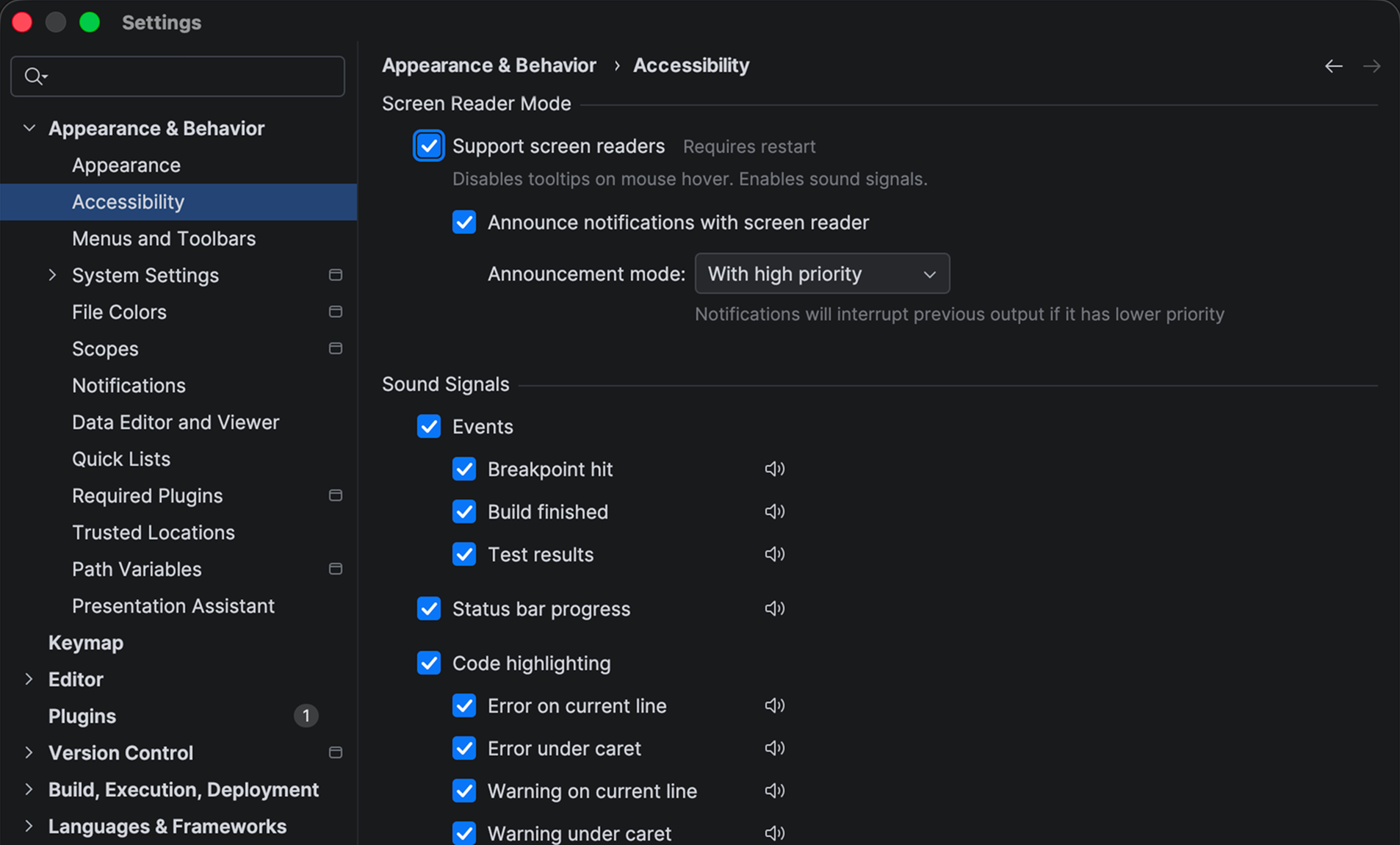
If you use a screen reader, the relevant sound cues are enabled automatically when the Support screen readers option is on. This includes sound cues for IDE events (builds, tests, progress, and breakpoints) and editor line marks.
If you do not use a screen reader, sound cues are off by default. To enable them:
- Open Settings/Preferences.
- Go to Appearance & Behavior | Accessibility.
- Find the Sound Signals section.
- Turn on the sounds you would like to use.
You can preview each sound on the same page before enabling it, and turn off any cue that does not fit your workflow.
For a specific notification, go to Appearance & Behavior | Notifications, select the notification group in the list, and enable the Play sound option.
To learn more about configuring sound cues in your IDE, see this section in our accessibility documentation.
A note for VoiceOver users on macOS
By default, VoiceOver makes other sounds quieter while it speaks. If the IDE sounds are hard to hear, turn off audio ducking in the VoiceOver settingson your Mac.
A small cue can make a real difference
Development often involves waiting: for a test suite, a build, a background task, a debugger, or an agent to reach the right point. Sound cues let the IDE share that status in a lightweight way, so you can stay focused on the work in front of you.
For visually impaired developers, these sounds also make information available that was previously represented only on screen. Sound cues began with an accessibility request, and they are part of our ongoing work to make JetBrains IDEs more accessible rather than a one-off feature.
If you’d like to stay informed about accessibility improvements, you can subscribe to our accessibility updates here.
We’d love to hear from you
Sound cues will be available starting with the 2026.3 release of JetBrains IDEs, but you can already try them out in our Release Candidate builds.
We’re eager to hear from developers who rely on accessibility features, as well as from anyone interested in improving the experience of using them. If you have ideas or feedback about accessibility in JetBrains IDEs, you can reach us directly at accessibility@jetbrains.com. You can also report issues through YouTrack or the support request form.