
Just the Links, please
'%20fill-opacity='.8'%20d='M3.256%203.913a3.083%203.083%200%200%200-.003%204.397L8%2012.998l4.743-4.684a3.085%203.085%200%200%200%20.001-4.4c-.6-.593-1.4-.914-2.233-.914a3.17%203.17%200%200%200-1.91.635L8%204.087l-.601-.452A3.17%203.17%200%200%200%205.489%203c-.834%200-1.634.321-2.233.913m10.19%205.111-4.748%204.69a.996.996%200%200%201-1.397%200L2.549%209.02a4.083%204.083%200%200%201%20.004-5.82A4.17%204.17%200%200%201%205.488%202c.907%200%201.787.29%202.512.835A4.17%204.17%200%200%201%2010.51%202c1.093%200%202.146.422%202.936%201.202a4.085%204.085%200%200%201%200%205.822'%20/%3e%3c/svg%3e) 1
1'%20stroke-opacity='.75'%20stroke-width='1.5'%20stroke-linejoin='round'/%3e%3c/svg%3e)


I built a new app because I was tired of scrolling past jokes, quote-posts, and the same article six times on social media. I also didn’t want to miss great articles from sources not in my RSS feeds when I wasn’t plugged in for a while. When I’m ready to read, I want the links. Just the links, and all the links.
Just the Links is a native app for iPhone, iPad, and Mac. It reads your Mastodon and Bluesky timelines and turns them into one feed of articles people actually shared.
Not to step too much on Murmel’s toes, mind you, I just wanted a native app with bookmarking and cloud sync. Murmel is still a great option with RSS feeds and digest emails, neither of which Just the Links provides. I’m using both.
What it does
Sign in to one or more accounts. Pull home, lists, or public/explore sources. The app grabs destination URLs from post text and link cards, throws out mentions, hashtags, and platform profile links, then groups the rest by URL.
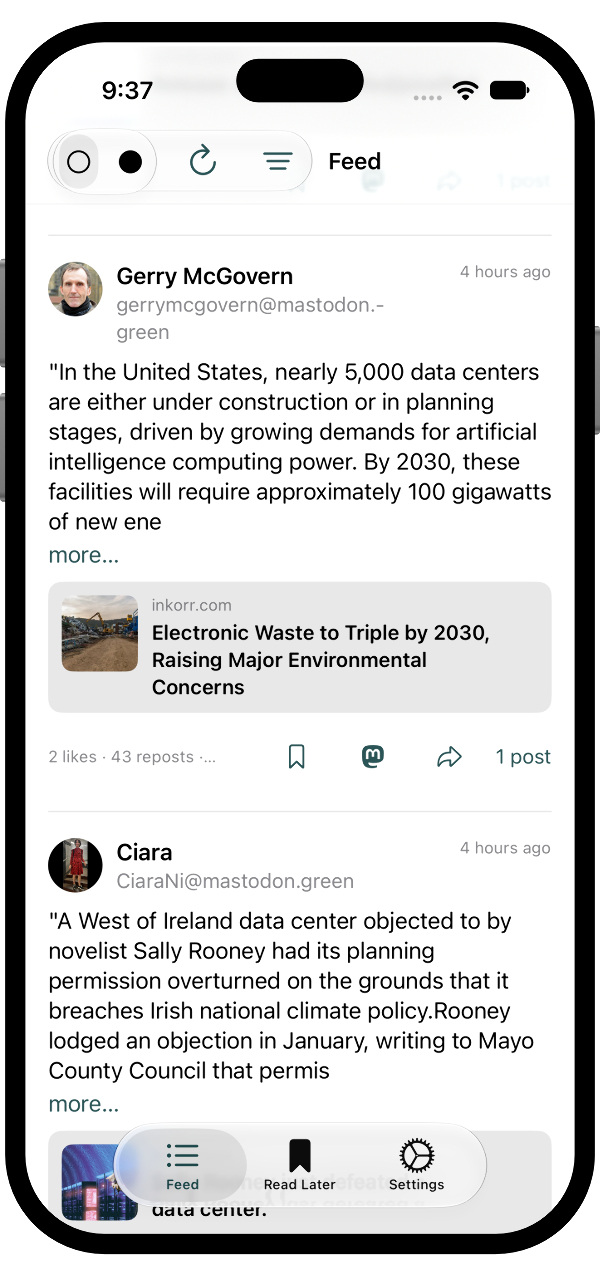
One row per article. The face of the row is the social post that pushed it hardest, with a card underneath for the link. Expand the row if you want to see everyone else who posted it, and boost or repost from there.
Why I wanted this
I like Mastodon. I like Bluesky. I do not like treating either one as a reading list. By the time I tap through, I have already seen the same Verge piece from four people and still have not opened it.
I see an app like this as a modern RSS reader for people who don’t have time to keep up with a bunch of RSS feeds. Follow the right people/news outlets and get all of the links they post, in order, in one place.
This app is closer to a focused cousin of a timeline client than it is to a bookmark manager. The post stays in front. The link is nested. Filters sit on top if I only want things that showed up more than once, or that picked up some likes.
Accounts and filters
With a paid subscription, you can add unlimited accounts across Bluesky and Mastodon. For each account you can choose what to pull: home, lists, federated, or local feeds. If you’re following people that post links of interest to you, you can just watch your home feed or a list. If you want to see a broader selection, choose local or federated. That will show you all of the links on your Mastodon server or wider federated links.
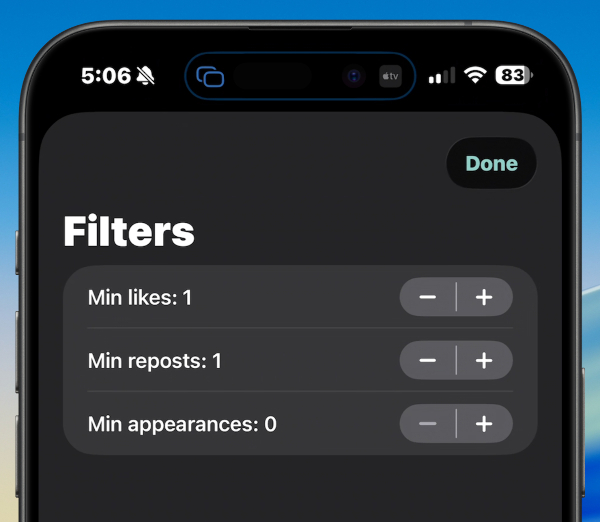
There’s one set of filter options that applies to all accounts. You can determine a minimum number of likes, reposts, or appearances that a link has to have to show up in the feed. I like to set likes/reposts to 3, and appearances to 1, which often surfaces blog posts from people I follow without requiring a bunch of people to have linked to it, while keeping my list fairly tidy.
Reading, saving, and sharing
Tap a card and it opens in an in-app reader. You can send it to Safari, archive.is, or bookmark it to your Read Later view. It even integrates with Read Later services like linkding, Pinboard, Instapaper, and Marked Share. Read Later syncs with iCloud, along with accounts and filter settings. Tokens live in the Keychain. There is no server of mine in the middle.
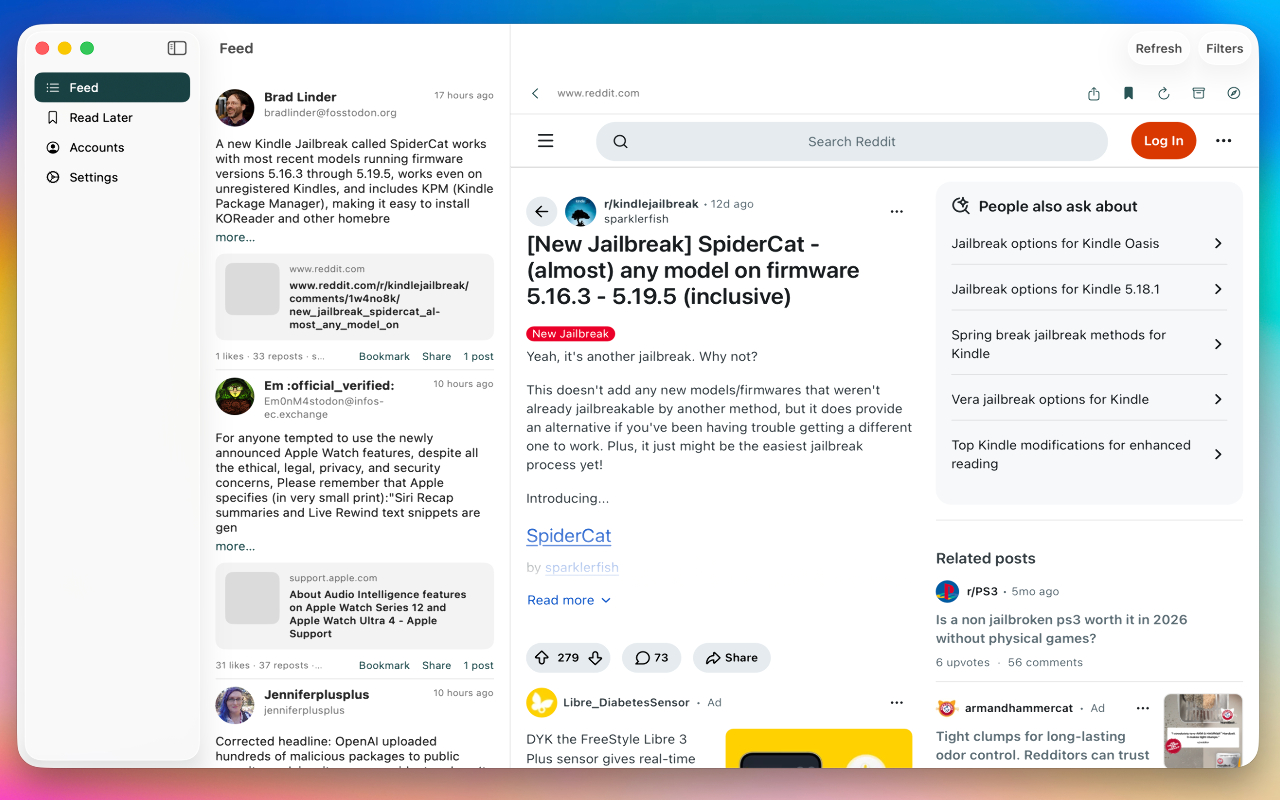
On a Mac or landscape iPad you get a split view: the list on one side, the article on the other. That’s the version I’ve been using the most.
You can boost or repost right from the app. Just The Links will show the “heaviest” appearance of the link (most shares, most popular account, etc.). Tap the “X Posts” at the bottom or the user icon at the top and you’ll see all of the accounts that have shared it, each with boost and repost buttons. I don’t have Quote Posting enabled yet, but you can also click the Mastodon or Bluesky icon on the individual post to open it on Bluesky or Mastodon, where you can interact with it as usual.
Full keyboard support
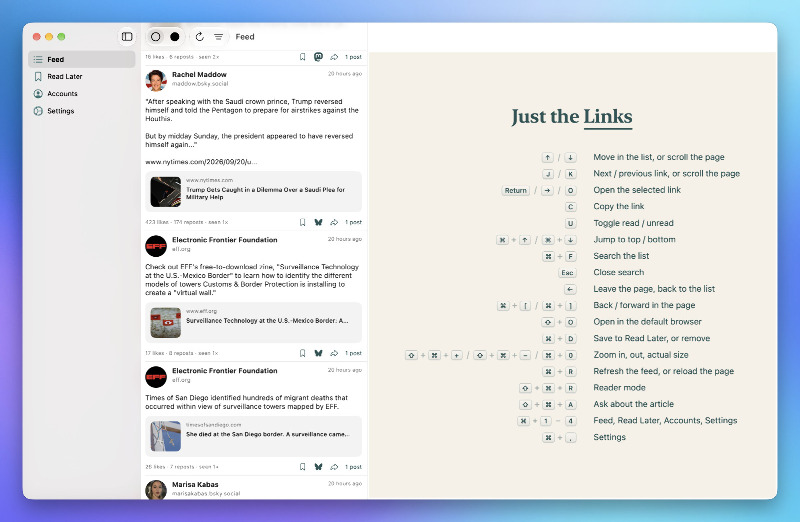
As with all things I make, attention to keyboard shortcuts is a big deal. You can navigate lists with arrow keys or vim-style j/k, open links with a right arrow or o, save to Read Later with ⌘+D, and more.
Readability and Apple Intelligence
Mozilla Readability is built in. Whenever the browser is focused, you can hit ⇧+⌘+R (or the toolbar icon) to open the article without any menus, ads, cookie popups, etc. This works with any article you can load, even if it requires a login.
If an article is paywalled and you don’t have an account, you can try the Archive button to see if it’s been saved to the Wayback Machine. If it has, you can read it in full. If it hasn’t, you can submit it for archiving.
Hit the Apple Intelligence “sparkle” button (or press ⇧+⌘+A) to get an AI summary of an article, along with a chat box where you can ask questions. Available on any device that has Apple Intelligence enabled.
Join the Newsletter
You can on the site. This list will be used to announce the release, as well as development news.
I do tend to use these individual app lists to promote my other apps and offer discounts, but I’ll never sell the list and you’ll only ever hear from me.
Try it
It is a small subscription: $1.99 a month with a week of trial, or $19.99 a year. Family Sharing is on. It will work for free with one account and no read later list. I am not asking you to trust a backend; the work happens on the device.
You can join the TestFlight from justthelinks.app right now. iPhone, iPad, and Mac. If you’re interested in seeing the most popular links from people you actually follow (or want to discover), check it out.
Like I said, if you’d rather wait to hear when it’s released, or want to keep up with major developments, .
About the TestFlight
I don’t intend to test this one for long, but I’d love your feedback before release. Join the TestFlight for free and get full functionality. You can use the Purchase buttons with any subscription type to test, you won’t actually be charged. As with any TestFlight app, purchase buttons are there just for testing and don’t really subtract anything from your account. Give it a shot on Mac and iOS and report any issues. You can also send feedback directly to me using the support email.
Like or share this post Twitter.
BrettTerpstra.com is supported by readers like you. Click here if you'd like to help out.
Find Brett on Mastodon, Bluesky, GitHub, and everywhere else.