
These are the iPhone settings you immediately need to change to get the most out your phone
'%20fill-opacity='.8'%20d='M3.256%203.913a3.083%203.083%200%200%200-.003%204.397L8%2012.998l4.743-4.684a3.085%203.085%200%200%200%20.001-4.4c-.6-.593-1.4-.914-2.233-.914a3.17%203.17%200%200%200-1.91.635L8%204.087l-.601-.452A3.17%203.17%200%200%200%205.489%203c-.834%200-1.634.321-2.233.913m10.19%205.111-4.748%204.69a.996.996%200%200%201-1.397%200L2.549%209.02a4.083%204.083%200%200%201%20.004-5.82A4.17%204.17%200%200%201%205.488%202c.907%200%201.787.29%202.512.835A4.17%204.17%200%200%201%2010.51%202c1.093%200%202.146.422%202.936%201.202a4.085%204.085%200%200%201%200%205.822'%20/%3e%3c/svg%3e)
'%20stroke-opacity='.75'%20stroke-width='1.5'%20stroke-linejoin='round'/%3e%3c/svg%3e)

Your iPhone is packed with useful features, but some of the best ones are buried inside the Settings app.
Whether you want better battery life, fewer annoying notifications, better photos or a little more privacy, there are plenty of settings worth tweaking.
Some can make your iPhone feel noticeably more convenient, while others can help you take advantage of features you may not even know existed.
Here are the iPhone settings I would change immediately to get more out of your phone.
1. Stop apps from constantly asking to track you
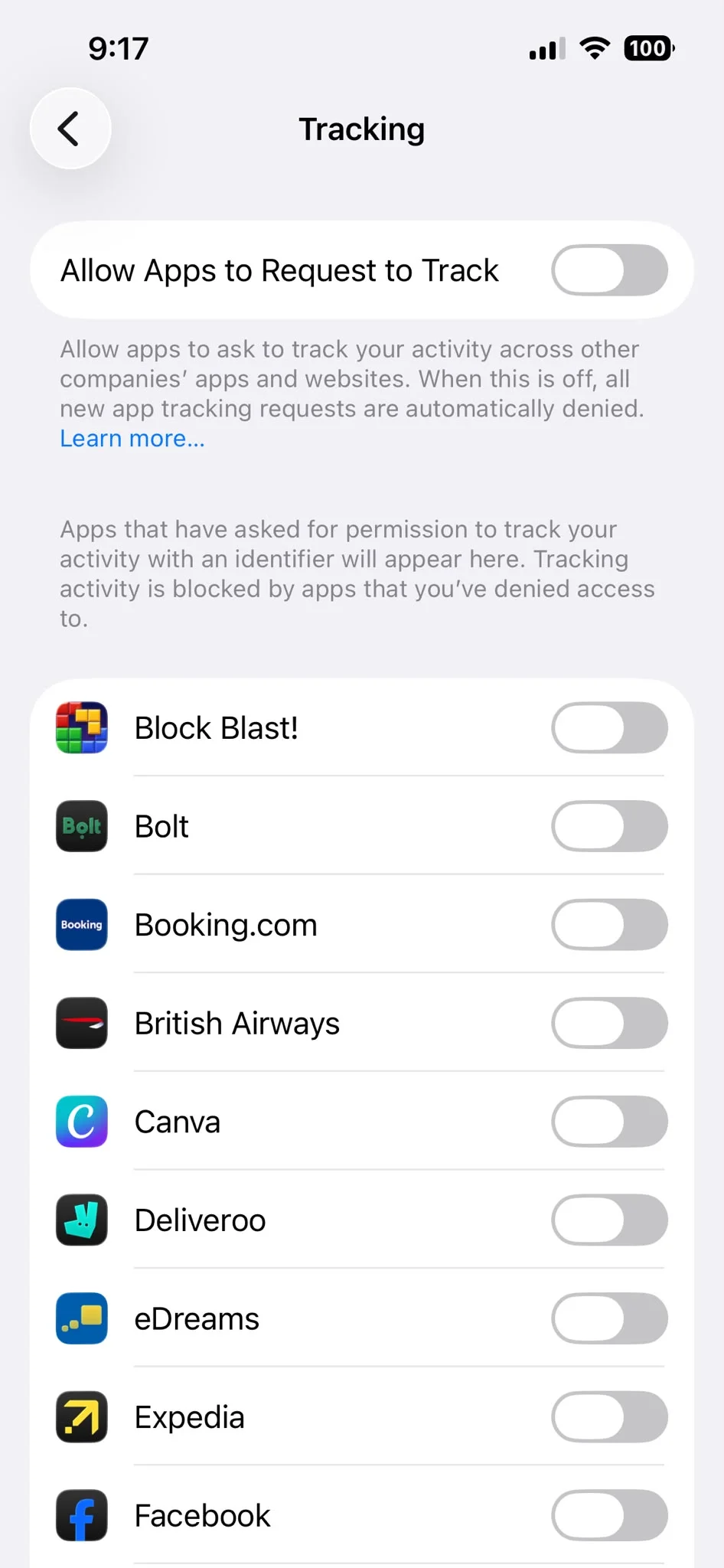
If you are tired of apps asking whether they can track your activity on your favorite gadget, there is a simple way to stop the requests.
Head to Settings > Privacy & Security > Tracking and turn off Allow Apps to Request to Track.
Apple says this prevents apps from asking for permission to track your activity across other companies’ apps and websites.
You can also review individual apps from the same menu.
2. Give your battery a better chance of lasting
If your iPhone seems to be burning through its battery faster than expected, it is worth checking which apps are responsible.
Go to Settings > Battery to see your battery usage and which apps are consuming the most power.
Apple also recommends using features such as Low Power Mode when you need to extend battery life and on supported iPhones, you can find it under Settings > Battery > Power Mode.
For longer-term battery health, make sure Optimized Battery Charging is enabled. On iPhone 15 and later, head to Settings > Battery > Charging, while older models have the option under Battery Health & Charging.
Apple says Optimized Battery Charging can delay charging beyond 80 percent when your phone expects to remain connected to power for a long period.
3. Turn off Background App Refresh for apps that don’t need it
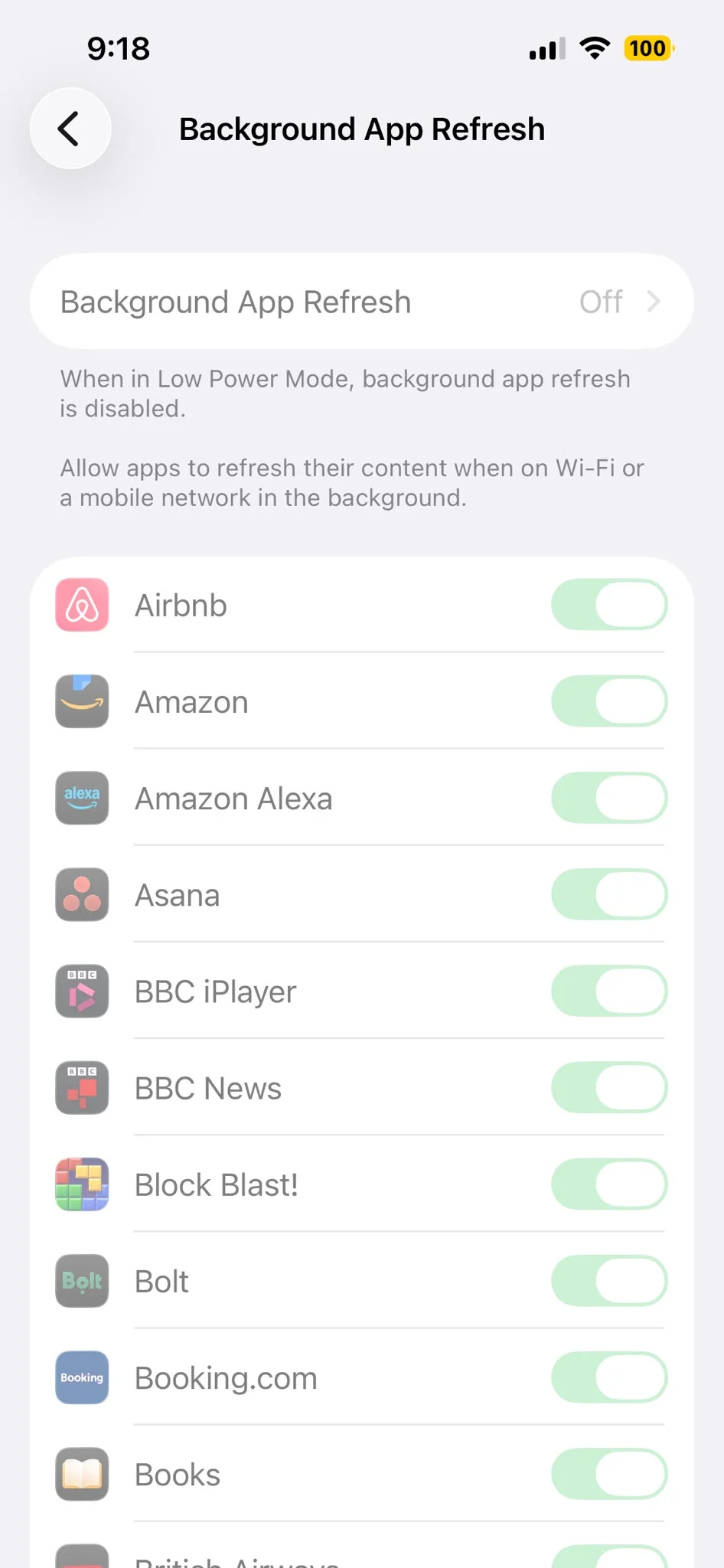
Your apps do not necessarily need to refresh themselves in the background all day.
Go to Settings > General > Background App Refresh and switch off the feature for apps that do not need to constantly update themselves.
You don’t necessarily need to turn it off for everything. Keeping it enabled for apps where background updates are genuinely useful can make sense, while switching it off for less important apps can reduce unnecessary background activity.
Apple specifically lists Background App Refresh among the features that can be reduced or disabled by Low Power Mode.
4. Stop every app from bombarding you with notifications
Do you really need a notification every time an app has something to tell you?
Go to Settings > Notifications and work through the apps you have installed and turn off Allow Notifications for anything you do not actually need to hear from.
You can also use Scheduled Summary to bundle notifications from selected apps and have them arrive at times you choose.
And if you are worried about private messages appearing on your Lock Screen, select an app under Notifications, tap Show Previews and choose When Unlocked or Never.
5. Give your location to fewer apps
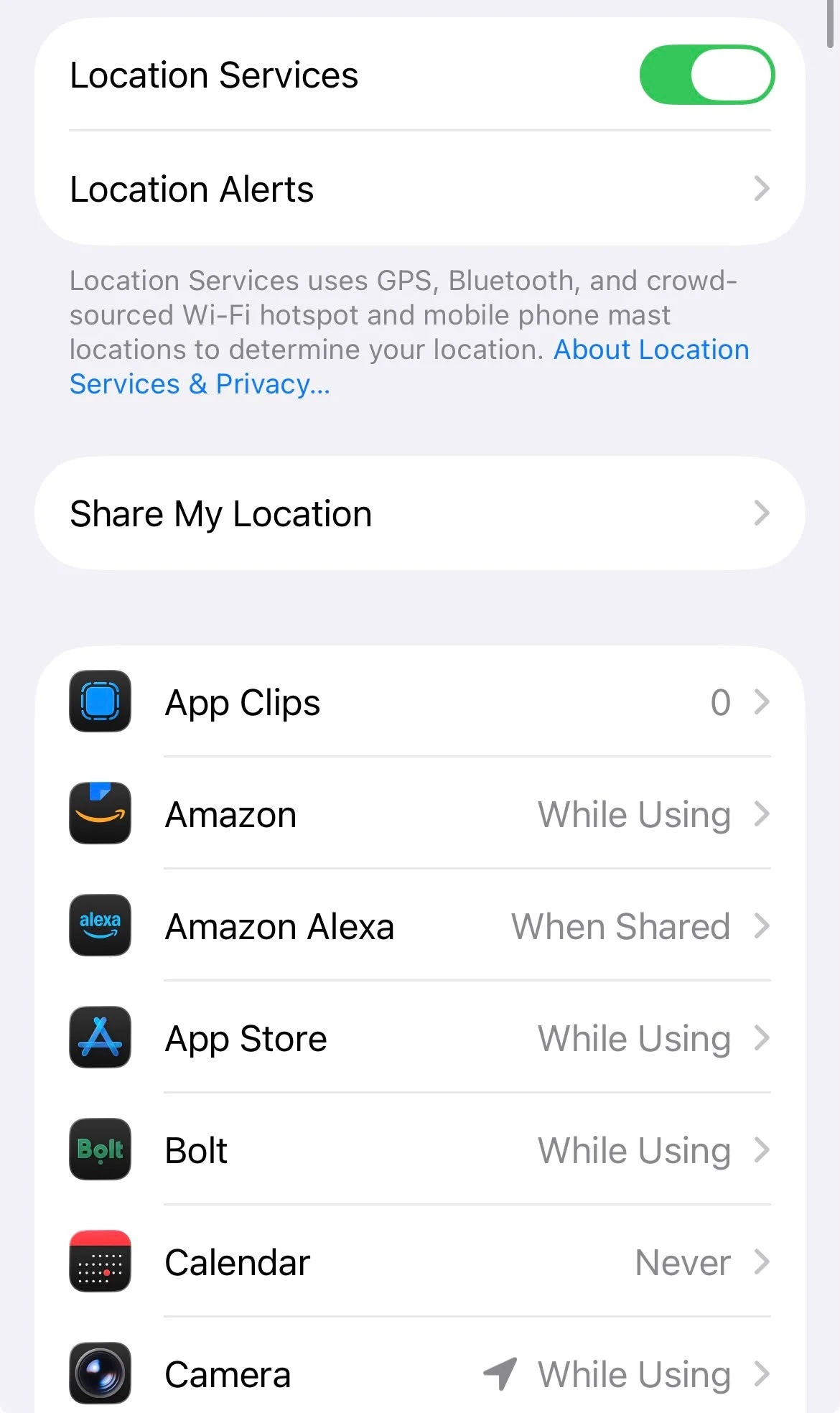
A surprising number of apps ask for access to your location, even when they do not necessarily need your exact whereabouts.
Go to Settings > Privacy & Security > Location Services and check which apps have access.
For apps that do not need your precise location, you can turn off Precise Location so they receive only an approximate location instead.
Apple says you can review and change location permissions for individual apps from this menu.
6. Make your iPhone remember your camera settings
This is one of those tiny changes that can make taking photos much less annoying.
Go to Settings > Camera > Preserve Settings.
From here, you can tell your iPhone to remember things such as the Camera Mode, Photographic Style and other camera settings instead of resetting them when you reopen the Camera app.
That means if you prefer shooting in a particular mode, you can stop the iPhone from constantly putting you back where you started.
7. Check your camera resolution
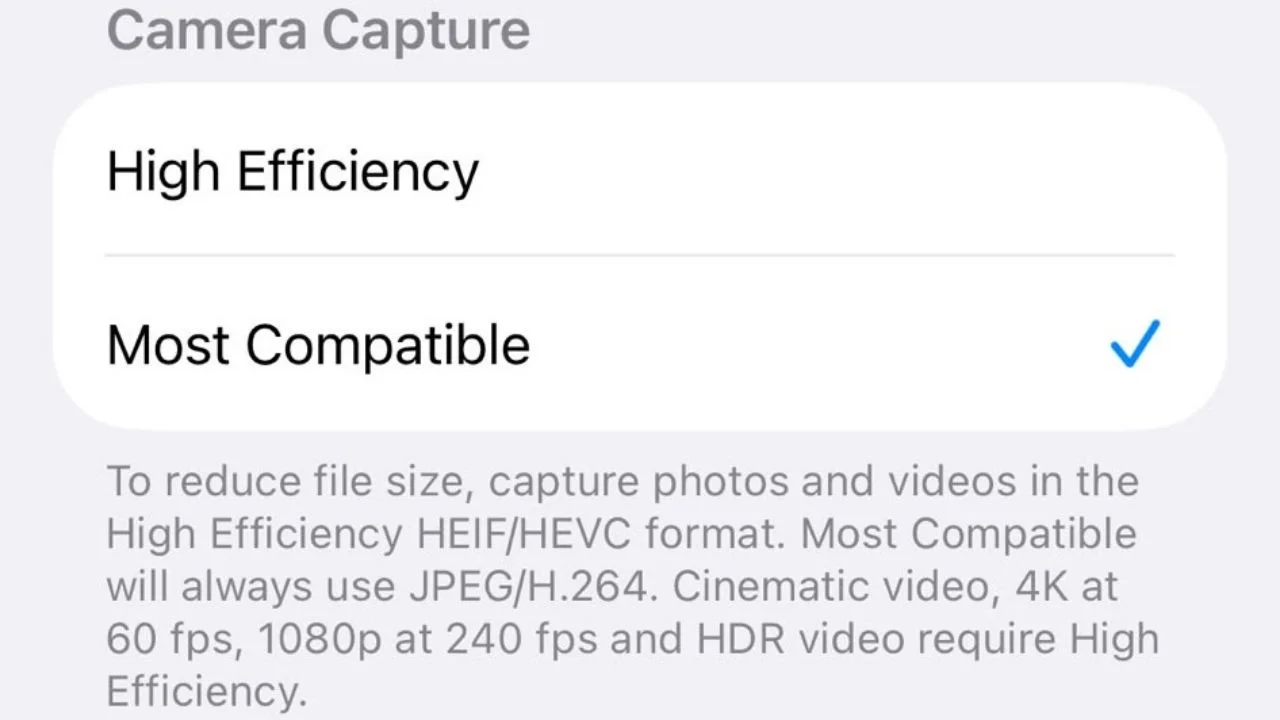
If you have a newer iPhone, there are also camera settings that can change the resolution of your photos.
On supported models, go to Settings > Camera > Formats > Photo Mode and choose between 12 MP and 24 MP.
Apple also allows supported iPhones to capture photos at 48 MP through Resolution Control or ProRAW & Resolution Control.
The best option depends on what you are using the camera for, but it is worth checking rather than blindly sticking with the default.
8. Make the Action button actually useful
If you have an iPhone with an Action button, don’t feel like you have to leave it doing whatever Apple selected by default.
Go to Settings > Action Button and choose what happens when you press and hold it.
Depending on your iPhone, you can assign functions such as the camera, flashlight, Focus, a control, an accessibility feature or a Shortcut.
The Shortcut option is particularly useful because it can turn the button into a quick launch for all sorts of actions.
9. Turn on Back Tap
This might be one of the most underrated iPhone features.
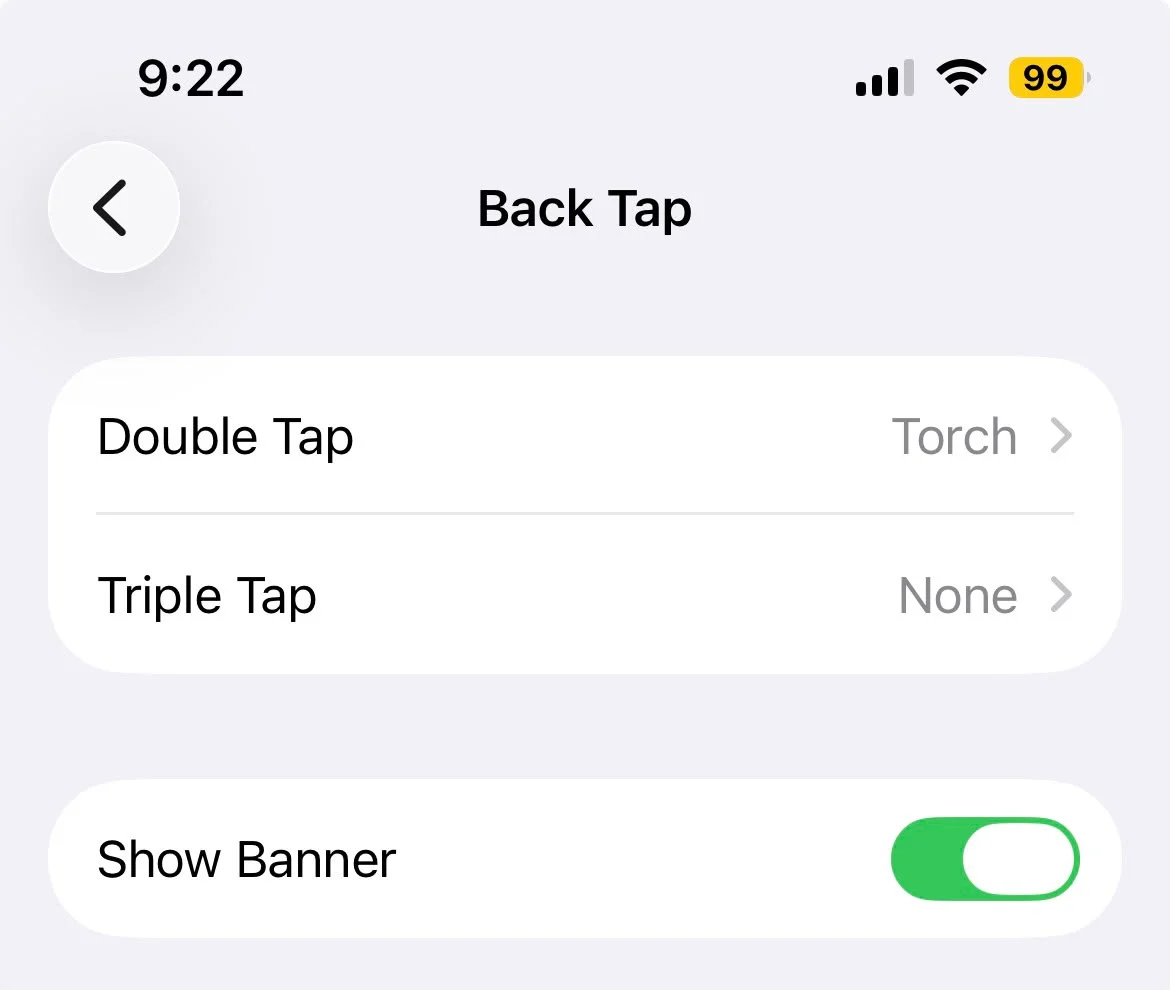
Go to Settings > Accessibility > Touch > Back Tap.
You can assign an action to a double or triple tap on the back of your iPhone. That could be taking a screenshot, activating an accessibility feature or running a Shortcut.
It sounds slightly ridiculous until you actually use it – and then suddenly tapping the back of your phone to trigger an action feels completely normal, I double tap the back of my iPhone to turn on the flashlight.
10. Create your own keyboard shortcuts
If you repeatedly type the same phrases, addresses or email addresses, let your iPhone do the work.
Go to Settings > General > Keyboard > Text Replacement and tap the plus button.
You can create a short shortcut that automatically expands into a longer phrase like Apple gives “omw” becoming “On my way!” as an example.
You could use the same idea for an email address, frequently used message or any other phrase you find yourself typing over and over.
11. Change your default apps
If you prefer Chrome to Safari or another supported app for certain tasks, you don’t necessarily have to live with Apple’s defaults.
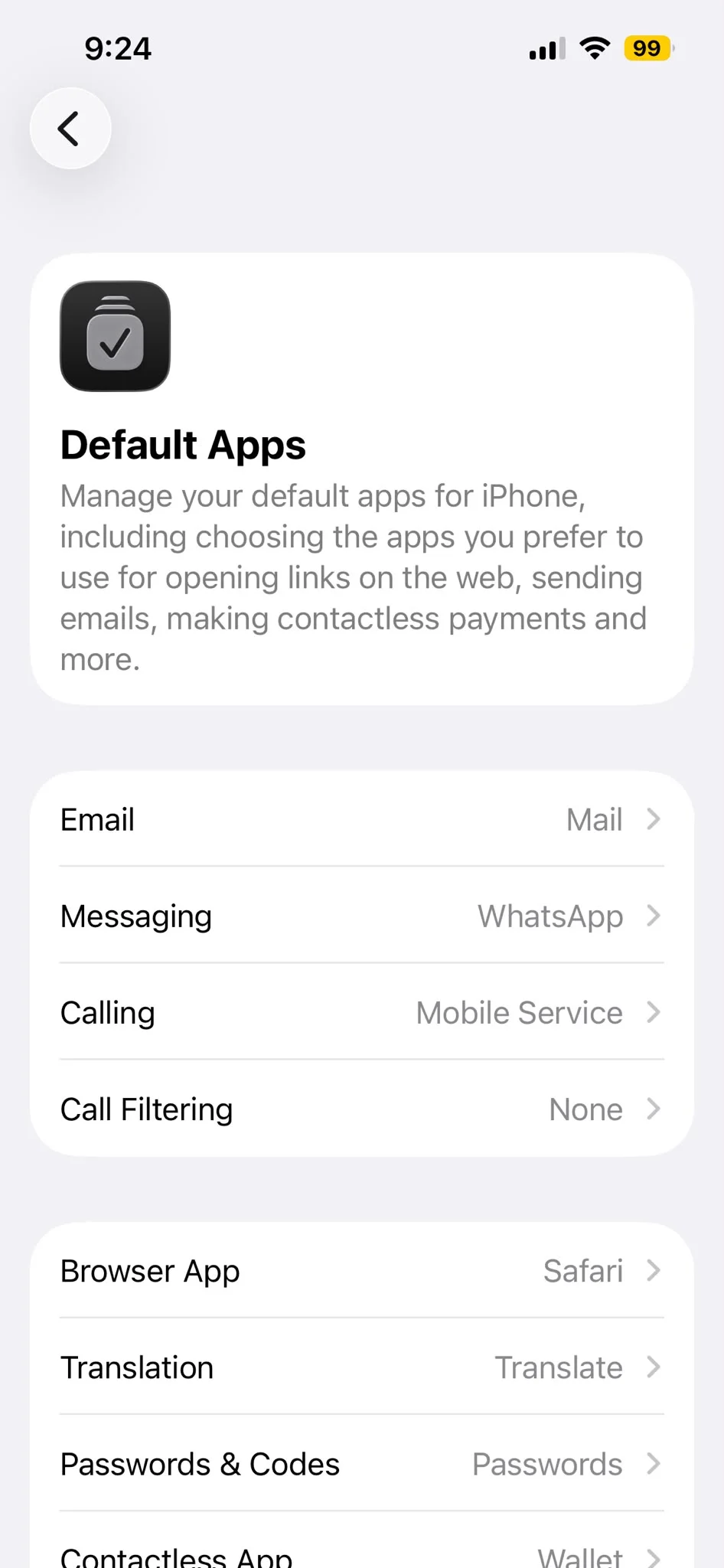
Go to Settings > Apps > Default Apps.
Apple allows you to change the default app for supported features, including web browsing and email, although exactly which options are available can depend on your region and the apps installed on your iPhone.
So if Safari has never been your thing, this is worth checking.
12. Keep your iPhone automatically updated
This one is less exciting, but probably more important than most of the others.
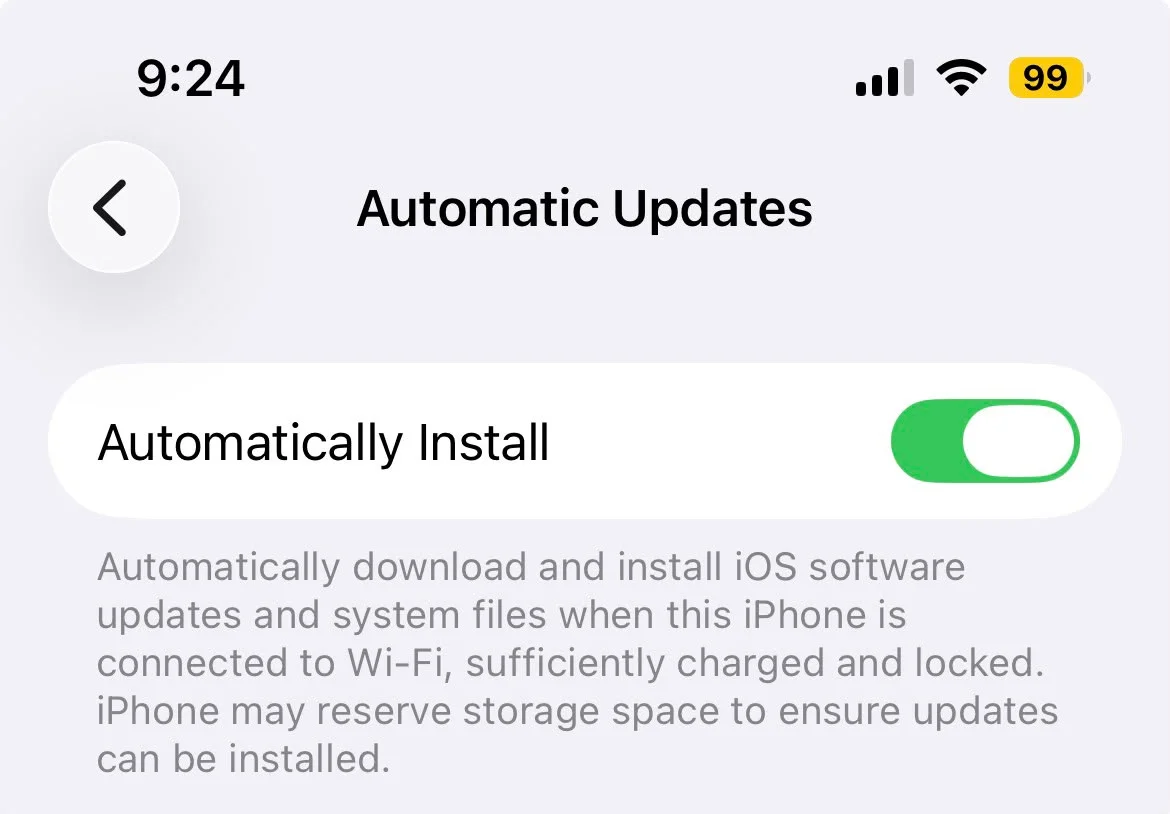
Go to Settings > General > Software Update > Automatic Updates and make sure automatic updates are enabled.
Apple says iPhone can download and install updates automatically while charging and connected to Wi-Fi.
That means you are less likely to miss new features, improvements and important security updates simply because you forgot to check for them.
A few minutes in the Settings app could make your iPhone considerably more useful, less distracting, and better suited to the way you actually use it.
And the best part is that most of these changes take less than a minute to make.