
Super ultrawide Niri
'%20fill-opacity='.8'%20d='M3.256%203.913a3.083%203.083%200%200%200-.003%204.397L8%2012.998l4.743-4.684a3.085%203.085%200%200%200%20.001-4.4c-.6-.593-1.4-.914-2.233-.914a3.17%203.17%200%200%200-1.91.635L8%204.087l-.601-.452A3.17%203.17%200%200%200%205.489%203c-.834%200-1.634.321-2.233.913m10.19%205.111-4.748%204.69a.996.996%200%200%201-1.397%200L2.549%209.02a4.083%204.083%200%200%201%20.004-5.82A4.17%204.17%200%200%201%205.488%202c.907%200%201.787.29%202.512.835A4.17%204.17%200%200%201%2010.51%202c1.093%200%202.146.422%202.936%201.202a4.085%204.085%200%200%201%200%205.822'%20/%3e%3c/svg%3e)
'%20stroke-opacity='.75'%20stroke-width='1.5'%20stroke-linejoin='round'/%3e%3c/svg%3e)

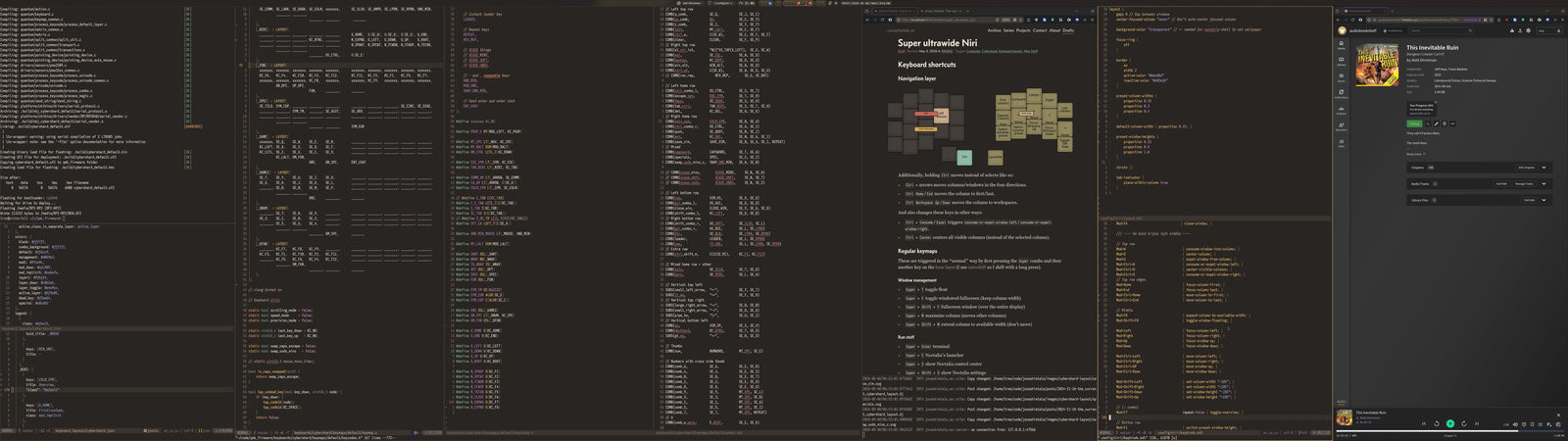
After having used practically the same xmonad configuration for a decade and a half I’ve now modernized my setup with the scrollable-tiling Wayland compositor Niri. It’s been a bit of a struggle to unlearn my old workflow but I’m really growing to love Niri’s scrollable workflow, especially on my new super ultrawide display.
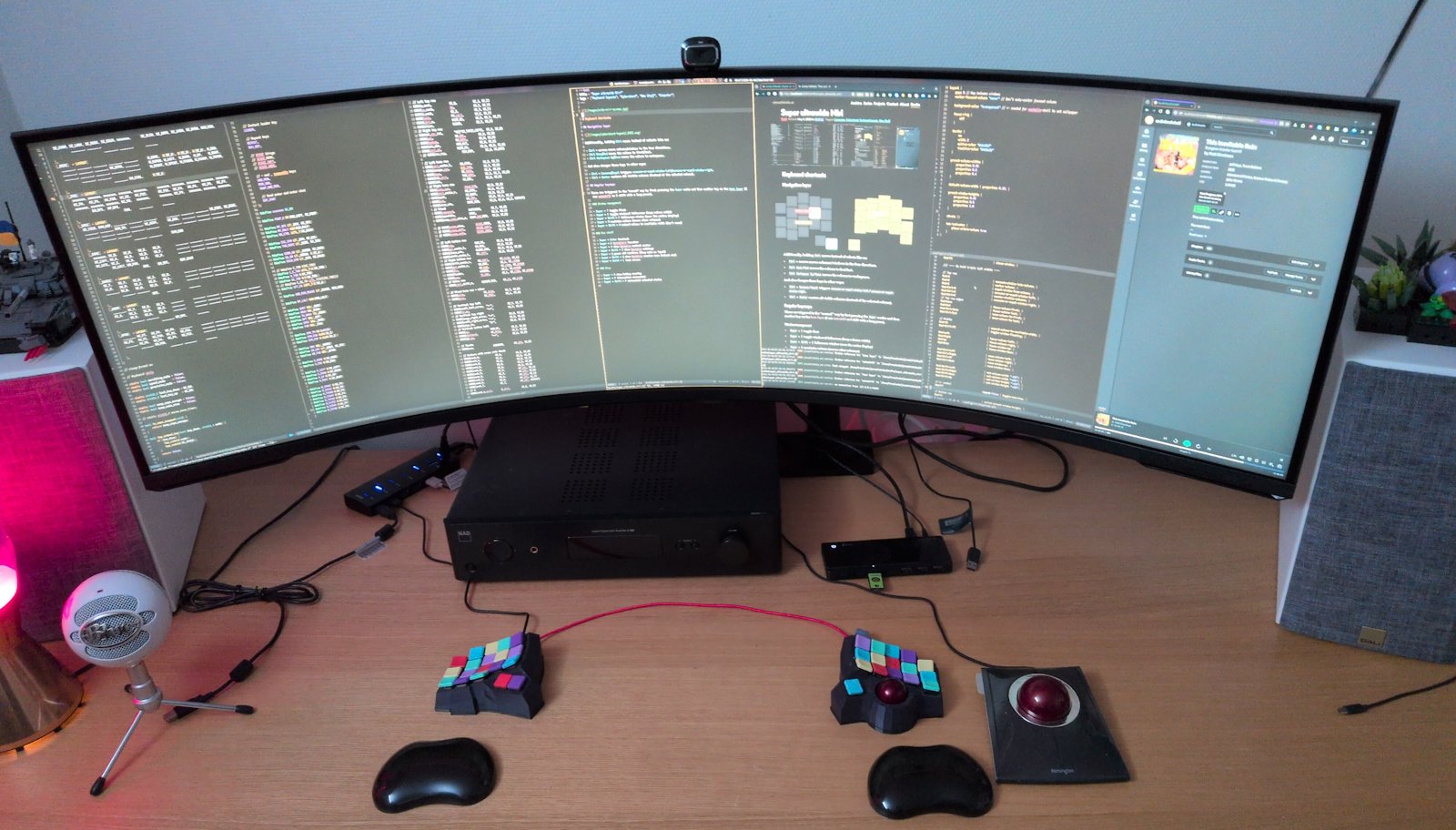
What kicked off my Niri journey was the purchase of a new super ultrawide monitor.
I bought the 57” Odyssey Neo G9 as it was the largest monitor I could find. (It’s marketed as a “gaming” display but it’s really an amazing productivity display.)
It replaced my old 3-monitor setup:
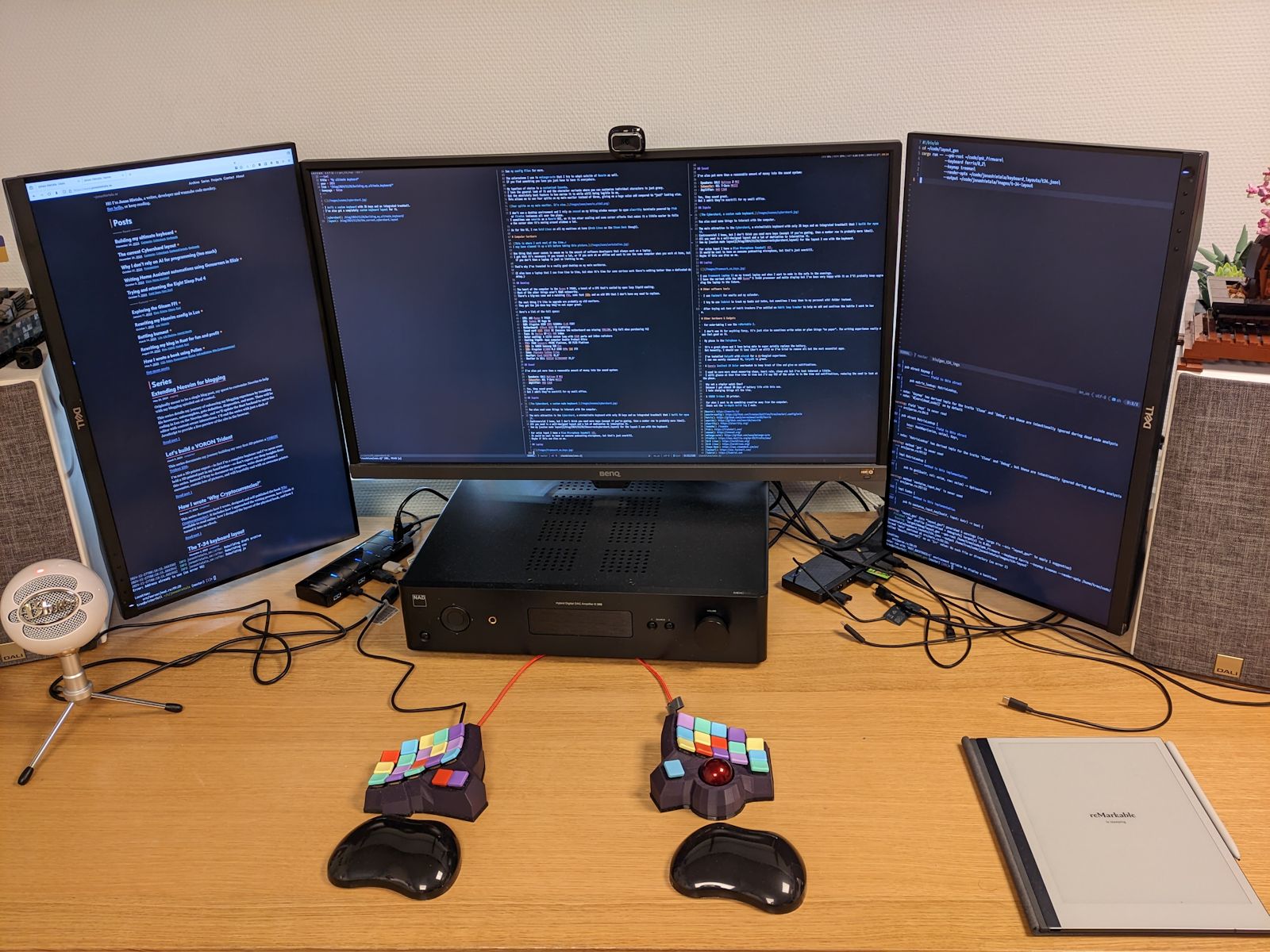
The new display is wider so I had to move the speakers around 10–15cm further apart.
I was debating whether to replace the center 31.5” monitor or replace all monitors with a single one but I think I made the right choice with the ultrawide. The curvature wasn’t an issue (I’ve come to prefer it) and the extra vertical space the portrait side monitors provided wasn’t as crucial as I thought.
I think an ultrawide is worth it just to get rid of the annoying bezels. Small things can be a big thing sometimes.
xmonad and Niri are similar yet different. Both automatically lay out windows as you spawn them but xmonad (at least the way I used it) follows a layout algorithm that re-flows using a “master” window and combines the rest of the windows into one space, while Niri lays out windows in columns.
The change is subtle but it implies that a new window won’t change the size of other windows. This is very nice if you spawn a lot of short-lived terminals or web browsers like I do and it reduces the amount of manual reshuffling I spend time on.
My xmonad workflow was more static than my Niri one. In xmonad I made heavy use of workspaces, mapping ten workspaces mentally to different programs, such as 0 Firefox and 1 terminal logs on the left monitor; 3, 4 and 5 for different Neovim instances on the center monitor; 8 as chat and 9 for music or video on the right monitor. I had no rules to enforce this; it’s an emergent behaviour that served me well for years.
With Niri it’s more dynamic. I still use workspaces but they no longer have direct shortcuts, I simply go up/down in the workspace list. Maybe I’ll add them in the future but with 3–4 workspaces that’s not as necessary. I spawn workspaces/windows when I need them and remove them when I’m done.
Usually it’s one workspace per project (yes, I’m now one of those who have multiple up at once) with all the related things such as editor, terminals, and browser with docs. I don’t typically utilize the full screen width and I try to keep the things I’m working on in the center, often leaving 10–30% gaps on the sides. Even though I don’t normally use the “endless scrolling” feature of Niri I re-center selected windows all the time so I can look straight ahead as much as possible.
As a fan of keyboard layouts of course I have to spend some time tinkering with good keyboard shortcuts (especially as Niri’s recommended keybinds don’t map well with my custom keyboard or custom layout).

What I did was add a new navigation layer that’s enabled by holding Tab (ring + middle + index on the left-hand side) with all Niri related movement and layout keybinds.
In the graphics above, all green-colored keys emit Gui (which gates all window manager commands) and you can see:
- Long press on
Close Windowto close a window. The long press requirement prevents accidentally closing windows. - Arrows move through columns/windows. Long press resizes them.
-
WorkspaceUp/Downfocuses a different workspace. -
Centera column. -
Consume/Expelto combine windows into one column. (consume-or-expel-window-left/consume-or-expel-window-right) -
Expand Columnmakes a column take up all remaining space. (expand-column-to-available-width) - Audio controls. To press them I release the index finger (keeping the ring and middle finger pressed to keep the layer active) and use the index to press the audio buttons.
- Mouse buttons. In Niri you can move floating windows with
Gui+Left MouseandGui+Right Mouseto resize them. As my main mouse is a trackball integrated into the keyboard I had to add them to the left-hand side. I ended up using QMK’s customizable key repress feature that allows me to:- Press the
Tabcombo with my three fingers (layer is active) - Release only the index (layer is still active, same as with the audio controls)
- Press the index again (now detects the press
Gui+Left Mousekey down) - Use the trackball to move the window
- Press the
Because there are so many commands I want to send I placed Ctrl on the thumb that provides movement-related commands like so:

For example:
- Arrows move columns/windows in the four directions.
- Move columns to the neighboring workspaces.
- Center visible columns. (
center-visible-columns) - Slightly different consume/expel semantics. (
consume-window-into-column/expel-window-from-column)
These are triggered in the “normal” way by first pressing the Super combo and then another key on the base layer (I use autoshift so I shift with a long press).
-
Super+Ftoggle windowed fullscreen (keep column width) -
Super+Shift+Ffullscreen window (over the entire display) -
Super+Mmaximize column (moves other columns)
-
Super+Enterterminal -
Super+ENoctalia’s launcher (also exists on the asLaunch) -
Super+Sshow Noctalia control center -
Super+Shift+Sshow Noctalia settings -
Super+Qpower off monitors (they wake on input) -
Super+Shift+Qshow Noctalia session menu (reboot etc) -
Super+Shift+Llock screen
-
Super+Hshow hotkey overlay -
Super+Pinteractive screenshot -
Super+Shift+Pscreenshot selected window
In the process of moving from xmonad to Niri I also moved from Void Linux to CachyOS and I let the installer install Niri and give me a basic configuration together with Noctalia (that provides a statusbar, notifications, and a bunch of things you apparently need).
Feels absolutely required on this screen otherwise things end up in the corners.
Force Firefox onto XWayland as the Wayland popup manager is broken:
environment {
  MOZ_ENABLE_WAYLAND "0"
}
For some reason dead keys were broken in Ghostty. This is bad for me as the OS keyboard is set to Swedish and it uses them to type ~ (quite a crucial character for a programmer).
The fix:
environment {
  GTK_IM_MODULE "ibus"
  QT_IM_MODULE "ibus"
  XMODIFIERS "@im=ibus"
}
This needs ibus installed and running.
Noctalia discovers custom color schemes under ~/.config/noctalia/colorschemes//.json, so I dropped in my trusty Melange colorscheme there:
{
  "dark": {
    "mPrimary": "#EBC06D",
    "mOnPrimary": "#292522",
    "mSecondary": "#A3A9CE",
    "mOnSecondary": "#292522",
    "mTertiary": "#85B695",
    "mOnTertiary": "#292522",
    "mError": "#D47766",
    "mOnError": "#292522",
    "mSurface": "#292522",
    "mOnSurface": "#ECE1D7",
    "mSurfaceVariant": "#34302C",
    "mOnSurfaceVariant": "#C1A78E",
    "mOutline": "#867462",
    "mShadow": "#1a1816",
    "mHover": "#E49B5D",
    "mOnHover": "#292522",
    "terminal": {
      "normal": {
        "black": "#867462",
        "red": "#D47766",
        "green": "#85B695",
        "yellow": "#EBC06D",
        "blue": "#A3A9CE",
        "magenta": "#CF9BC2",
        "cyan": "#89B3B6",
        "white": "#ECE1D7"
      },
      "bright": {
        "black": "#34302C",
        "red": "#BD8183",
        "green": "#78997A",
        "yellow": "#E49B5D",
        "blue": "#7F91B2",
        "magenta": "#B380B0",
        "cyan": "#7B9695",
        "white": "#C1A78E"
      },
      "foreground": "#ECE1D7",
      "background": "#292522",
      "selectionFg": "#C1A78E",
      "selectionBg": "#403A36",
      "cursorText": "#292522",
      "cursor": "#EBC06D"
    }
  }
}
Then pick the colorscheme:
"colorSchemes": {
    "darkMode": true,
    "predefinedScheme": "Melange",
    "useWallpaperColors": false
}
The default appearance was pretty I admit but way too much blank space and weirdness. Some tweaks:
layout {
    // Required for noctalia-shell to set wallpaper
    background-color "transparent"

    // Never auto-center focused columns (too much movement)
    center-focused-column "never"
    // But do center a single window
    always-center-single-column

    // No extra space around it all
    struts {}
    // No gaps between windows
    gaps 0
    // The focus ring was annoying
    focus-ring {
        off
    }
    // Use a border with consistent width for all windows instead
    border {
        on
        width 2
        active-color "#ebc06d"
        inactive-color "#403a36"
    }

    // Setting widths is important with such a large screen
    preset-column-widths {
        proportion 0.15
        proportion 0.3
        proportion 0.4
    }
    default-column-width { proportion 0.15; }

    // Heights too, why not?
    preset-window-heights {
        proportion 0.15
        proportion 0.5
        proportion 1.0
    }
}
// Prevent the mouse from opening the overview in the corners
gestures {
    hot-corners {
        off
    }
}
Niri has the always-center-single-column option, which is nice as I want to keep as much as possible in the center of the monitor when I’m working. But I very frequently use 2–3 smaller windows and with my frequent opening and closing I’d like them centered too.
Luckily, Niri has an IPC you can use to make a small program that reacts to events and does this for you. I made a small rust project using the niri-ipc crate that does this for me:
The autocenter implementation
[dependencies]
niri-ipc = "26.4.0"
use std::collections::HashMap;
use std::io;

use niri_ipc::socket::Socket;
use niri_ipc::{Action, Event, Request, Response, Window, Workspace};

#[derive(Clone, Copy, PartialEq, Eq, Hash)]
struct WindowId(u64);

#[derive(Clone, Copy, PartialEq, Eq)]
struct WorkspaceId(u64);

struct OutputName<'a>(&'a str);

struct WindowState {
    workspace: Option,
    width: f64,
}

fn main() -> io::Result<()> {
    let mut socket = Socket::connect()?;
    if !matches!(socket.send(Request::EventStream)?, Ok(Response::Handled)) {
        eprintln!("niri rejected event stream");
        std::process::exit(1);
    }

    let mut known: HashMap = HashMap::new();
    let mut read_event = socket.read_events();
    loop {
        let result = match read_event()? {
            // A full snapshot of the current state. Just refresh our state.
            Event::WindowsChanged { windows } => {
                known = windows
                    .into_iter()
                    .map(|w| {
                        (
                            WindowId(w.id),
                            WindowState {
                                workspace: w.workspace_id.map(WorkspaceId),
                                width: w.layout.tile_size.0,
                            },
                        )
                    })
                    .collect();
                Ok(())
            }
            Event::WindowOpenedOrChanged { window } => {
                let workspace = window.workspace_id.map(WorkspaceId);
                let entry = WindowState {
                    workspace,
                    width: window.layout.tile_size.0,
                };
                let prev = known.insert(WindowId(window.id), entry);
                match prev {
                    // Don't center floats.
                    _ if window.is_floating => Ok(()),
                    // New window, try to re-center.
                    None => maybe_center_new(&window),
                    // Window changed workspace, try to re-center.
                    Some(state) if state.workspace != workspace => center_focused_if_fits(),
                    // Skip other things.
                    Some(_) => Ok(()),
                }
            }
            Event::WindowClosed { id } => {
                if known.remove(&WindowId(id)).is_some() {
                    center_focused_if_fits()
                } else {
                    Ok(())
                }
            }
            Event::WindowLayoutsChanged { changes } => {
                // Only re-center if the width was changed, otherwise our re-center will
                // loop back indefinitely.
                let mut resized = false;
                for (id, layout) in changes {
                    if let Some(state) = known.get_mut(&WindowId(id)) {
                        if (state.width - layout.tile_size.0).abs() > 0.5 {
                            state.width = layout.tile_size.0;
                            resized = true;
                        }
                    }
                }
                if resized {
                    center_focused_if_fits()
                } else {
                    Ok(())
                }
            }
            _ => Ok(()),
        };

        if let Err(e) = result {
            eprintln!("autocenter: {e}");
        }
    }
}

/// Center a newly created window if the workspace is focused and if there's surrounding free space left.
fn maybe_center_new(window: &Window) -> io::Result<()> {
    let Some(workspace_id) = window.workspace_id.map(WorkspaceId) else {
        return Ok(());
    };
    let Some(focused) = focused_workspace()? else {
        return Ok(());
    };
    if WorkspaceId(focused.id) == workspace_id {
        center_if_fits(&focused)?;
    }
    Ok(())
}

/// Center windows in the focused workspace if there's surrounding free space left.
fn center_focused_if_fits() -> io::Result<()> {
    if let Some(focused) = focused_workspace()? {
        center_if_fits(&focused)?;
    }
    Ok(())
}

/// Center windows in the workspace if there's surrounding free space left.
fn center_if_fits(workspace: &Workspace) -> io::Result<()> {
    let Some(output) = workspace.output.as_deref().map(OutputName) else {
        return Ok(());
    };
    let Some(width) = output_width(output)? else {
        return Ok(());
    };
    if workspace_width(WorkspaceId(workspace.id))? < f64::from(width) {
        center_visible_columns()?;
    }
    Ok(())
}

/// Issue a one-shot query to Niri, wait, and return the response.
fn query(request: Request) -> io::Result {
    match Socket::connect()?.send(request)? {
        Ok(response) => Ok(response),
        Err(msg) => Err(io::Error::other(msg)),
    }
}

/// Get the focused workspace.
fn focused_workspace() -> io::Result> {
    match query(Request::Workspaces)? {
        Response::Workspaces(ws) => Ok(ws.into_iter().find(|w| w.is_focused)),
        _ => Ok(None),
    }
}

/// Get the width of an output (monitor).
fn output_width(name: OutputName<'_>) -> io::Result> {
    match query(Request::Outputs)? {
        Response::Outputs(outputs) => Ok(outputs
            .get(name.0)
            .and_then(|o| o.logical.as_ref())
            .map(|l| l.width)),
        _ => Ok(None),
    }
}

/// Calculates the width of all columns in the workspace.
fn workspace_width(workspace_id: WorkspaceId) -> io::Result {
    let Response::Windows(windows) = query(Request::Windows)? else {
        return Ok(0.0);
    };
    let mut columns: HashMap = HashMap::new();
    for w in windows {
        if w.workspace_id.map(WorkspaceId) != Some(workspace_id) {
            continue;
        }
        if let Some((col, _)) = w.layout.pos_in_scrolling_layout {
            let width = columns.entry(col).or_insert(0.0);
            *width = width.max(w.layout.tile_size.0);
        }
    }
    Ok(columns.values().sum())
}

/// Send a command to center the visible columns.
fn center_visible_columns() -> io::Result<()> {
    if let Err(msg) = Socket::connect()?.send(Request::Action(Action::CenterVisibleColumns {}))? {
        eprintln!("center-visible-columns rejected: {msg}");
    }
    Ok(())
}
One catch is that if a new window overflows the monitor width, the script won’t center the columns even if there would be free space left afterwards. This is a little weird but it’s consistent with Niri’s center-visible-columns command. I had a small itch to try to hack around it but in the end I left it alone…
Niri worth it?
Yes, absolutely. Niri has been a huge upgrade for me in combination with a single wide screen. My xmonad setup worked really well with three monitors—arguably a better fit in that context than Niri—but for the big-screen use-case Niri is superior.
I’m curious how it holds up on my laptop, once I gather enough energy to install CachyOS on it… But that’s a side quest. The big-screen setup I spend most of my days in is the best I’ve ever had, and I have no desire to go back.