Recording audio to an iPhone via a Tascam Portacapture X8

It is possible to use the Tascam Portacapture X8 as an ADC, input converter, and mixing board for an iPhone, but there’s a few things you’ll need to know.
Thankfully, any USB-C or USB-C-to-Lightning cable will do
You just connect one end of the USB-C cable to the Portacapture X8 (to its built-in USB port) and the other to your iPhone (USB-C or Lightning work, as suits your particular model of iPhone).
The Portacapture X8 can both record audio via USB and output it. It will automatically output it to any connected device that accepts it. As far as I can tell it uses the master track mix (there doesn’t seem to be any way to send multiple tracks simultaneously – I assume the USB audio protocol only allows a plain stereo transmission).
You must use 48kHz sampling
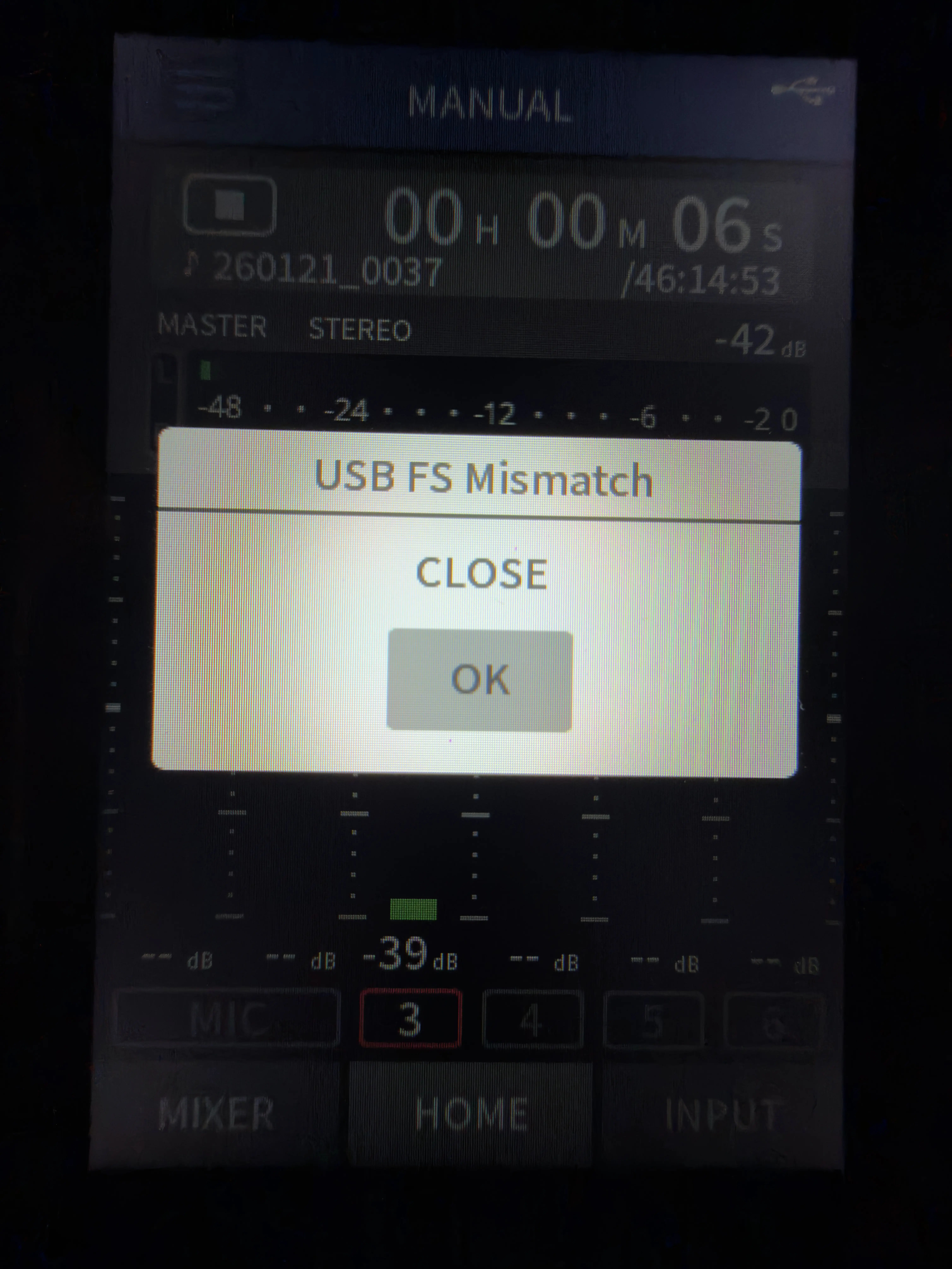
If you don’t, you’ll quickly get an error dialog on the Portacapture X8 saying “USB FS Mismatch”. That’s its daft way of trying to say that the receiving USB device won’t accept the sampling frequency it’s outputting. Why it can’t have a coherent error message, we’ll probably never know.
You can set the sampling rate in the “General Settings” app, under “Rec Settings” (along with the file format and bit depth / rate, though it doesn’t seem to matter what those are set to w.r.t. iPhone compatibility – they affect only recording to the microSD card).
You don’t have to use the iPhone to provide power
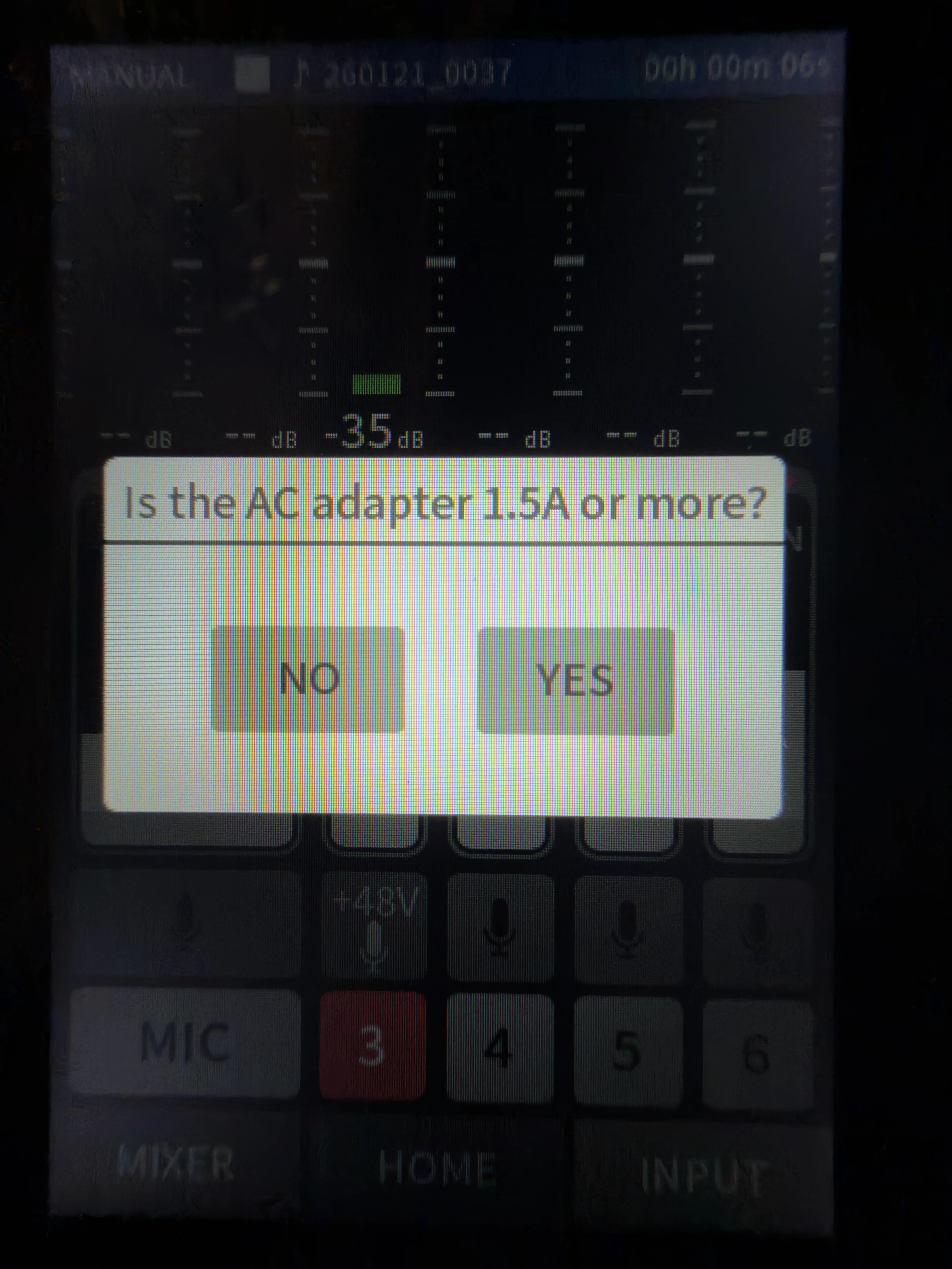
By default the Portacapture X8 will try to use the iPhone to provide power, rather than its batteries. But it doesn’t trust USB power sources – it will ask, via a dialog, “Is the AC adapter 1.5A or more?”. On USB-C iPhones you can power the Portacapture X8 over USB – by selecting “Yes” – although it will drain your iPhone’s battery. But whichever option you choose, the Portacapture X8 will then refuse to provide phantom power to your mics. If you’re not using phantom power then no worries, but if you are you must change the Portacapture’s settings – in “General Settings” app, under “Power/Display”, you must set…

 点赞
点赞 收藏
收藏 点踩
点踩 分享
分享