Unlock or recover your Mac using a special boot volume


Several years ago, Apple began hiding disk partitions and volumes on the startup drive. The first was a secret volume with a tiny operating system on it that would let you boot from it, after which you could restore from a Time Machine backup, run First Aid in Disk Utility, or reinstall Mac OS X or macOS. Over the years, Apple has multiplied those hidden locations and added more sophistication to what they offer.
These boot volumes are:
- recoveryOS: The current name and form of the special volume described above, which boots into the Recovery Assistant “app.” You can run Disk Utility (and First Aid), reinstall macOS, launch Safari to access Apple Support pages, modify startup security settings (rarely required these days), and access Terminal. With Terminal, you can reset your macOS password. If your Mac can’t start up properly, it will try to launch the Recovery process within recoveryOS, which performs automatic repairs that Apple doesn’t document. If successful, you can then restart into macOS.
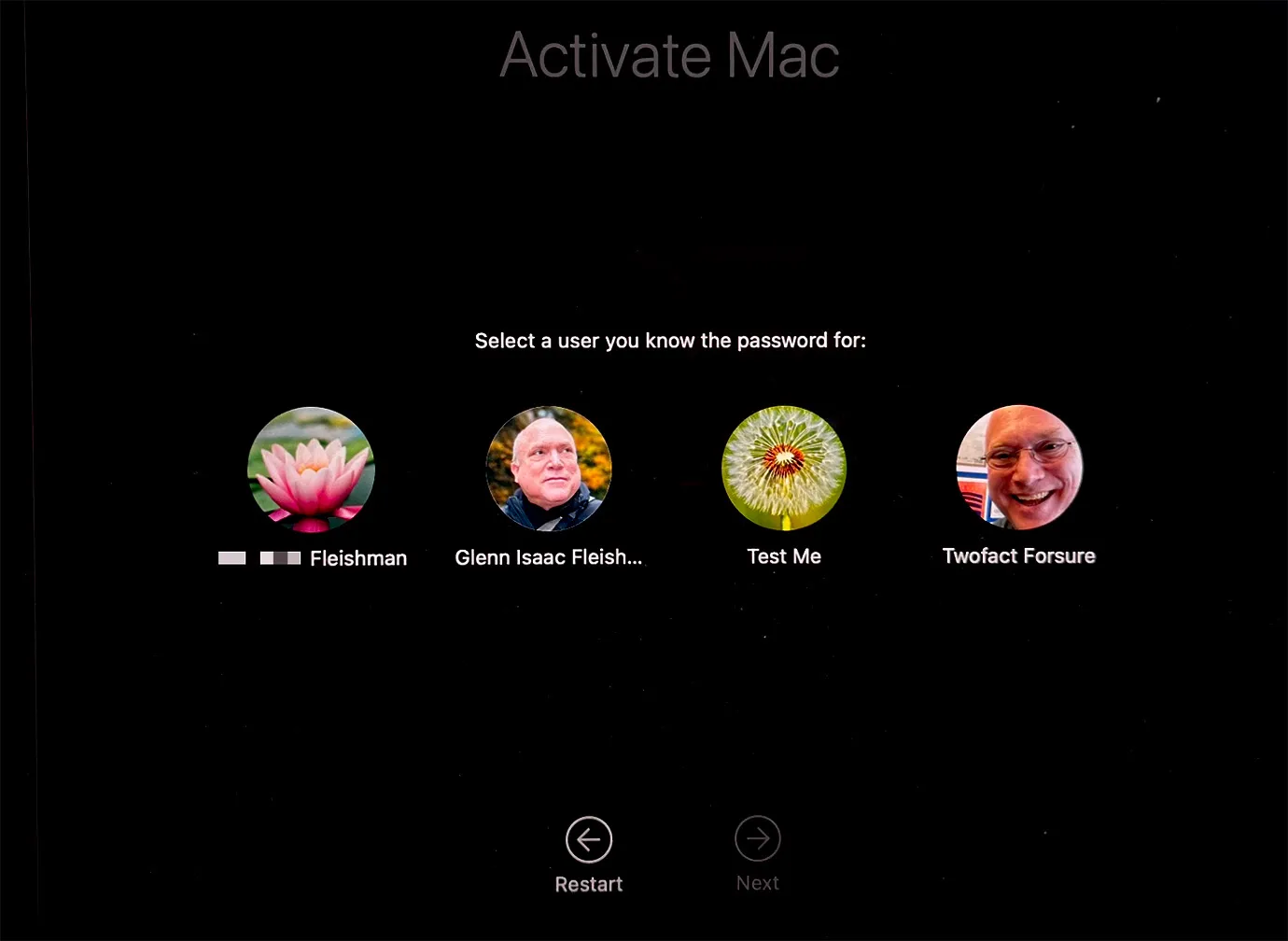
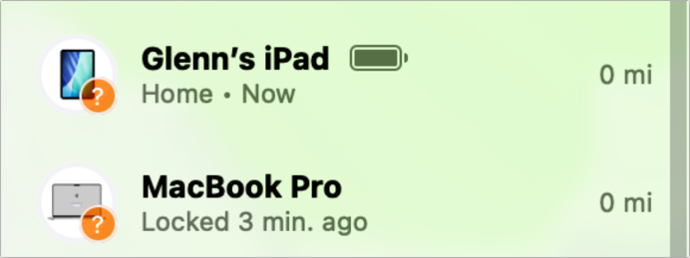
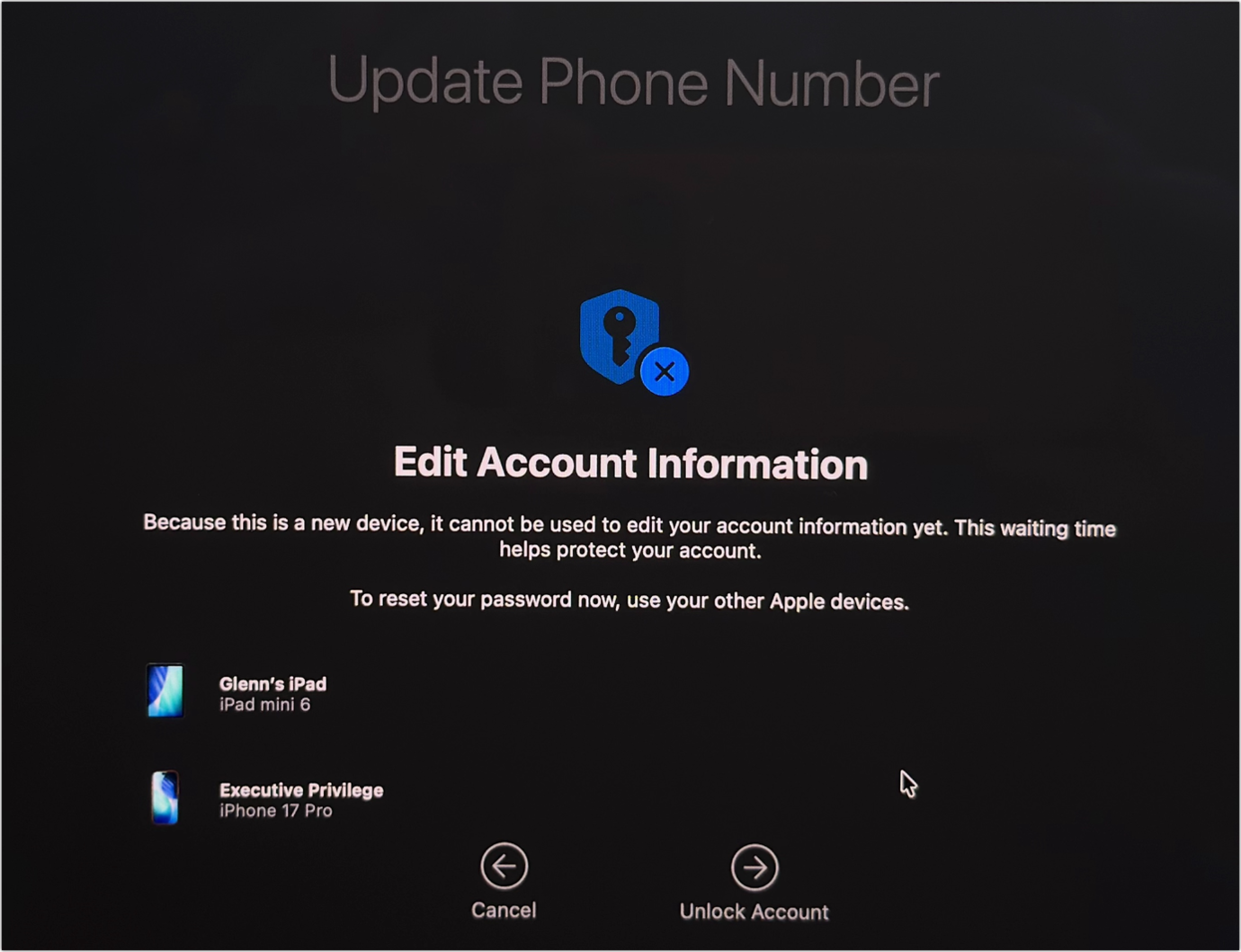
recoveryOS has many faces, including these four, here showing Activate Mac after it was unlock following a Find My lock.
- Fallback recoveryOS: If recoveryOS is damaged—and that can happen—you can press the power button twice, quickly, and then keep holding it the second time. This fallback recovery volume can’t change startup security, but it can help you diagnose what’s going on. This is the duct-tape belt that helps if your pants come unbuttoned (macOS won’t boot) and your suspenders break (regular recoveryOS fails).
- Repair Assistant: From a powered-down state, press the power button until you hear the startup chime, then press and hold Command-D. (On an Intel Mac, hold the D key at startup.) The Diagnostics app can run hardware tests that might help narrow down a problem before you bring in Apple Support, or they may ask you to boot into that mode and share the results of the tests they have you run. Repair Assistant can fail, too, if its volume is damaged. You…

 点赞
点赞 收藏
收藏 点踩
点踩 分享
分享评论
?
参与讨论