Getting Started with the Fuse Emulator for ZX Spectrum
The Sinclair ZX Spectrum was one of the best-selling home computers ever released. Its popularity and simplicity led to development of many emulators over the years.
Unfortunately, most emulators are eventually abandoned by their developers. One of the oldest ZX Spectrum emulators still under active development is Fuse - the Free Unix Spectrum Emulator. First released in 1999 by Philip Kendall, the emulator remains Unix-first, although it’s also available on macOS, Windows, Android, and a few other systems.
Fuse emulates Sinclair’s original Spectrum models, Amstrad’s successors, and even some clones like the Pentagon. It does not support the modern ZX Spectrum Next; for Next emulation options, see the SpecNext Wiki.
This little guide is a getting-started introduction that walks you through the installation and basic usage of Fuse on Windows without covering any advanced topics.
Installation
The installer can be downloaded from the official SourceForge page: sourceforge.net/projects/fuse-emulator.
By default, the emulator installs to C:\Program Files (x86)\Fuse, since it is a 32-bit build.
Note the file fuse.html in that directory. It contains the list and short descriptions of most command-line options for Fuse, as well as the menu commands and key shortcuts. You may find it handy later as you get more familiar with the emulator, but we will not need it right now.
Starting Fuse and Loading a Game
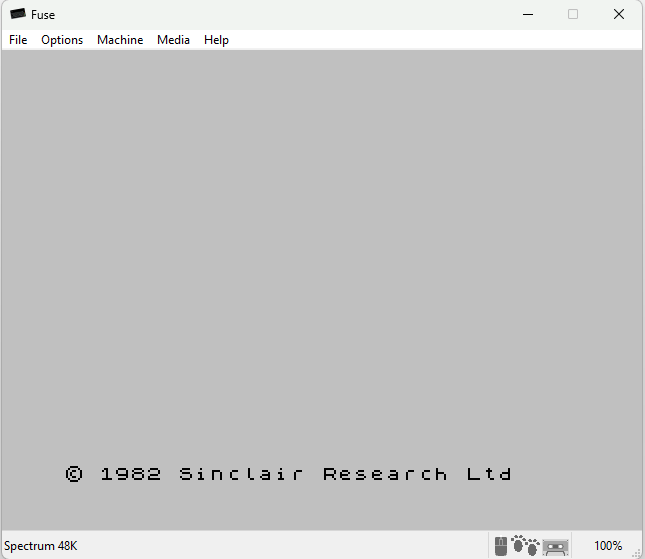
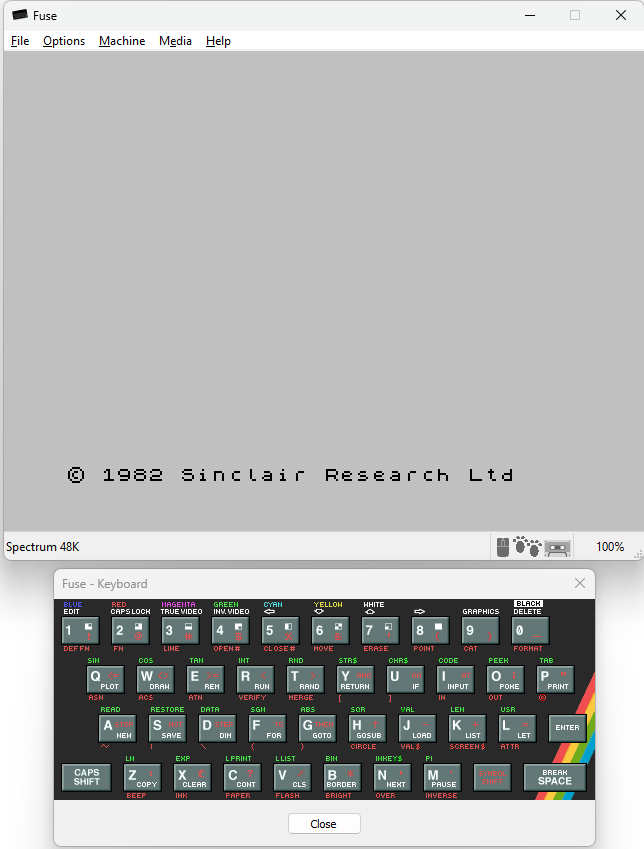
When you start Fuse for the first time, the following screen will appear:
Chances are it will actually be much smaller, so the first thing to do is resize it by dragging the bottom-right corner until it’s large enough to work with.
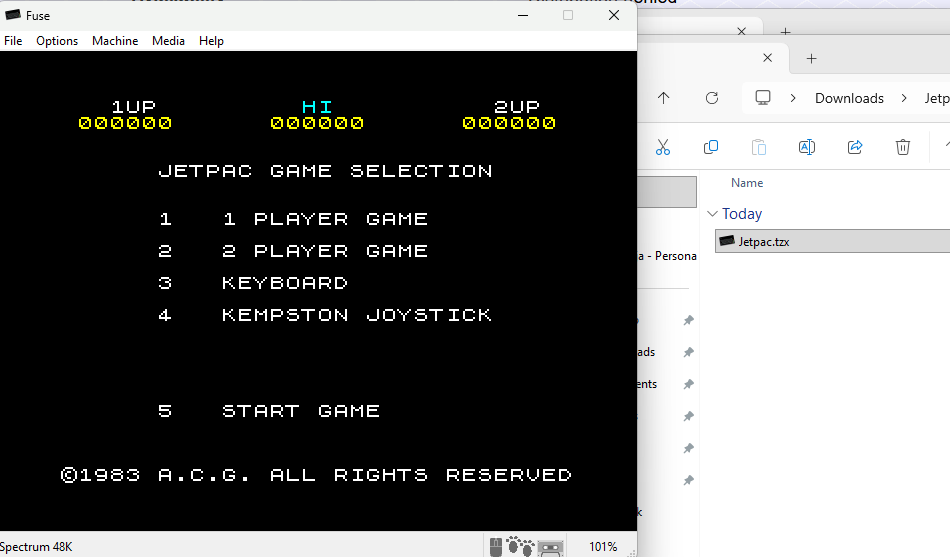
Programs for the original ZX Spectrum were distributed mostly on cassette audio tapes. Most titles are preserved in emulator file formats - the most popular one being TZX. Loading a program into Fuse is as simple as finding a tzx file and dragging it onto the emulator window.
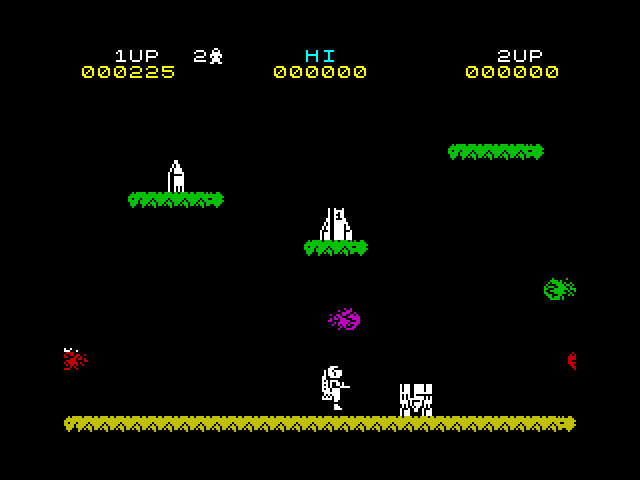
For example, here is how to load the legendary Je…

 点赞
点赞 收藏
收藏 点踩
点踩 分享
分享